Embed a DNN Text/HTML module in ACME MegaMenu
Use Menu Builder to select a published DNN Text/HTML module, place it last in a mega-panel block, and verify the public result.
Not rated yet
ACME MegaMenu can place the published content of a DNN Text/HTML module directly inside a mega panel. A visitor can inspect useful content—such as a gallery, service overview, or promotional block—without leaving the navigation. The module remains owned by its original DNN page; the menu stores a reference to that page and module.
In this guide: open Menu Builder, choose the destination block, select a DNN module, place it at the end of the block, save, and check the public menu. The Builder images below are existing ACME training captures; the final gallery image was captured from this local DNN site.
See the embedded result
On this site, open Demos and choose MegaForm Demo Gallery. The compact template gallery is the published content of a DNN Text/HTML module, displayed in the detail area of the service-style mega panel.
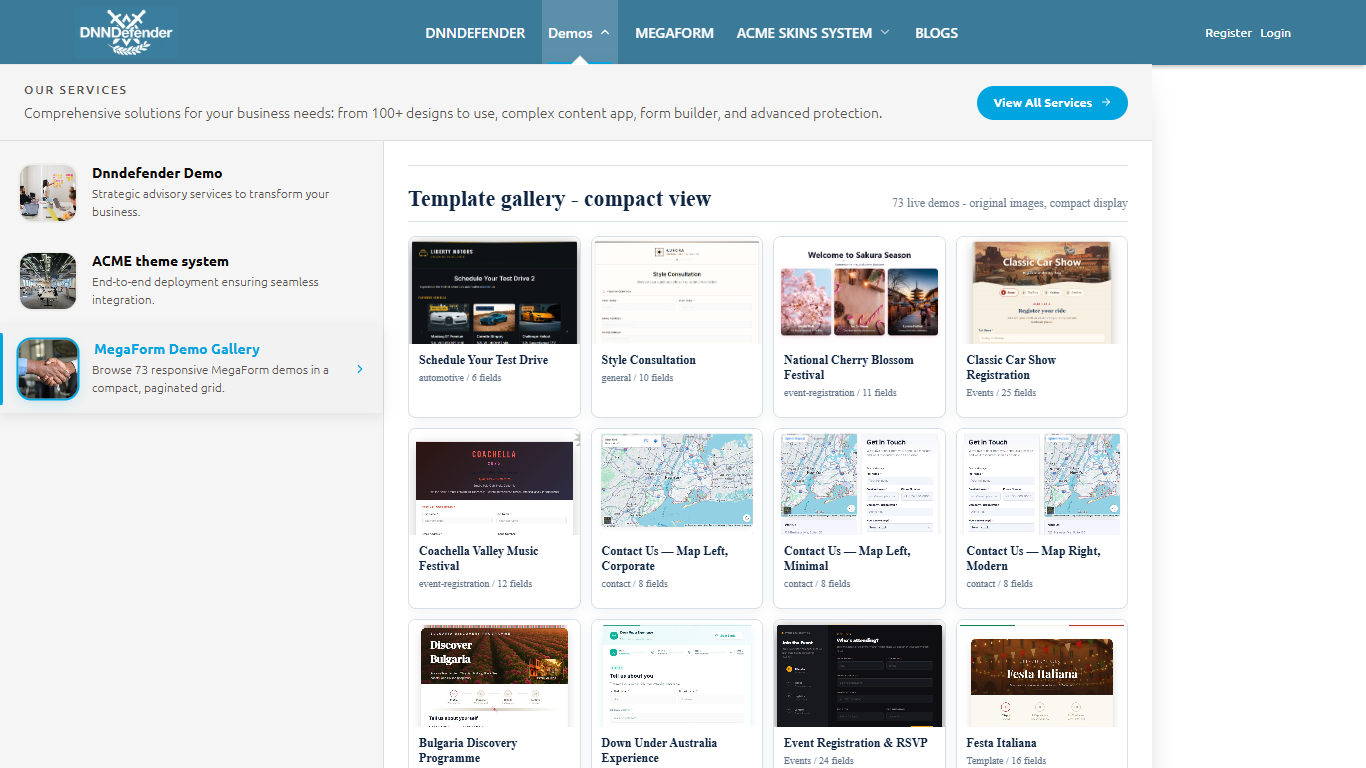 Live capture from localhost:8094: the module fills the available detail column rather than a narrow default iframe.
Prepare a module that visitors can view
- Publish a Text/HTML module on a DNN page in the same portal.
- Confirm the page and module are visible to the visitors who will open the menu. A private module cannot become public merely by embedding it.
- Give the module a descriptive title so it is easy to find in the picker.
- Open the original page while signed out and check that its images and links work.
The picker may list other DNN module types, but this embedding path renders published HtmlText content. It does not run an arbitrary DNN extension as a second live module instance inside the menu.
Open Menu Builder and choose a mega panel
- Sign in as a DNN administrator or host and click Edit menu in the site header.
- In Menu Structure, select the top-level item that will contain the module, such as Demos.
- Choose a mega-menu template with an editable content area. The example uses Service Detail Tabs.
- Open Content and select the service or content block where the module should appear.
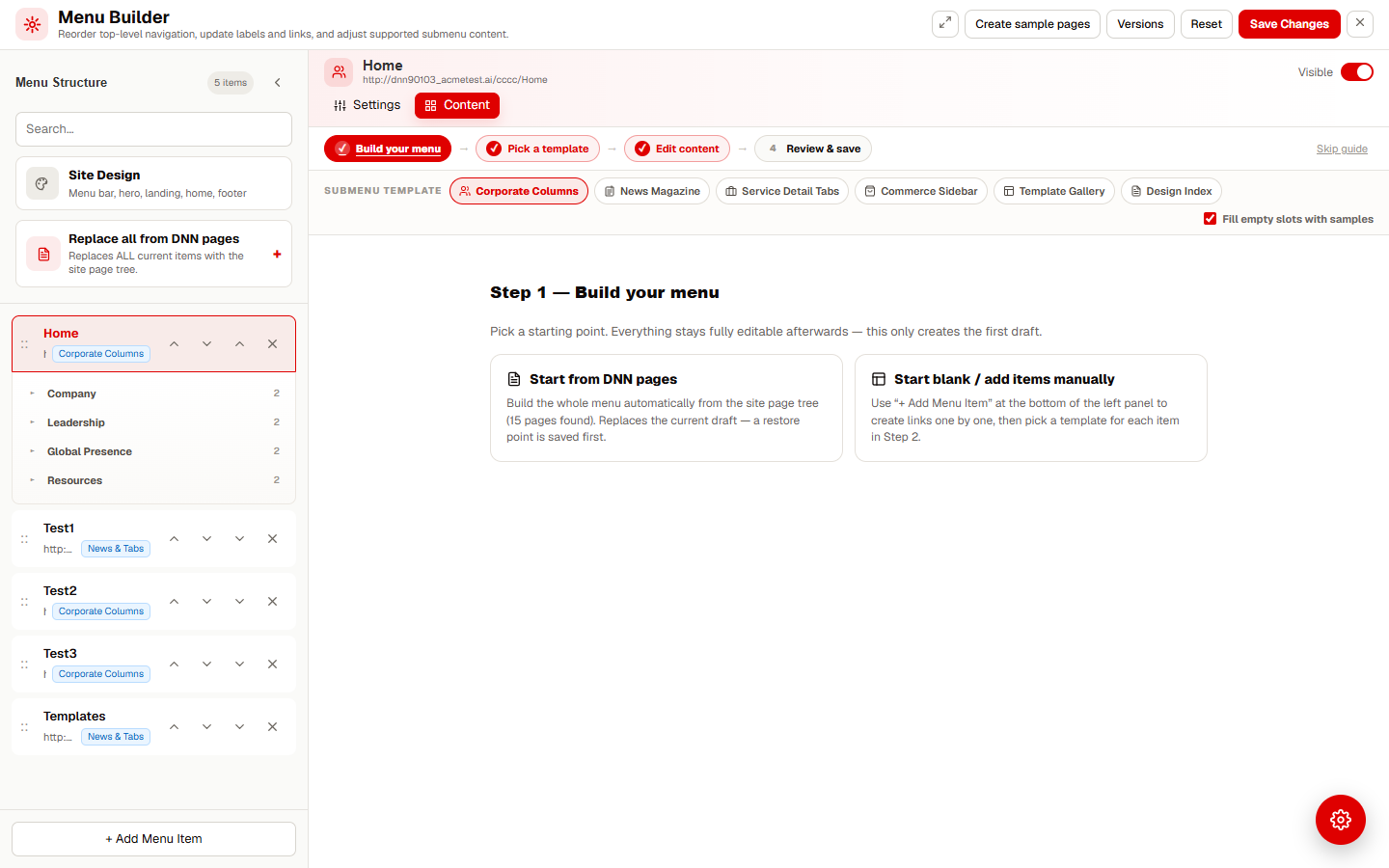 The Menu Structure rail selects the top-level item; the Content tab edits its mega-panel blocks.
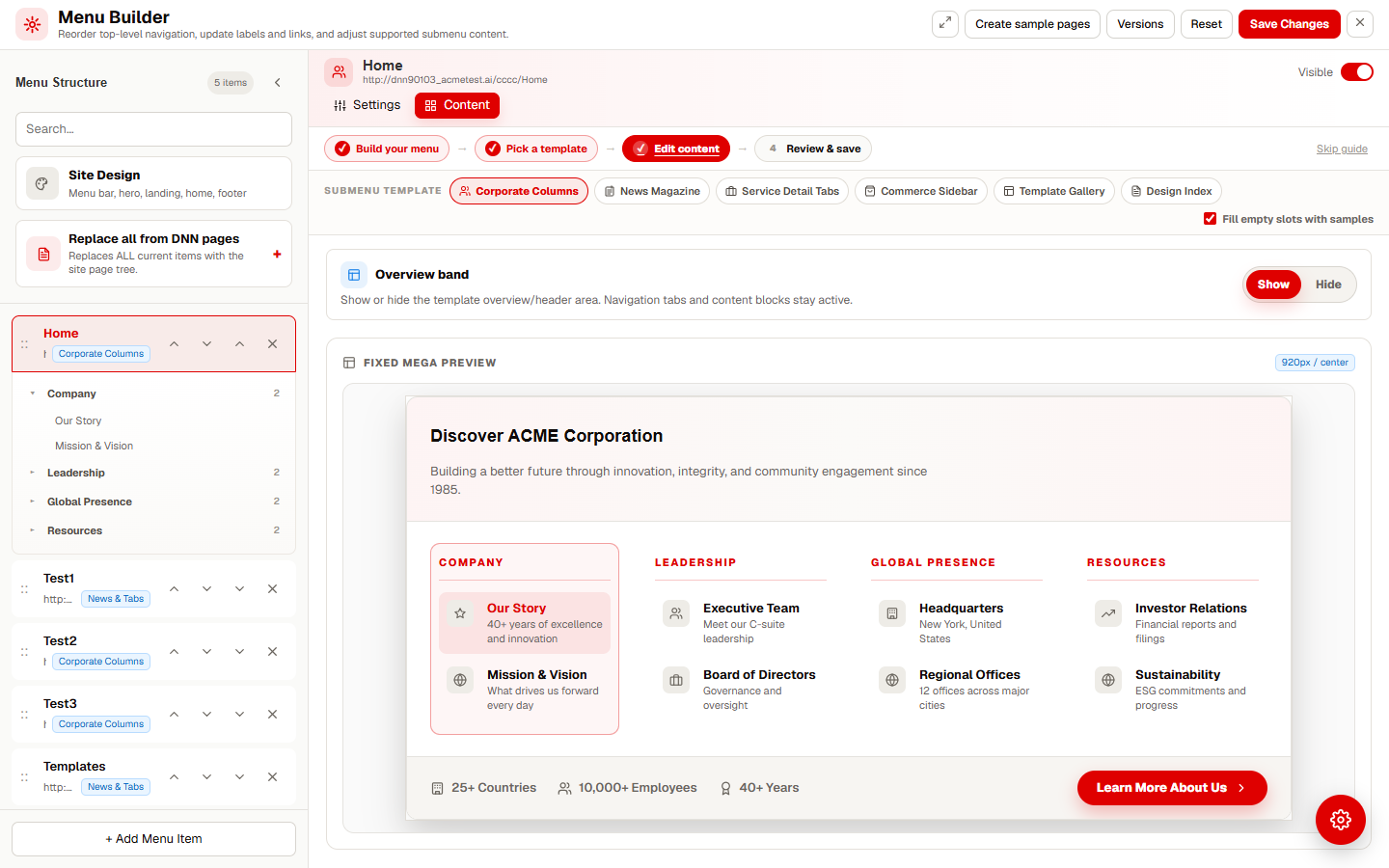 Expand the target row in the left rail, then work in its corresponding preview block.
Select a DNN module and embed it
- Hover over an Empty column or an available content block in the selected mega panel.
- Choose DNN module. The DNN Modules picker opens with a page list, module list, and preview.
- Use Search pages or modules or select the page that contains your published Text/HTML module.
- Select the module, inspect its preview and page/pane details, then click Embed selected module.
- The new entry is appended to the end of the selected block's content list. Leave it there to display last, or use the item's move-up/move-down controls to change its order.
The menu saves the selected page and module identifiers. On the public page, it fetches the current published HTML and renders it in an isolated iframe, so module styling and scripts do not spill into the site header. Update the original Text/HTML module when you need to change its content.
Save and verify the public menu
- Use Review & save to check the menu structure, then click Save Changes.
- Reload the page. Open the top-level menu and the exact service or block you edited.
- Confirm the embedded content appears in the intended final position and uses the full available panel width.
- Check the same path on a narrow screen, and test images, links, keyboard access, and any internal scrolling.
- Sign out and repeat the public check. If the preview is unavailable, verify page/module view permissions and that the source Text/HTML content is published.
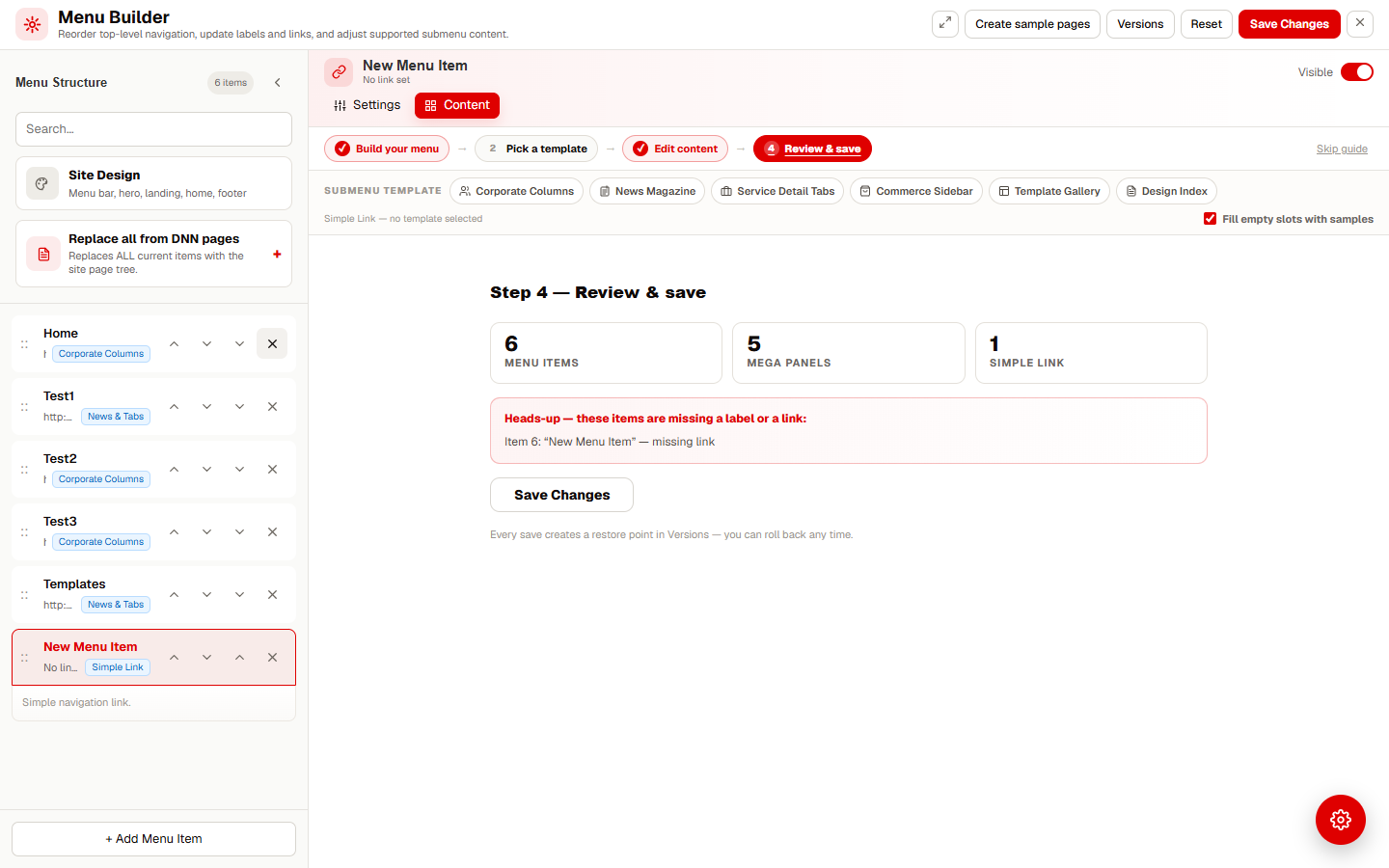 Save Changes publishes the revised navigation; selecting a module in the picker alone does not publish it.
Scope: this feature embeds the content of a permitted DNN Text/HTML module, not the module's DNN chrome, edit toolbar, or server-side extension lifecycle. Test complex interactive HTML before relying on it in navigation.
Was this page helpful?