Keep an existing DNN skin and page structure while adding CISS MegaMenu, Search, Menu Builder, and review-first AI Content with secure provider settings.
Not rated yet
The CISS MegaMenu skin object can replace a standard DNN DDRMenu skin object without replacing the rest of the theme. This guide uses the DNN 10 Aperture theme as a complete example: the original page structure, panes, modules, logo, footer, typography, and responsive content remain intact while CISS owns the desktop MegaMenu, mobile drawer, Search box, Menu Builder, and the review-first AI Content launcher.
Ready-to-test sample: install CISS SideMenu first, then install ApertureCiss_Install.zip. Apply ApertureCiss - default to one test page before assigning it portal-wide.
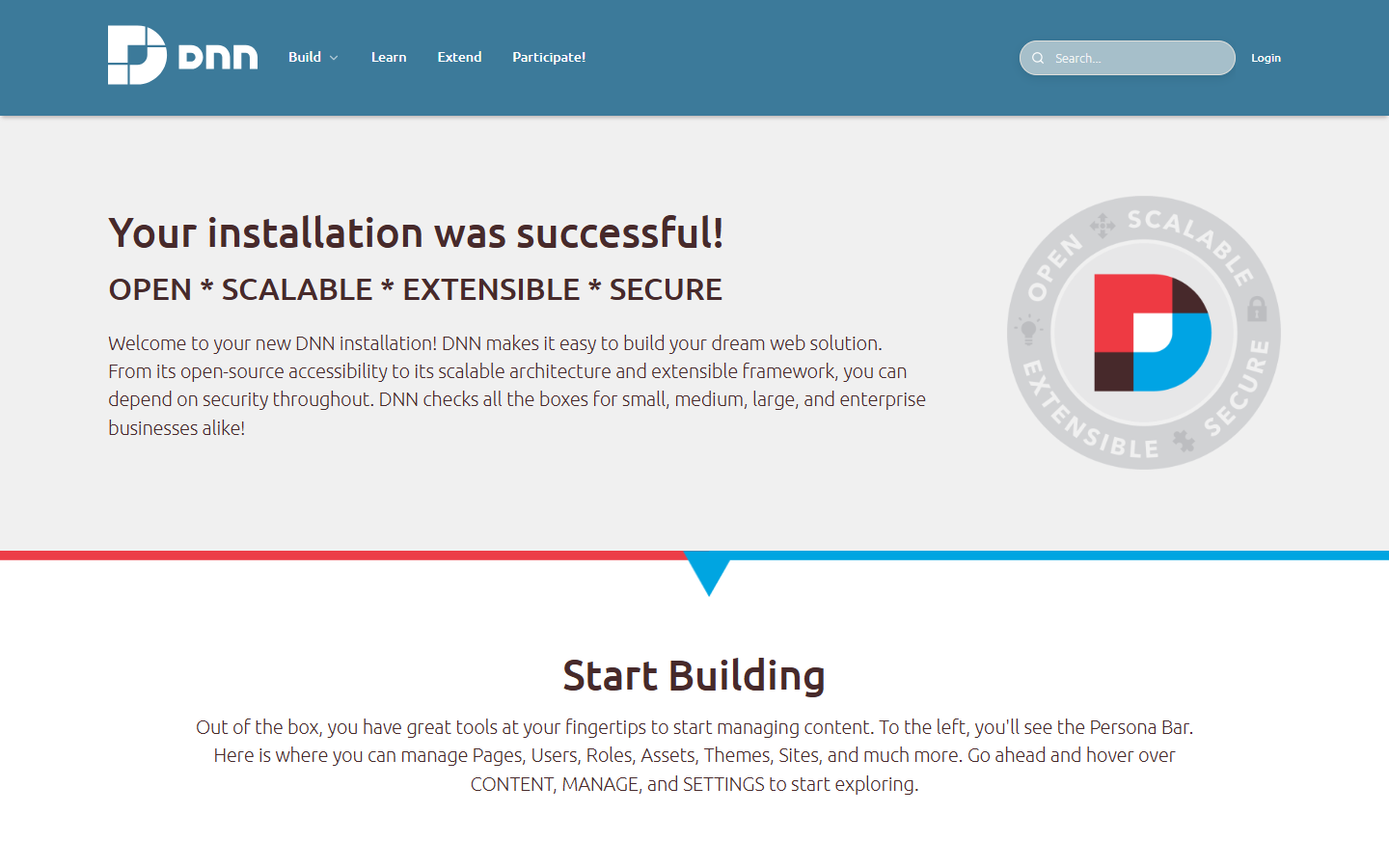 The Aperture page and its HTML modules are unchanged; only the navigation owner has changed.
When to use the CISS skin object
Use this integration when a site must keep its current DNN skin but needs the ACME navigation system. The CISS skin object is responsible for navigation rendering and administration. The surrounding skin remains responsible for page panes, module containers, header geometry, and footer markup.
| Kept from the host skin | Provided by CISS |
|---|
| Logo, page wrappers, panes, containers, footer, fonts | Standard dropdown and MegaMenu rendering |
| Existing DNN HTML and other page modules | Responsive mobile drawer |
| Theme-specific colors and spacing contracts | Menu Builder, page-link inventory, menu presets |
| DNN user/login skin tokens | Portal-aware Search and show/hide setting |
| Existing page ownership and publish workflow | AI Content review drafts and shared secure provider settings |
Install the Aperture sample
- Back up the DNN database and the
/Portals folder.
- Install the current CISS SideMenu extension.
- Install ApertureCiss_Install.zip from Settings > Extensions.
- Create or choose a test page that already uses the standard Aperture skin.
- Apply ApertureCiss - default to that page only.
- Compare the test page with the original. Pane names and module positions must remain unchanged.
Dependency: the sample skin references ~/DesktopModules/CISS.SideMenu/SideMenuSkinObject.ascx. Installing or applying it before CISS SideMenu is available will cause a skin parse error.
Replace DDRMenu in another skin
Register the CISS skin object in the skin control:
<%@ Register TagPrefix="dnn"
    TagName="DNN360MENUSK"
    Src="~/DesktopModules/CISS.SideMenu/SideMenuSkinObject.ascx" %>
Replace the standard DDR menu instance in the header with one CISS instance:
<div class="my-theme-menu-shell">
  <dnn:DNN360MENUSK runat="server"
      id="siteMegaMenu"
      style="AcmeMega" />
</div>
Load the CISS MegaMenu stylesheet and runtime supplied by the extension:
<link rel="stylesheet"
  href="/DesktopModules/CISS.SideMenu/DDRStyles/AcmeMega/AcmeMega.css" />
<script defer
  src="/DesktopModules/CISS.SideMenu/DDRStyles/AcmeMega/AcmeMega.js"></script>
Render only one AcmeMega skin object. Its runtime already creates the responsive drawer. Adding a second Drawer skin object duplicates controls and can change the header height.
If the host theme removes its top utility line, move the DNN USER, LOGIN, Host-only Edit menu, and Administrator/Host AI Content launchers into the main menu row. Do not remove these controls with the old header. Normal visitors should see only public controls.
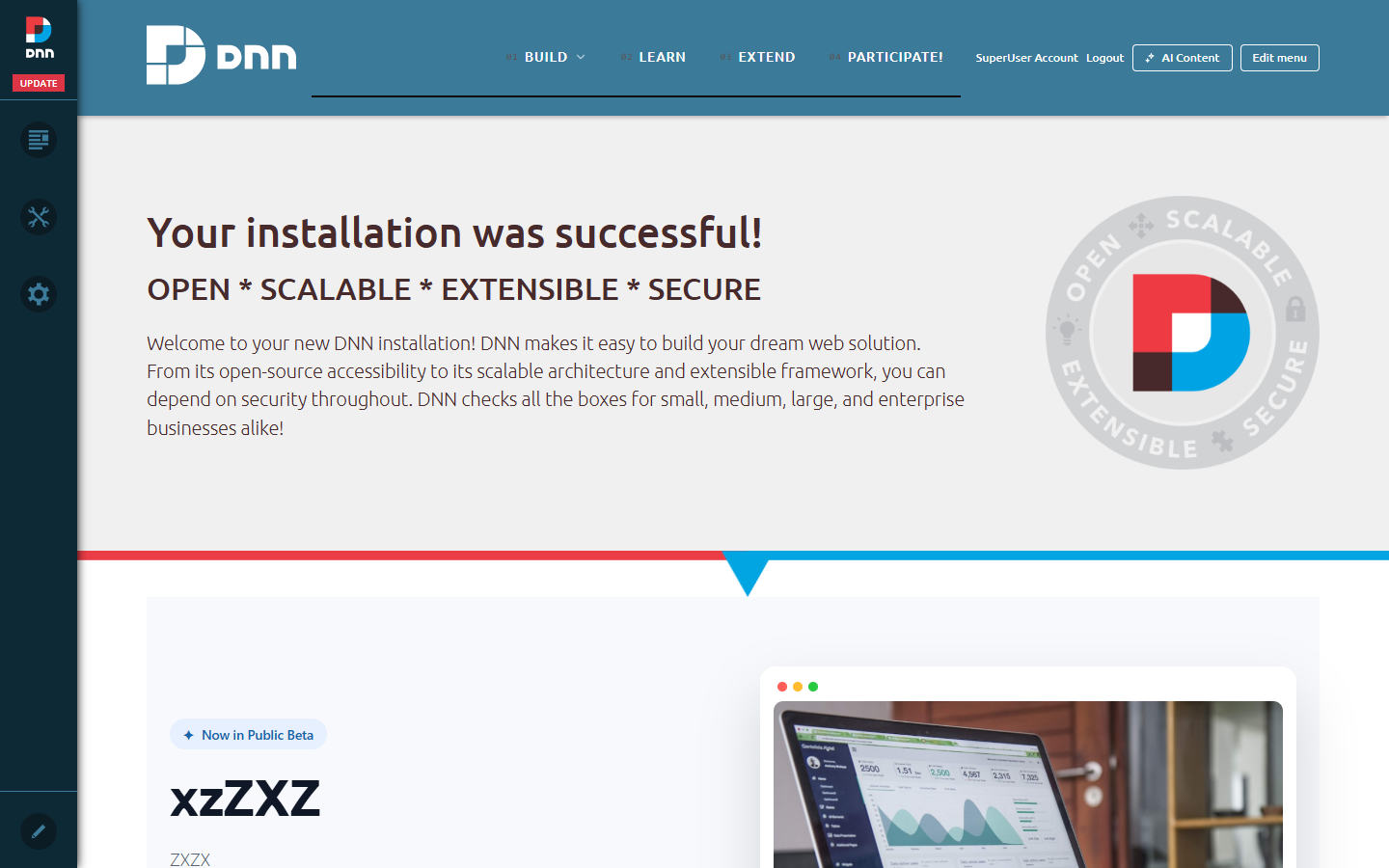 ApertureCiss keeps administration controls in the main header even when the original top utility line is removed.
Use AI Content with ApertureCiss
- Sign in as a DNN Host or a member of the Administrators role.
- Open the page that contains the content to update and click AI Content.
- Describe the target precisely, for example: Change only the heading and introductory paragraph in the Home Banner module. Preserve the facts and the current tone.
- Review every proposed field, media change, SEO update, or approved module action in the right-hand panel.
- Click Apply changes only after the draft matches the request. Publishing remains under DNN and 2sxc control.
The assistant can work with exposed 2sxc text and media fields, visible text in DNN HTML modules, supported SEO metadata, and explicitly requested approved blocks. Images uploaded through the assistant are validated, converted to WebP, and registered in the DNN file manager. It cannot invent or modify CSS, Razor, arbitrary HTML, routes, JavaScript, or skin structure.
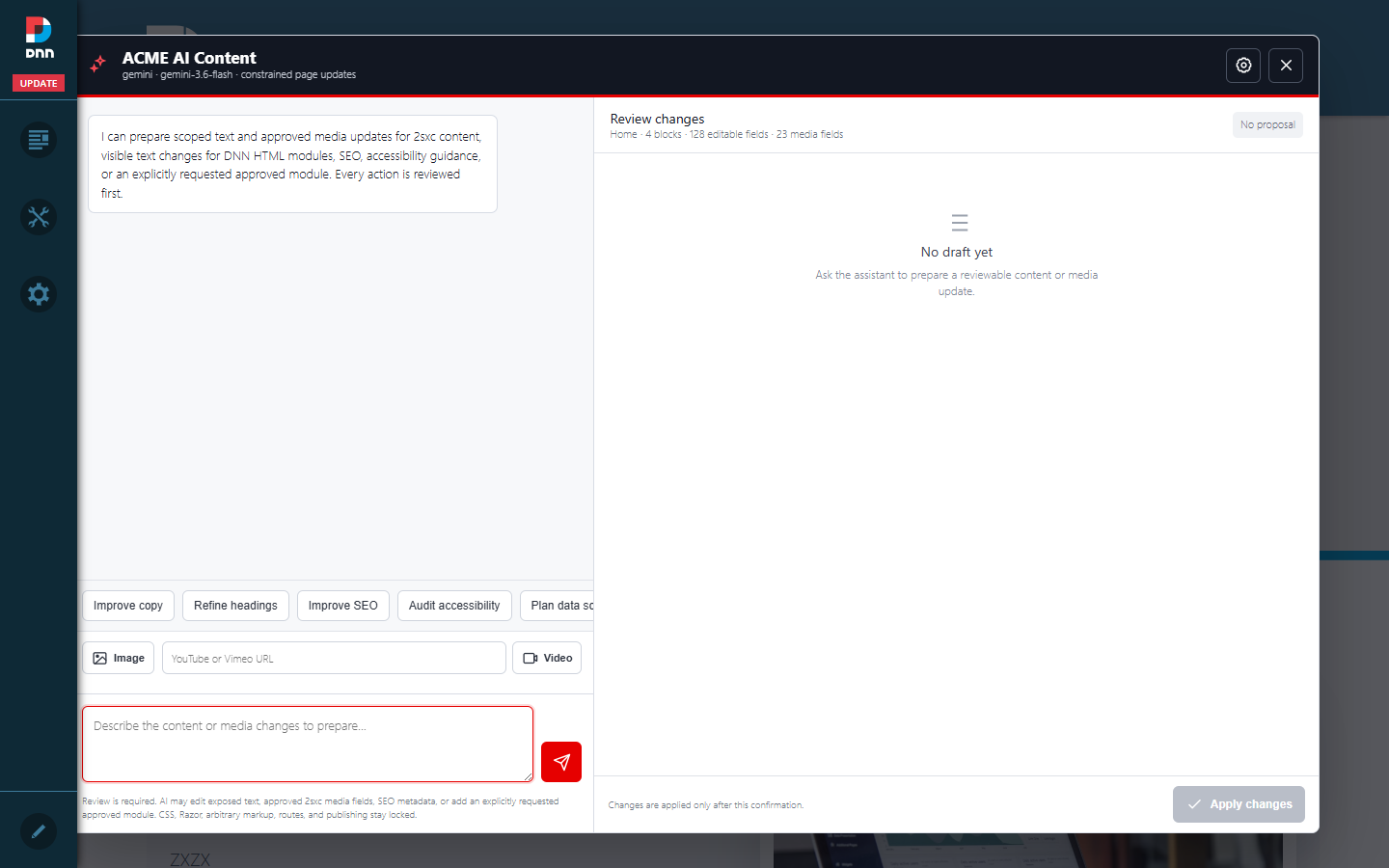 The Snapshot step identifies the current page, blocks, editable fields, and media fields before a prompt can produce a review draft.
2sxc requirement: AI Content page APIs are supplied by the current ACMEBlocks 2sxc app in each portal. If the dialog opens but cannot read the page, verify that 2sxc is installed and that the portal app contains api/ContentAssistantController.cs.
Configure the AI provider endpoint
- Open AI Content and click the settings icon in the dialog header.
- Enable ACME AI and choose a provider preset.
- Confirm the model or deployment name, Base URL, and API version required by that provider.
- Enter the API key. Leave the field blank on later edits to retain the stored key.
- Use Save & test to validate the endpoint before preparing content changes.
The same Host-level settings are shared by AI Content and the Menu Assistant. Presets support Google Gemini, OpenAI, Anthropic, Kimi, OpenRouter, Azure OpenAI, local Ollama/LM Studio, and custom OpenAI-compatible endpoints. The API key is encrypted in DNN Host Settings and is never returned to the browser after saving.
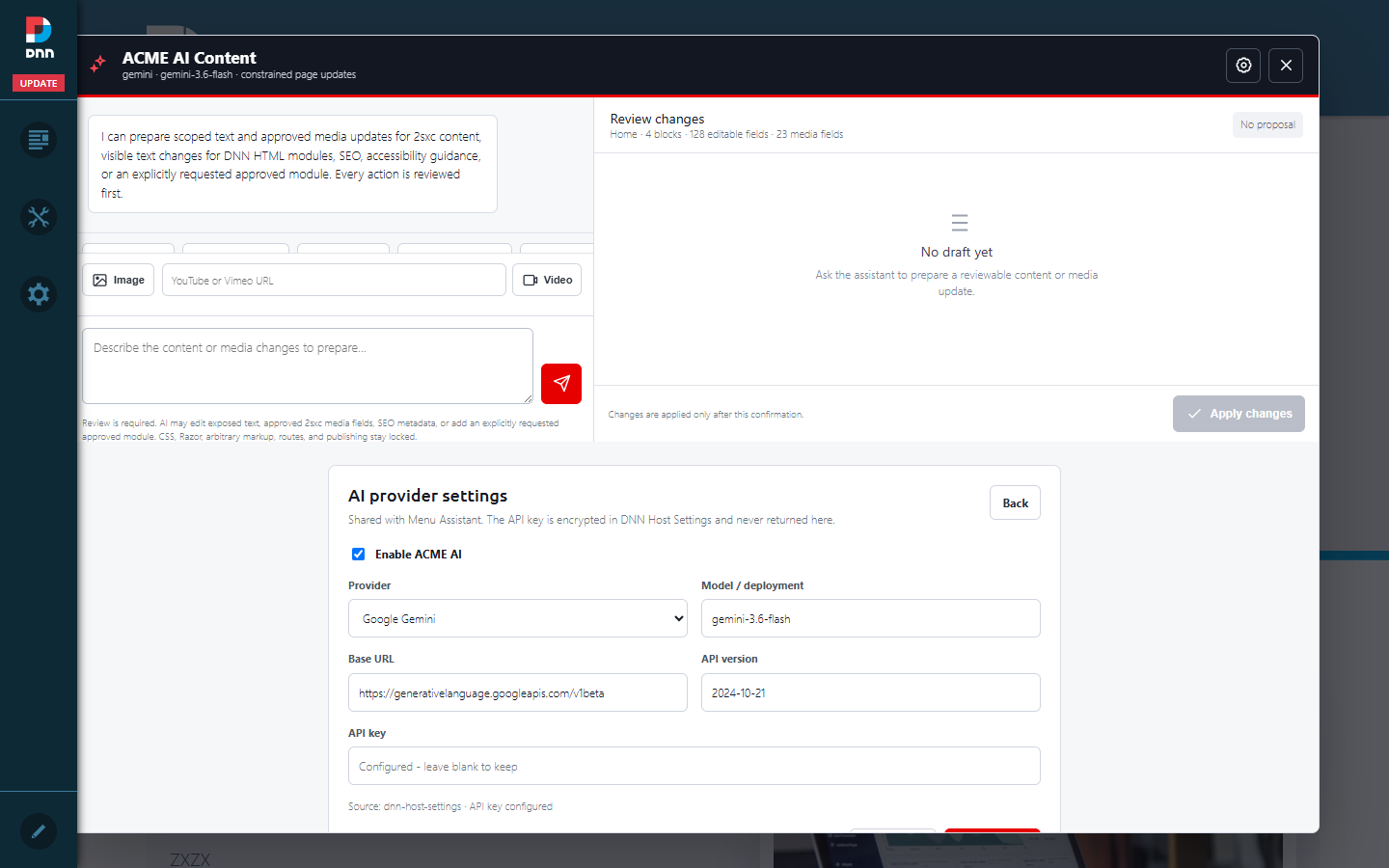 Provider configuration is server-side and shared across the two ACME assistants; the saved key remains masked.
Open Edit menu, select Site Design, and use the Menu Bar panel. CISS supports the Classic, Modern, Minimal, Bold, Elegant, German, and Centered presets. A selected preset is stored with the CISS menu configuration, so it also works in skins that do not load the ACME Site Design scripts.
The Search box switch controls both the desktop header and the mobile drawer. Search submits to the active portal's DNN Search Results page with the standard Search query parameter. Pressing Enter and clicking the search icon perform the same action.
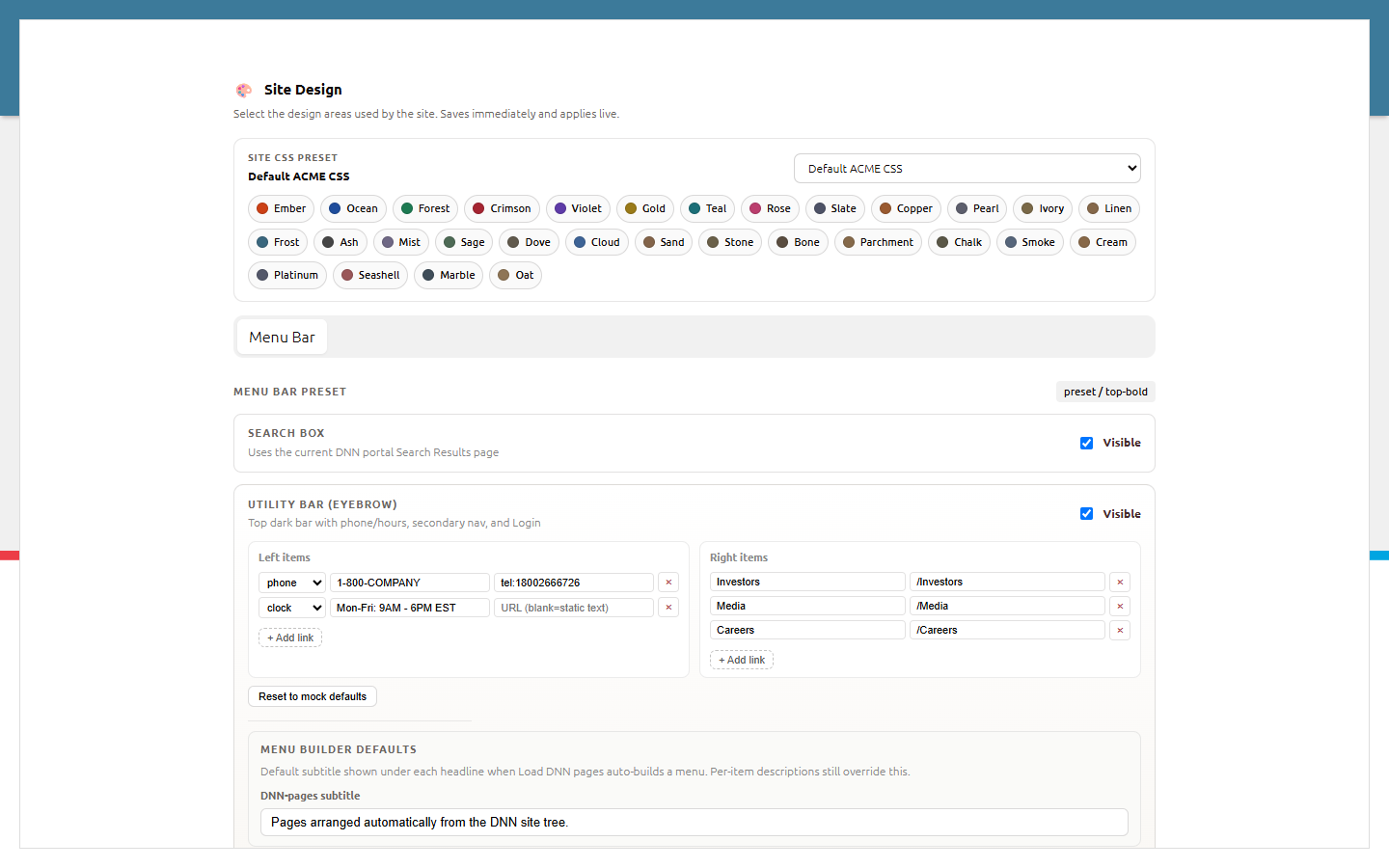 Menu presets and Search visibility are saved in the portable CISS configuration.
Isolate the host theme CSS
A host skin may contain broad selectors such as header a, sticky-header rules, or mobile menu rules. Scope integration overrides under a wrapper such as .aperture-ciss-header. Preserve the host theme's header height and let only one system own sticky positioning.
- Do not rename or move DNN panes while replacing navigation.
- Do not load the host skin's old mobile-menu script if it expects DDR-specific markup that no longer exists.
- Do not globally restyle headings, links, images, or module wrappers to make the new menu fit.
- Keep the CISS drawer fixed to the viewport and above the host header stacking context.
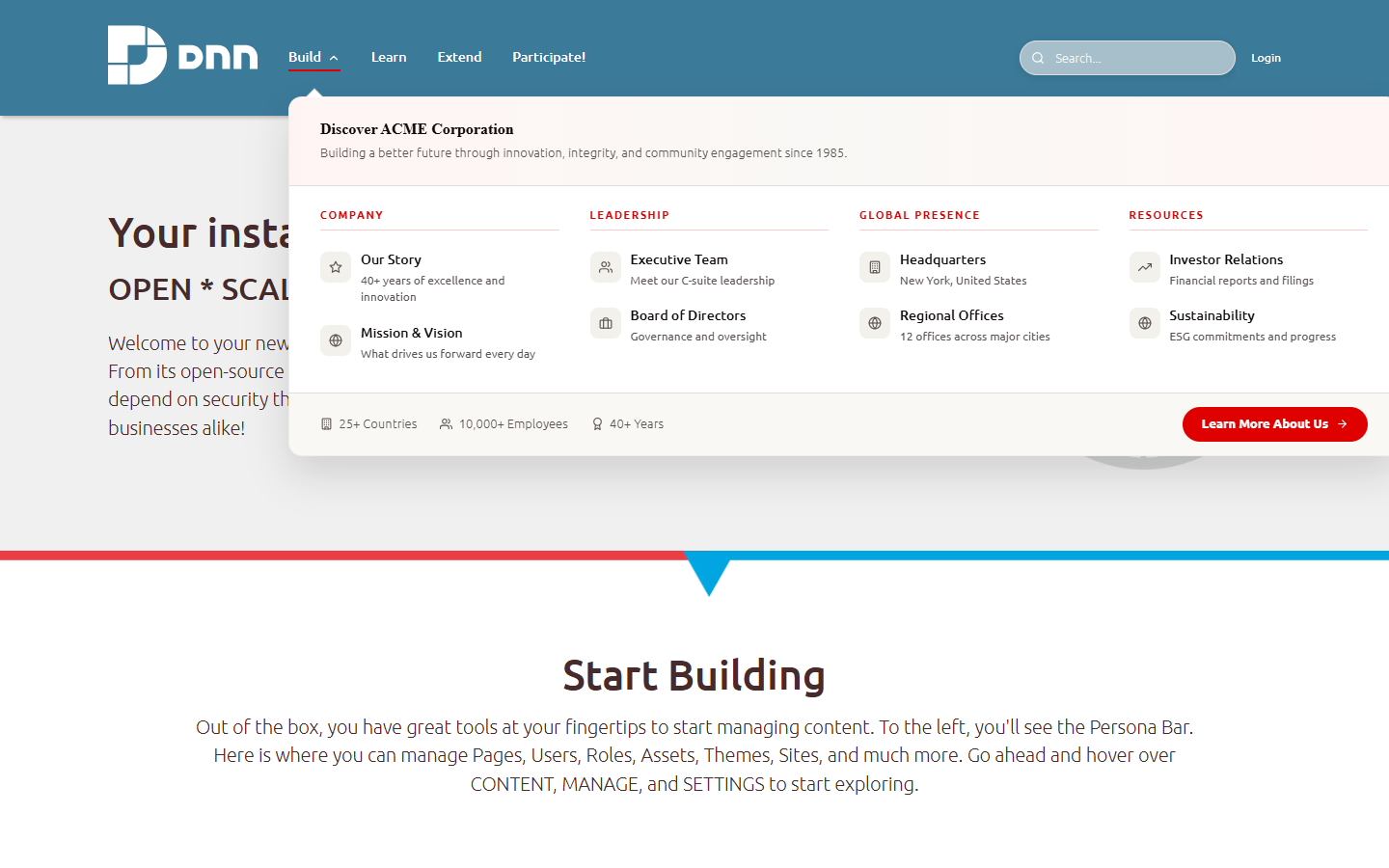 The mega panel opens below the Aperture header without moving the page modules.
 The same configuration renders an accessible full-viewport mobile drawer.
Visual QA checklist
- Apply the integration to one existing Aperture page and compare every pane and module with the original page.
- Open a MegaMenu, test a simple link, and verify the active underline sits below the correct item.
- Scroll the page and confirm the menu does not shrink, repaint, or detach from the host header.
- Test Search by clicking the icon and pressing Enter.
- Switch every Menu Bar preset and reload after saving.
- At mobile width, open and close the drawer, expand a section, run a search, and confirm body scrolling is restored after close.
- As an Administrator, open AI Content and confirm Snapshot loads the current page inventory before opening provider settings.
- Check for horizontal overflow, browser console errors, hidden links, and duplicated menu controls.
The supplied sample passed this matrix on DNN 10.3.3: HTTP 200, unchanged Aperture pane/module structure, working desktop and mobile Search, all seven menu presets, working MegaMenu and drawer, no horizontal overflow, and a successful AI Content Snapshot of the current page.