Not rated yet
Workflows, email & Retry
Applied workflows, approvals, notifications and failure recovery.
Workflow (DNN)
MegaForm now puts the everyday workflow controls directly below the form canvas. The Workflow Summary shows what will run when a submission arrives, and Configure workflow opens a simple, readable list of steps. You only need the full BPMN editor for branching, timers, reusable library workflows, or other advanced behavior.
Configure confirmation text, email, download and redirect options.6 steps · 25.4s · Updated 25 Oct 2026Open video ↗
- Open the form in Form Builder → Design.
- Scroll to the bottom of the canvas. The Workflow Summary is the narrow horizontal bar inside the form canvas, directly below the final form field. It begins with On Submit and ends with Configure workflow. It is not the footer of the slide-out workflow panel.
- Select Configure workflow to open the simple workflow panel on the right.
There is no separate Workflow or BPMN tab in the normal form-building path. Keeping the summary with the canvas makes it clear which workflow belongs to the form you are editing.
Build most workflows in the simple editor
- On Submit contains steps that run after the form is submitted. Select + Add workflow to add email, approval, database, webhook, or other available actions.
- Add an Approval step under On Submit when a person must review the submission.
- On Approve becomes available after an Approval step exists. Put the steps that should run only after approval in this section.
- Steps execute from top to bottom. Review the list, then select Save.
For Send email, the Message field is a rich-text editor. Use its heading, bold, italic, underline, list, alignment, link, and clear-format controls; insert field-value tokens; or switch to HTML source when exact markup is required. Recipient, CC/BCC, sender, reply-to, subject, message, attachments, and conditions stay with the same workflow step.
After saving, close the panel and check the Workflow Summary again. It should show the configured actions instead of No steps yet.
The current DNN builder treats “after submission” as part of the form's workflow. Start from the Workflow Summary below the final field instead of looking for a separate After Submission page or a legacy group of notification and webhook settings.
| What you want after Submit |
Add this workflow step |
| Show a thank-you message, send the visitor to another page, or combine a message with a redirect |
Show message / Redirect |
| Email the respondent, notify staff, or send a message after approval |
Send email |
| Pause for a reviewer and continue only after a decision |
Approval |
| POST the submission to a webhook, CRM, ERP, or another service |
Push to API |
| Write values through an approved connection or stored procedure |
Insert into database |
| Append a row to a spreadsheet |
Google Sheets |
| Delay processing or wait until a date |
Wait (delay) |
| Capture a submitted value or reusable constant for later steps |
Set variable |
| Calculate a numeric value for routing or a later action |
Calculate |
Use Show message / Redirect for the visitor-facing result. It can provide the success message or the next-page destination that older documentation called the confirmation experience. Put server-side actions after it—or before it when their result must determine what the visitor sees.
Keep multiple email audiences as separate Send email steps. For example, the first step can acknowledge the respondent, a second can alert staff, and a third can notify the respondent only after an Approval step succeeds. Each step keeps its own recipients, CC/BCC, sender, reply-to, subject, rich message, attachments, and conditions.
Every successful submission is still stored in MegaForm before the configured workflow continues. The workflow then runs on the server in the saved order. This keeps confirmation, email, approval, API, database, spreadsheet, timing, and calculation behavior together with the form instead of splitting the automation across unrelated settings screens.
Simple workflow choices
Open + Add workflow, then use All or filter by Communication, Actions, Integrations, or Logic. The current picker provides these nine choices:
| Choice |
Category |
Use it to |
| Show message / Redirect |
Actions |
Display a thank-you message or send the submitter to another page. |
| Send email |
Communication |
Send the form result to the visitor, an internal team, or an approver. |
| Approval |
Actions |
Assign a user task to reviewers and wait for approve or reject. |
| Push to API |
Integrations |
POST form data to an external endpoint or service. |
| Insert into database |
Integrations |
Insert the submission through a named connection or run a stored procedure. |
| Google Sheets |
Integrations |
Append submitted values to a Google Sheets spreadsheet. |
| Wait (delay) |
Logic |
Pause for a fixed duration or until a date value. |
| Set variable |
Logic |
Store a field value or static value for later workflow steps. |
| Calculate |
Logic |
Perform a numeric calculation and store its result in a variable. |
The search box filters by workflow name and description. The category rail changes only what is displayed; it does not change execution behavior.
Follow the complete example in the animation
The wide animation keeps the full builder in view and pauses at every click. The purple outline is aligned to the real inline Workflow Summary bar, and the pointer clicks the actual Configure workflow button at the right end of that bar. It builds this three-step workflow:
- Under On Submit, add Approval and assign the Manager and Finance roles.
- Under On Submit, add Send email and use
{{field.email}} for the recipient.
- After Approval enables the section, add Push to API under On Approve.
- Select Save, return to the canvas, and confirm that Workflow Summary shows Manager review, Confirmation email, and Send approved record.
The pointer movement and click ring show exactly which control is used. Each important screen remains visible for roughly two to four seconds before the next action.
When to use Advanced BPMN
Select Advanced BPMN → when the workflow needs multiple branches, gateways, timers, complex conditions, a reusable library workflow, or detailed node-level settings. Advanced BPMN includes the node palette, Library, Samples, Test, Validate BPMN, and Apply BPMN.
Load a BPMN sample, inspect its graph and validate before applying.5 steps · 28.3s · Updated 25 Oct 2026Open video ↗
An advanced workflow is still summarized below the form canvas. To edit it safely, open Configure workflow, then choose Edit in Advanced BPMN or Open Advanced BPMN when prompted.
What runs on the server
The saved workflow executes server-side when a submission or approval transition occurs. A User Task / Approval creates work for the assignees in My Inbox. Gateways can route on form values, and service tasks can send email, call an API, write through an allowed database connection, or add a row to Google Sheets.
Before applying an advanced diagram, use Test and Validate BPMN. For a reusable approval chain shared by several forms, see Workflow Library.
Reuse workflows on DNN
Use Copy workflow to reuse steps from an existing form, or Samples to start an advanced BPMN diagram from a supplied pattern.
Copy selected workflow steps to another form and verify the result.6 steps · 29.5s · Updated 25 Oct 2026Open video ↗
Copy steps into another form
- In the dashboard, open the source form's ⋯ actions and choose Copy workflow….
- Select the destination form and review the steps to include.
- Copy, then open the destination in the builder and check its workflow.
- Review field keys, roles, recipients and connections for the destination before using the copied steps.
Start from a BPMN sample
Open Configure workflow → Open Advanced BPMN → Samples. Load a pattern, configure its nodes and validate the graph. Save Draft saves the diagram; Apply BPMN is the separate activation step.
The current DNN host does not implement the versioned Workflow Library API. Its Library button reports that the library is unavailable. Use Samples and Copy workflow on this build; a saved library binding is not part of this DNN walkthrough.
Approval workflows & inbox (DNN)
An approval workflow is a User Task in the form's BPMN diagram: when a
submission reaches it, a task is created for the assigned users/roles — and shows up in
their My Inbox. This page follows a real task on the demo site's
Transaction form.
Submit a sample with Address and Signature, approve it and check History.9 steps · 37.4s · Updated 25 Oct 2026Open video ↗
The task detail
Opening a task shows everything the approver needs:
| Tab |
Content |
| Details |
The task itself — who assigned it, due date, priority, comments. |
| History |
The audit trail: every prior action on this record with actor + timestamp. |
| Workflow |
Where this record sits in the diagram right now. |
| Form Responses |
The submitted answers (an approver can read the record they're deciding on — enforced server-side, whether or not they hold general submission rights). |
The actions
- Approve — the workflow continues along the approved path (in the ERP demo, that's what
fires the Database node and issues the invoice).
- Reject — the record takes the rejection branch (or ends).
- Return — send it back to the submitter for fixes.
- Forward — hand the task to another user (tracked in History).
- Comment / Print / Export — annotate without deciding, print the A4 record, export it.
Assignment & security
Task assignees are resolved server-side from the workflow definition (users or DNN roles) —
membership comes from the workflow tables, never from the request. Multi-approver setups
(anyone-of-role claims the task) and multi-stage chains (manager → finance) are just more
User Tasks and gateways in the diagram. Ad-hoc, workflow-less review also exists: select
submissions in the grid and Send to Inbox assigns them to a teammate as review tasks.
After submission (DNN)
What happens when someone hits Submit? That's the Form Settings panel in the builder —
open the ⋯ menu (or the Settings gear) and the right panel switches to the form-level
configuration: General, Database, After-Submit confirmation, redirect, CTA, notifications.
Configure confirmation text, email, download and redirect options.6 steps · 25.4s · Updated 25 Oct 2026Open video ↗
The sections
| Section |
What you configure |
| General |
Require login, Save & Continue (resumable drafts), Multi-step form, Display Only, Hide form header. |
| Display style |
How the published card renders — corners, shadows, borders, mobile padding. |
| Database |
Mirror each submission into YOUR SQL table the moment it arrives — see Storage & Integrations. |
| After-Submit |
The confirmation experience: a thank-you message (rich text), a redirect to any URL, or a call-to-action button; optionally show a summary of the submitted answers. |
| Notifications |
Email the submitter and/or staff on each submission — templated subject/body with {{field}} tokens. |
Beyond the confirmation
The After-Submit hook is also where automation chains on:
- Workflow — route the submission for approval (Approval Workflows & Inbox).
- Webhooks / integrations — push the record to an external endpoint (server-side, SSRF-guarded).
- Database insert — the ERP demo's pattern: the submission lands in
MF_Submissions AND
your own table in the same request, parameterized and fail-soft.
Everything here is per-form and lives in the form's settings JSON — exporting the form carries
its after-submit behavior along.
Email Notifications & Autoresponders (DNN)
In the current MegaForm builder, email is a workflow step. Start from the Workflow Summary below the form canvas, open Configure workflow, and add one or more Send email steps. This keeps the recipient, message, conditions, attachments, and execution order together with the rest of the form automation.

- Open the form in Form Builder → Design.
- Scroll below the canvas to Workflow Summary.
- Select Configure workflow.
- Under On Submit, select + Add workflow.
- Choose Communication → Send email.
- Give the step a clear label, configure it, and select Save.
- Close the panel and confirm that Workflow Summary now lists the email step.
Use On Submit for a confirmation or immediate internal alert. To send only after a person approves the submission, add an Approval step under On Submit, then add the email under On Approve.
Choose who receives the message
The email editor supports:
- To — a fixed address or a token such as
{{field.email}}.
- CC Email and BCC Email — optional copy recipients.
- Sender Email and Sender Name — optional overrides; leave them empty to use the configured system sender.
- Reply-To Email — directs replies to a monitored mailbox.
Use field keys, not field labels. For example, a control labelled “Work email” with the key work_email is referenced as {{field.work_email}}.
Build a reusable, personalized email
Subject, Header, Body, and Footer accept both form-field and workflow-variable tokens:
| Token |
Result |
{{field.full_name}} |
Value submitted in the full_name field |
{{field.email}} |
Value submitted in the email field |
{{variable.route}} |
Value previously stored in the workflow variable route |
The Body accepts HTML. When Body and Email Template Path are both empty, MegaForm generates a professional HTML summary of the submitted fields. For a fully branded layout, set Email Template Path to a server-side Razor .cshtml template and optionally wrap it with Header and Footer content.
Add files and submission data
Two switches extend the message without custom code:
- Attach Uploaded Files adds files uploaded with the current submission.
- Attach submission data as JSON adds a machine-readable copy of the submitted data.
Uploaded files are read through MegaForm storage, so the same step works with the storage provider configured for the form. Review upload size and mail-server attachment limits before enabling this for large files. See File Uploads: Azure & Multiple Files.
Send the right email at the right time
A form can contain several email steps. Common patterns include:
| Need |
Workflow |
| Confirm receipt to the visitor |
On Submit → Send email to {{field.email}} |
| Alert an internal team |
On Submit → Send email to a fixed mailbox |
| Notify only for a premium plan |
Add a Condition to the email step, for example plan equals Premium |
| Send after approval |
On Submit → Approval, then On Approve → Send email |
| Deliver uploaded documents |
Enable Attach Uploaded Files |
| Keep a portable audit copy |
Enable Attach submission data as JSON |
Each step can be reordered, temporarily disabled, and configured to run only when all or any condition rules match. Use multiple focused steps instead of one message with many unrelated recipients when the content or timing is different.
Sensitive data and delivery safety
Password and Signature field values are excluded from workflow email by default. Turn on Include Sensitive Data only when the recipient, purpose, and retention policy justify it.
MegaForm resolves recipient and content tokens on the server and sends through the site’s configured email service. The submission is already stored before the workflow email executes. If delivery fails, inspect the workflow execution or DNN logs and correct the email step or SMTP configuration.
When an email does not arrive
- Confirm the workflow was saved and the Send email step is active.
- Check that To is not empty after token resolution.
- Verify that the token uses the field key and that the submitted field contains an address.
- Check whether the step’s conditions matched this submission.
- Confirm the DNN SMTP or configured email service can send mail.
- For attachments, confirm the uploaded files still exist and fit the mail-server size limit.
- Review the workflow execution and server logs for the failed step.
For the complete simple-workflow path, see Workflow. For human review and post-approval actions, see Approval Workflows & Inbox.
Retry failed workflow steps and verify the result
Retry failed step resumes an existing failed workflow at its current failed node. It retains the submission and execution IDs and appends a new attempt. Earlier successful nodes are not deliberately replayed. Nodes after the retried step run only if execution can continue along the applied workflow.
Find and inspect a failure
Open MegaForm → Analytics. Set a date range containing the execution's original start date, then select Details / Retry in Failed workflow runs. You can also open a form's analytics and inspect its executions.
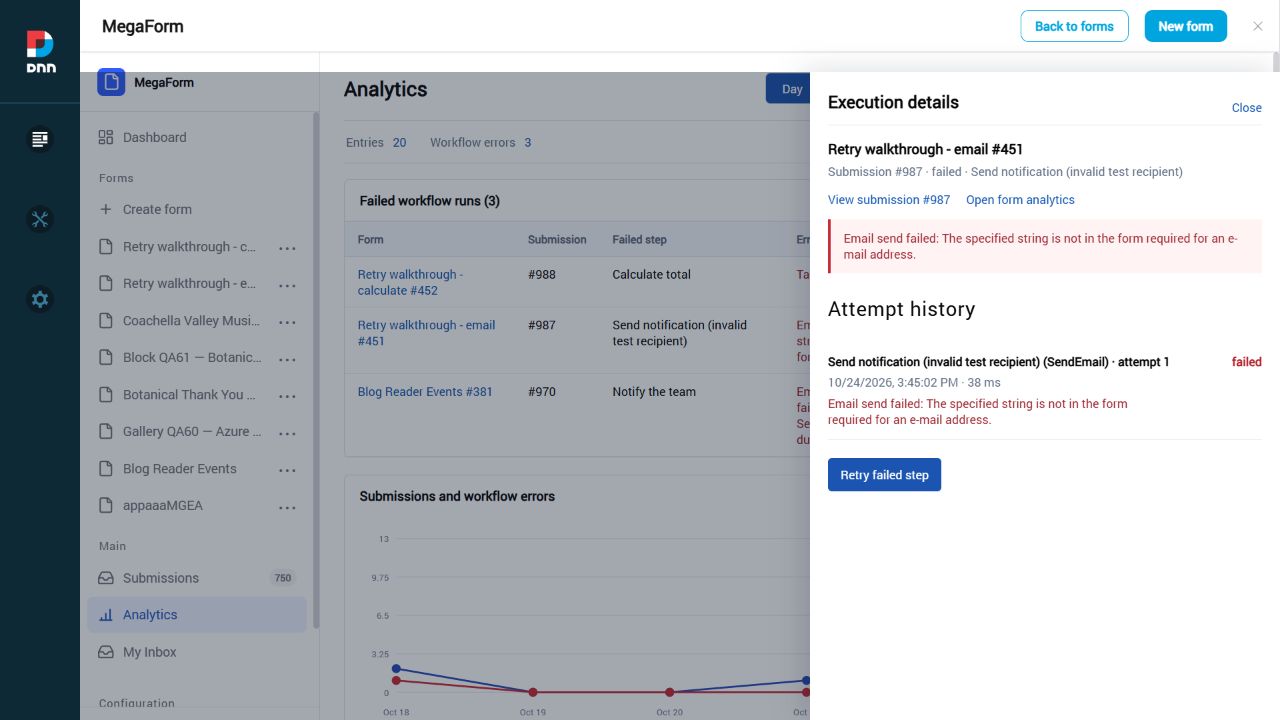
Check the form, submission, failed step, error and attempt history. Fix the cause before retrying: for example an SMTP rejection, missing recipient, unreachable webhook, SQL constraint failure or invalid node configuration. If you change the workflow in the designer, save and apply the correction; Retry resolves the currently applied workflow. Deleting the failed node prevents Retry from locating it.
Retry and read the new attempt
Click Retry failed step once and wait for the result. MegaForm rereads the persisted execution and refreshes Analytics. An HTTP request completing successfully does not by itself mean the workflow succeeded.
| Execution status |
Meaning |
| failed |
The action or a later step still failed. Inspect the new attempt and error. |
| completed |
The execution finished according to the workflow. Inspect the action's result too. |
| waiting |
The workflow reached a human task or delay. It still needs an outcome or timer. |
| running |
Execution has not finished. Do not infer completion. |
| cancelled |
Execution stopped without successful completion. |
Example: Retry still fails
The local Retry walkthrough - email example uses an invalid test recipient and sends no external message. Retrying without correcting it produces another failed attempt. The original failure remains in the history. This proves Retry does not unconditionally return success.
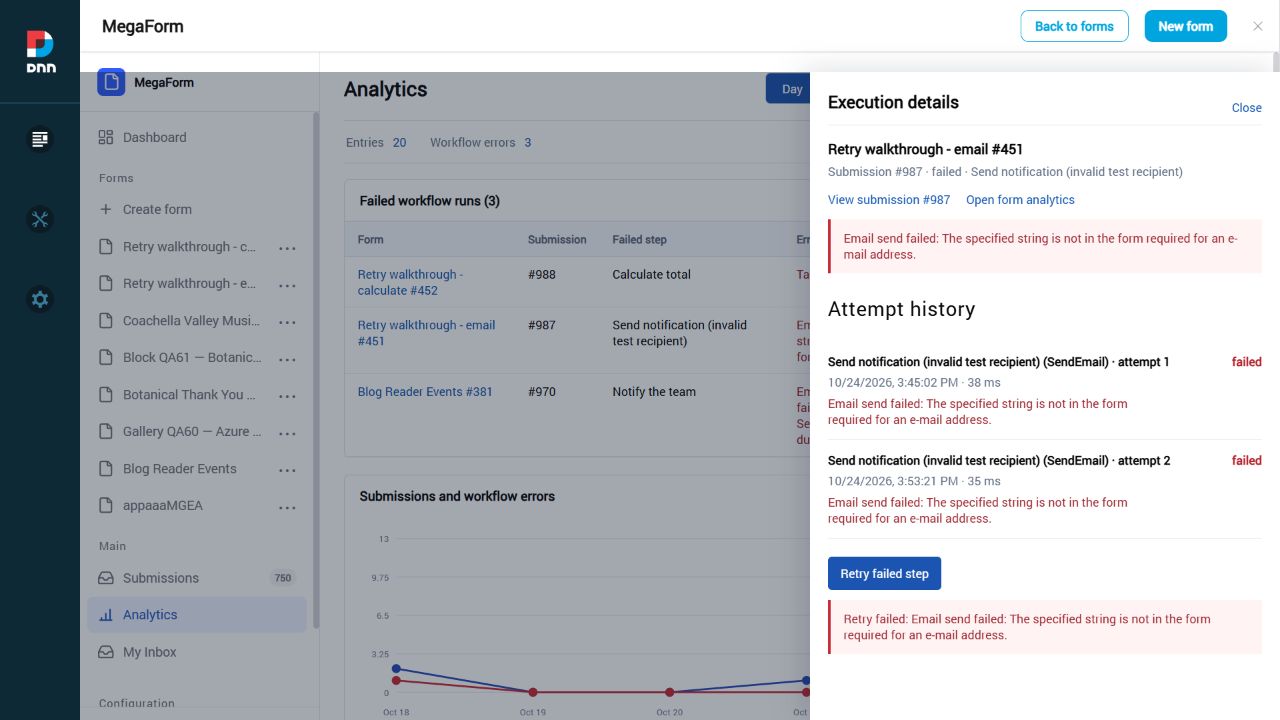
Example: Correct the cause, then Retry completes
The local Retry walkthrough - calculate example initially lacks its target variable. After the target variable is configured and the workflow applied, Retry executes that calculation again and completes. Both the original failed attempt and the successful second attempt remain visible.
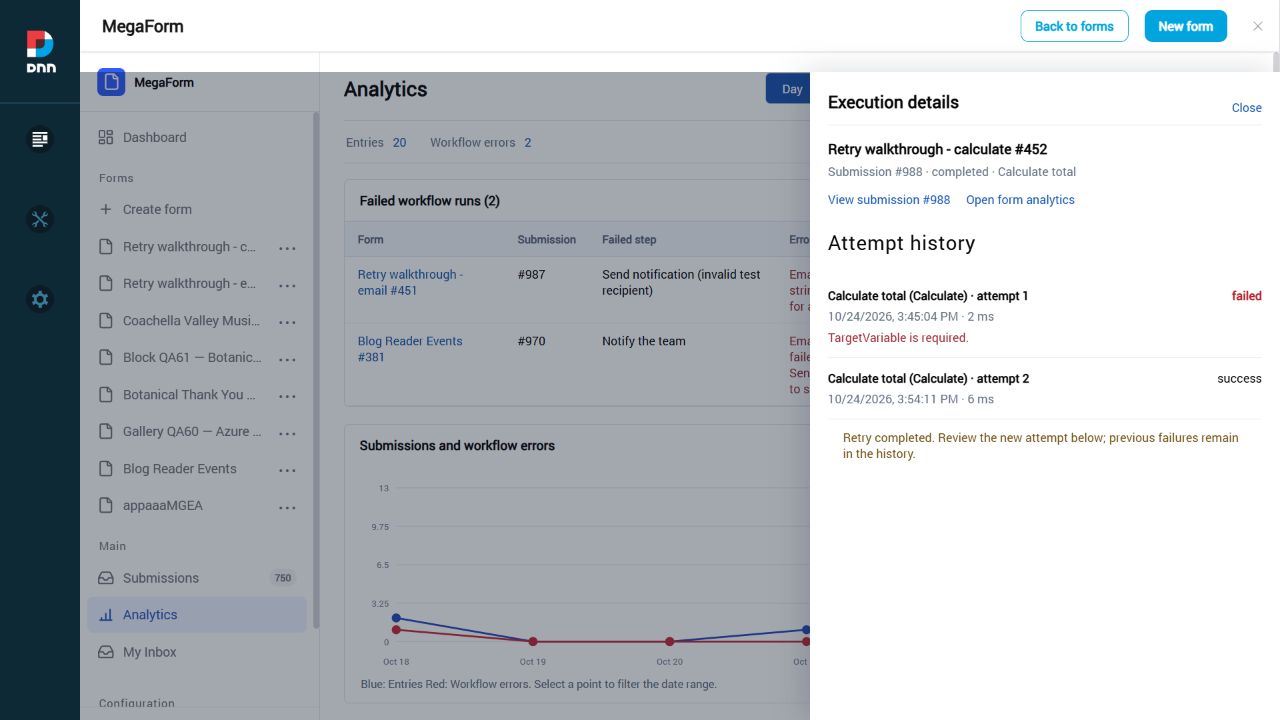
What was wrong with DNN email retries?
MegaForm 2.0.67 fixes a DNN adapter defect: DNN mail APIs may return an error string instead of throwing an exception. Older MegaForm code ignored that string, so an email action could be logged as successful even when the provider rejected it. The adapter now propagates non-empty error results and the workflow records the failed attempt. The fix applies to ordinary workflow execution as well as Retry.
Existing success records created by the old defect cannot prove delivery and are not automatically reclassified. Check the mail provider's logs for those historical executions before deciding to resend. Legacy step logs now display their recorded timestamp instead of the time the details panel was opened.
Even after this fix, successful mail handoff means the configured provider accepted the request. It does not prove inbox delivery, reading or a later bounce. A development pickup-directory provider writes a local mail file instead of delivering to a recipient. Use provider delivery/bounce logs for delivery assurance.
Avoid duplicate side effects
A failed request can sometimes have completed its external action before losing the response. Check the remote system before retrying email, payments, webhooks, account creation or SQL writes. Use idempotency keys and unique constraints where the provider supports them. A retry of a failed downstream node does not repeat earlier nodes, but a partially executed failed node may repeat its own effect.
Only administrators can retry. Waiting tasks use the task outcome or delay mechanism, rather than Retry. Analytics dates refer to when the execution started; retrying today does not move an older execution into today's start-date range. Recovered executions leave the current failed-runs list, while their failed attempts remain in execution history.
Return to MegaForm documentation
End-to-end demo: ERP flow (DNN)
Everything in this section, chained: SQL master data → forms that read AND write your own
database → an approval workflow that issues invoices automatically → a live report page.
Built on a DNN 10 site with no custom code, same recipe as the
Oqtane walkthrough.
Master data → Store → Vendor → Transaction (with receipt) → Invoice on approval → Reports
1. Master data & the connection
dbo.Country and dbo.Currency are plain tables in your SQL Server database. The site
knows that database by a named connection (configured once — see
Storage & Integrations); every dropdown, insert, workflow node and
report below refers to the connection by name, never by a raw connection string in a form.
The Store form's Country/Currency dropdowns are SQL-driven (optionsSource: "sql" on the
field), and a per-form database insert mirrors each submission into dbo.Stores:
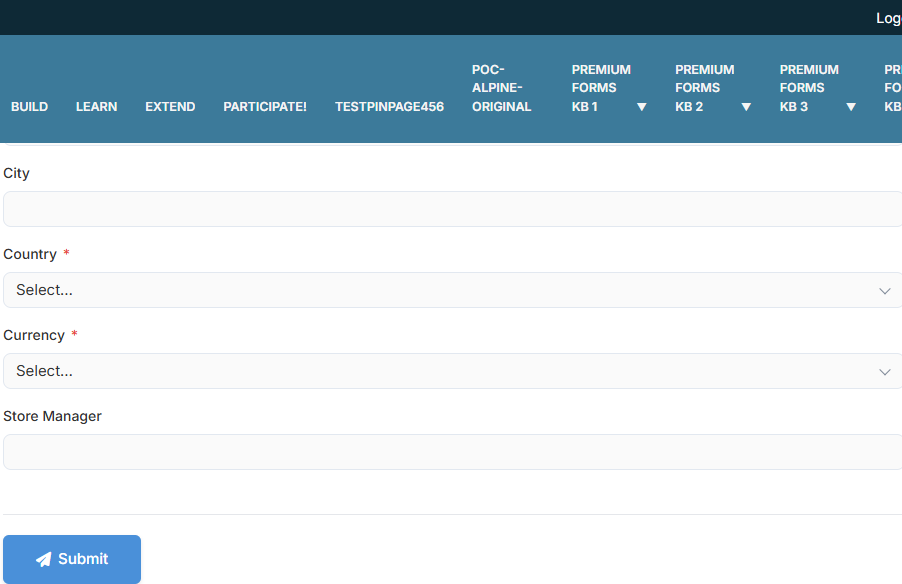
Three stores registered through the form = three rows in dbo.Stores — parameterized,
INSERT-only, fail-soft. The Vendor form repeats the pattern into dbo.Vendors.
Every reference dropdown reads the ERP database live — the Store list (Berlin Store, Hanoi
Flagship, Singapore Central) IS dbo.Stores, maintained by the Store form; Vendors likewise.
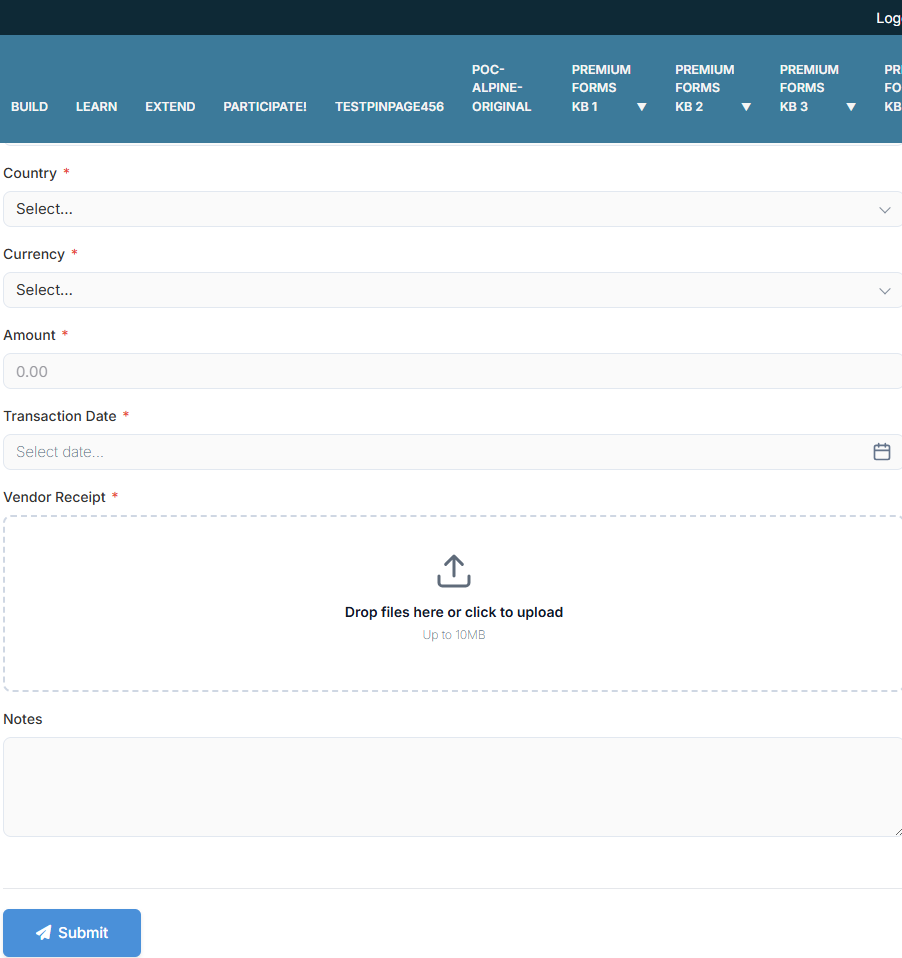
Add amount, date, a vendor receipt upload — and the subtitle keeps the promise: "An
invoice is issued automatically."
4. The workflow that issues invoices
The Transaction form carries a BPMN workflow — "Issue invoice for a
completed transaction": a Service Task (DB) mapped to an Insert into the invoice table,
wired to run when the transaction completes its approval:
Configure confirmation text, email, download and redirect options.6 steps · 25.4s · Updated 25 Oct 2026Open video ↗
Approve a transaction in My Inbox and the invoice row appears —
INV-8 … INV-11 below, each stamped with its issue time. No scheduled job, no plugin.
5. The reports page — eight live SQL widgets
One MegaForm page whose body is Data Repeater widgets, each with a read-only
query on the ERP connection: summary counts, the Stores/Vendors/Transactions lists,
country-wise and currency-wise GROUP BY rollups, and the invoice-status join:
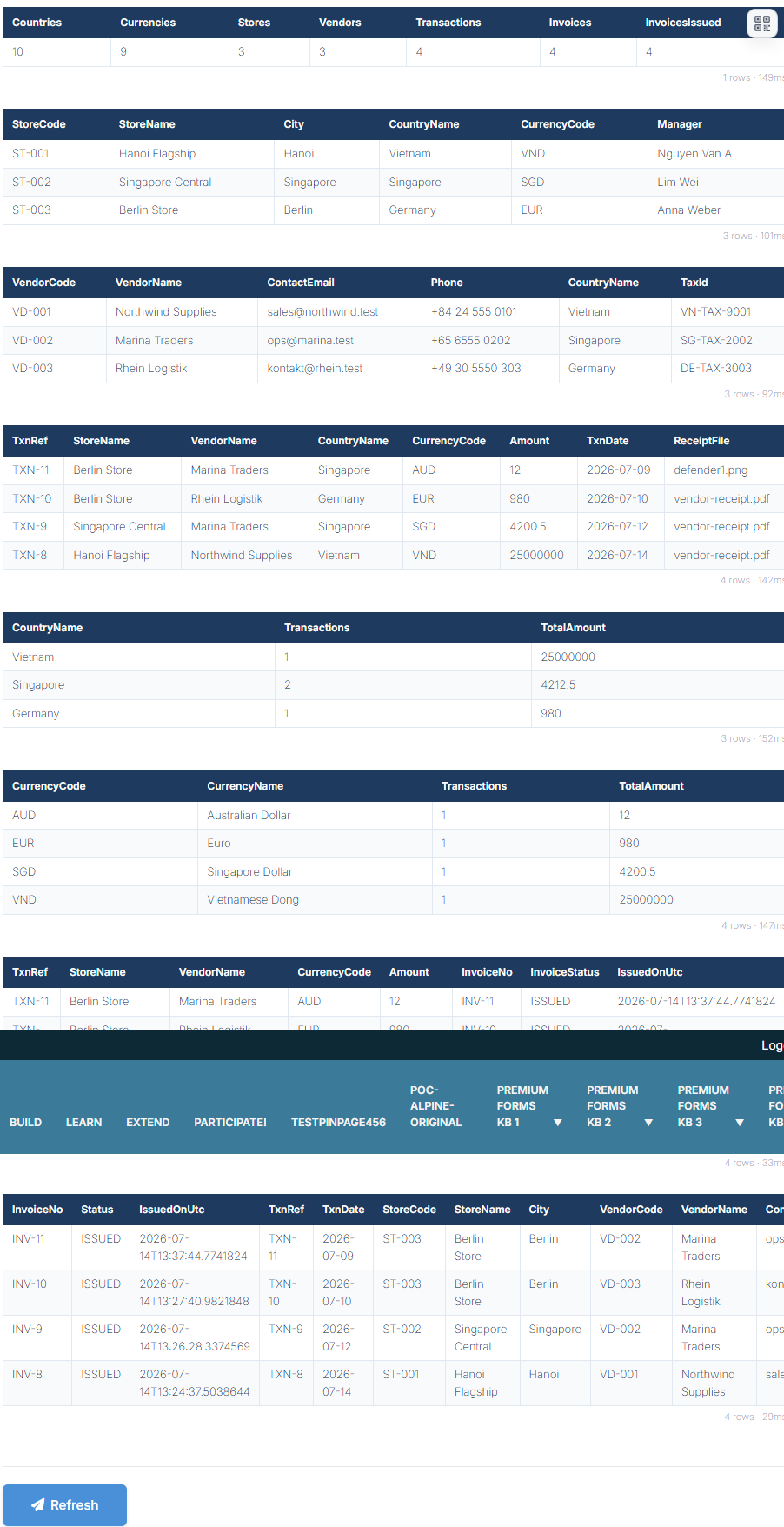
Worth noticing: the data is live (TXN-8's 25,000,000 VND rolls up into the Vietnam and VND
summary rows in the same render); every transaction shows its uploaded receipt file; all four
transactions have a matching ISSUED invoice; each widget prints its row count + query time,
and queries run server-side, SELECT-only, on the named connection.
Nothing here is DNN-specific — the forms, workflow and report page are ordinary MegaForm
schema JSON, interchangeable with the Oqtane build of the same demo.
For embedding MegaForm data in your own Razor views, see
Consumer — DNN Razor Host.