Not rated yet
How to build with MegaForm
Pick a task, follow the steps and check the result. These tutorials use MegaForm 2.0.68 for DNN, with current product screenshots and editable starting files.
Download 8 editable form starters + PDF and SQL examples
Import one JSON through Create form → Template Gallery → Import JSON. Review the README: the account action starts disabled, and payment examples require your own test configuration. No credentials are included. Looking for the C#/Razor sample ZIP?
01 / Start · 5 min
How to create and publish a contact form
You will build: A contact form with required name, email and message fields, placed on a DNN page and visible in View entries.
Before you start: Sign in as a DNN administrator. Use MegaForm storage for this first example; no database connection or email provider is needed.
Try this example →
 The actual Contact the team example: composite Full name, Email and Message filled with fictional tutorial data. Click to enlarge.
Steps
- Open MegaForm in the Persona Bar and select Create form. In Setup enter Contact the team, choose MegaForm storage and start blank, or import
01-contact.json from the example pack.
- In Fields add Name, Email and Long Text. Use the field properties to keep the keys
full_name, email and message. Require all three. Set a helpful message placeholder such as What can we help you with?.
- Leave approval off in Workflow. Choose a simple design, then in Publish allow anonymous responses if this is a public contact page. Create the form and inspect the saved result in the builder.
- Use Add form to page to choose the target page and pane. Open the page as a visitor and send a fictional message using
alex@example.com. Published Workshop Registration example on a normal DNN page. The contact starter follows the same publishing path. Click to enlarge.
- Return to the form's action menu and open View entries. Open the new entry and check the saved name, email and message. Add notifications only after this basic round trip works.
Check the result
Submitting with an empty email must show validation. A valid submission creates one entry and shows the configured confirmation message.
If it does not work
If the form is missing from the page, check the selected module binding, page permissions and pane. If saving fails, use the actual API error instead of assuming the form was created.
Download examples — use 01-contact.json from the ZIP.
More detail: Wizard reference · Place a saved form on a page
↑ All how-to tutorials
02 / Design · 8 min
How to adapt a gallery template without breaking its design
You will build: A shorter application form that keeps the original template styling and has no empty section headings.
Before you start: Choose a gallery design you like. Keep the original template available so you can compare it with the edited version.
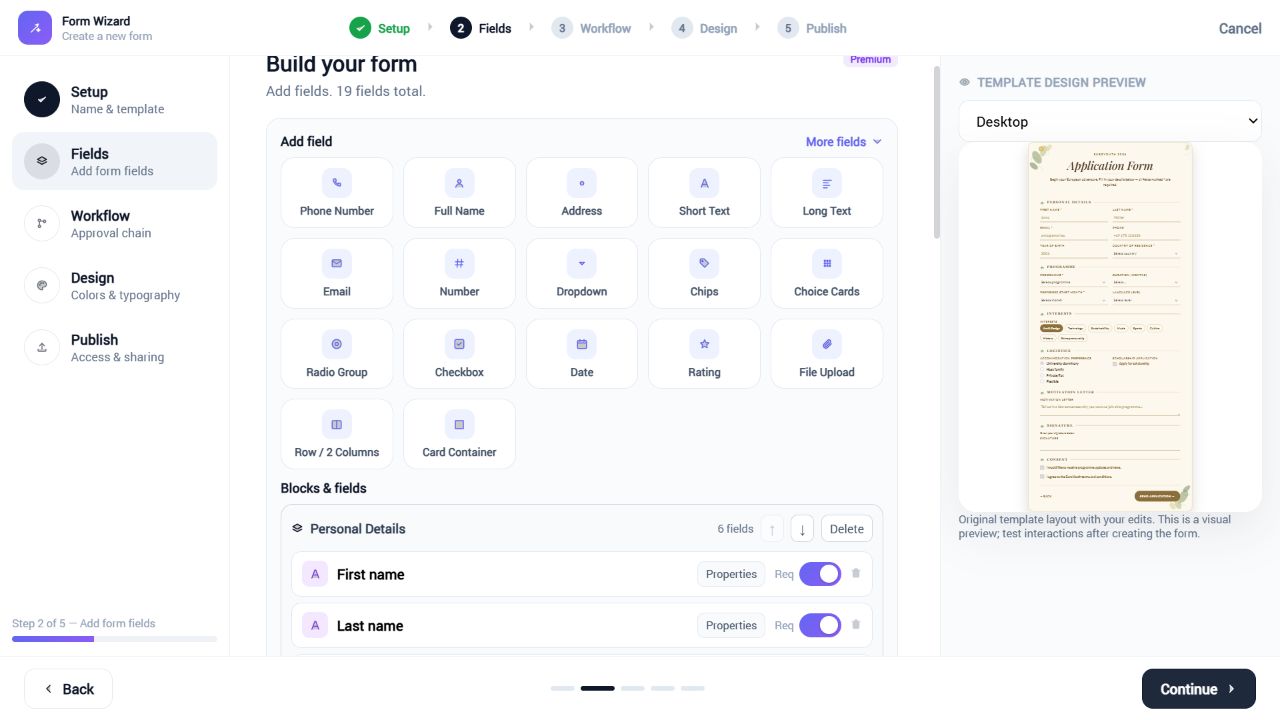 Move or remove complete template blocks, then inspect the saved result. Click to enlarge.
Steps
- In the Wizard's Setup step open Template Gallery, choose a template and continue with it. This loads a starting design; it does not make its fields read-only.
- In Fields use Blocks & Fields for a custom HTML design. Select an unneeded section, such as Programme, and remove the whole block rather than deleting only its input controls.
- Move a complete block above or below another block. Change individual labels, options and required settings through Properties. Keep the field key if existing tokens or workflow mappings use it.
- In Design edit Template wording for supplied titles and descriptions. Preserve the template design when you want to retain its artwork, responsive layout and custom CSS.
- Create the form, then inspect desktop and narrow layouts. Check that removed blocks leave no title, divider or blank card, and that the remaining fields appear in their intended sections.
Check the result
Remove one complete section and reorder two remaining sections. Both the preview and saved form should reflect those changes while retaining the chosen design.
If it does not work
A free-standing heading can remain when it was authored outside a field block. Inspect the generic HTML bindings and section structure; do not add a template-name exception to the Wizard.
More detail: Custom HTML/CSS template contract · Template Gallery
↑ All how-to tutorials
03 / Start · 7 min
How to create a form with AI and refine it in the builder
You will build: An AI-generated support request that you review, validate and refine before publishing.
Before you start: A site administrator must configure and test a provider in Settings → AI Settings. Keep provider credentials in those server settings.
 An English prompt entered before Send. This preparation screen is not a generated-form result. Click to enlarge.
Steps
- From MegaForm choose Create with AI. Enter the English prompt below, including field keys and the outcome you need.
 AI provider settings, not Database Settings. Configure and test a provider before sending a prompt. Click to enlarge.
- Read the proposed form before applying it. Check field types, required settings and options. Apply the result as a draft, then open the builder.
- Ask the assistant for a small change: Add an optional screenshot upload named attachment. Keep the existing keys, layout and workflow unchanged. Inspect the proposed changes before applying them.
- Use normal field properties to limit the upload type and size. Add an Address composite only if the request needs a physical address; an AI suggestion is not a requirement.
- Save and test the result with blank required fields, a normal request and an allowed upload. Configure real email recipients or integrations separately before publishing.
Create a support request form with name (full_name), email (email),
category (category: Billing, Technical, General), and message (message).
Require name, email and message. Add a clear confirmation.
Use MegaForm storage. Do not configure payment or external requests.
Check the result
The saved form contains the reviewed fields, not just an AI chat response. Validation and the new upload work in the rendered form.
If it does not work
If generation stops before a proposal appears, run the provider connection test and read the error. A configured provider is required; the preparation video alone is not proof of successful generation.
More detail: Configure an AI provider · AI creation and editing
↑ All how-to tutorials
04 / Design · 10 min
How to build a multi-step application with Address and Signature
You will build: A two-page application with structured name/address parts, an optional attachment and a signature.
Before you start: Import 02-application.json or start with a blank form. The starter uses normal MegaForm controls and has no custom HTML wrapper.
Try this example →
 Page one of the actual application example shows the separate Address parts filled with fictional data. Click to enlarge.
Steps
- Add a Name composite, Email and Address in the first section. In Properties choose the address parts your audience needs, such as street, city, region, postal code and country.
- Add a Section / Page Break before the second group. Enable its page-break option and review the form's multi-page setting. Place an application statement, File Upload and Signature on the second page.
- Give the file field a size limit and allowed extensions. Use the Signature widget for drawn signatures; a plain text box called Signature does not capture a drawing.
 Page two shows the statement, optional attachment and Signature canvas. Previous returns to the preserved Address answers. Click to enlarge.
- Review validation on each page. Require only the parts and widgets needed for your process. For this tutorial leave approval off until the form itself works.
- Save, open the rendered form, advance and go back. Check that entered values remain. Submit fictional details and inspect the entry; the Razor reader recipe shows how to display each composite part and upload.
Check the result
Next/Back navigation works, required fields are checked at the appropriate step, and one final submission contains answers from both pages.
If it does not work
A heading and a page break are different controls. If every field appears on one page, inspect the Section properties and multi-page option. A missing signature can also mean the canvas was never drawn on.
Download examples — use 02-application.json from the ZIP.
More detail: Fields and widgets · Read composites, signatures and uploaded files
↑ All how-to tutorials
05 / Data · 10 min
How to choose MegaForm storage, a new SQL table or an existing table
You will build: A form whose storage choice and allowed operations match your data source.
Before you start: For SQL, create a named connection in Settings → Database Settings and test it. The pack's demo-tables.sql creates two small tutorial tables in a database you choose.
 Existing SQL table selected and inspected; generated draft fields are visible in the preview. Click to enlarge.
Steps
- Open Wizard → Setup → Data source. Choose MegaForm storage when the form should manage its own submissions without a custom table.
- Choose New SQL table when you want a separate table. Select the named connection, enter a valid table name and review the proposed fields and columns before creating it.
- For existing data choose Existing SQL table. Select the connection and table, inspect the columns and identify the primary key. Exclude identity, computed and server-managed columns from editable fields.
- Keep the intended default of read and insert. Enable update and delete separately only when the form owner deliberately wants those operations. For a read-only view leave all writes disabled.
- Map field keys to columns and review required database columns without defaults. Save, read an existing demo row and add a fictional row if insert is enabled. Inspect the actual target table as well as the UI.
Check the result
Existing rows appear through the selected connection, a valid insert reaches that table, and update/delete remain unavailable unless explicitly enabled.
If it does not work
A table describes columns, not the old form's rules, labels or workflow. Rebuild those deliberately. For composite values, define the scalar columns/parts you want; never assume Address, images or signatures are ordinary text.
Download examples — use demo-tables.sql from the ZIP.
More detail: Storage configuration · Existing tables and records grid
↑ All how-to tutorials
06 / Data · 7 min
How to populate a dropdown from SQL
You will build: A Country dropdown displays readable names and stores stable country codes.
Before you start: Create dbo.MegaFormHowToCountries with demo-tables.sql in your tutorial database, then register that database as a named connection.
Inspect a named SQL connection and table first. This screenshot shows storage inspection, not dropdown option mapping. Click to enlarge.
Steps
- Add a Dropdown with key
country. Open its properties and select the SQL option source instead of a manually typed option list.
- Choose the named connection. Use the SELECT below and map
CountryCode to the option value and CountryName to its label.
- Save and open the rendered form. The visitor should see country names, while workflow and reporting can use the stable code.
- To filter a dependent list, bind the selected parent field through the source's parameters. Keep user input out of raw SQL text.
- Add another row to the tutorial lookup table, then reload the source/form and check the new option. Recheck required validation when no option is selected.
SELECT CountryCode, CountryName
FROM dbo.MegaFormHowToCountries
ORDER BY CountryName;
Check the result
Choosing Australia stores AU while displaying Australia. A blank required selection cannot be submitted.
If it does not work
An empty dropdown can mean a wrong connection, no returned rows, missing value/label mappings or a failed query. Inspect the option-source response before changing the field type.
Download examples — use demo-tables.sql from the ZIP.
More detail: SQL forms and mappings · Named database connections
↑ All how-to tutorials
07 / Automation · 10 min
How to send a saved submission to an SQL table
You will build: A contact form keeps its normal submission and inserts a second, mapped row in a tutorial Leads table.
Before you start: Use 01-contact.json and create dbo.MegaFormHowToLeads with demo-tables.sql. This is an extra database action, different from choosing the form's primary storage.
 DB Service Task with the generated INSERT and field mapping visible. Click to enlarge.
Steps
- Open the saved form in the builder. Open its database-insert settings, choose the named connection and select the tutorial Leads table.
- Review the generated INSERT and column mappings. Bind
FullName, Email and Message to the corresponding field keys. Keep values as parameters rather than quoted token substitutions.
- Exclude the identity key and database timestamp from the insert. Map FullName to the combined text value of full_name. If your table has separate first/last-name columns, map the parts explicitly rather than sending the whole composite object.
- Enable and save the database insert only after the mapping is complete. Send one fictional submission and query the target table by its email address.
- Inspect any recorded action error. If a database action fails after a submission was saved, verify the saved entry before trying again; a retry must not create duplicate business rows.
INSERT INTO dbo.MegaFormHowToLeads (FullName, Email, Message)
VALUES (@full_name, @email, @message);

-- Map each parameter to its field in the database action settings.
Check the result
One valid submit produces one MegaForm entry and one expected Leads row. The tutorial SQL script does not enable a live action automatically.
If it does not work
Check missing required columns, database permissions and parameter names. A connection test alone does not prove the account can INSERT into the selected table.
Download examples — use demo-tables.sql from the ZIP.
More detail: Database insert reference · Failure and retry behavior
↑ All how-to tutorials
08 / Automation · 8 min
How to send form data to an API or CRM
You will build: A workflow sends a small, explicitly mapped payload to a test endpoint and records the outcome.
Before you start: Have an endpoint you control and its expected request format. Start with a test endpoint and fictional values.
 API Service Task configuration with response settings visible. Click to enlarge.
Steps
- Open Workflow Summary → Configure workflow below the form canvas. Add the available API/webhook action. For the full graph use Advanced BPMN → and the Service Task with the API badge.
- Set the destination URL and HTTP method. Supply authentication through the server-supported connection/header settings. Select only the fields the receiver needs.
- Map the contact name, email and message into the request payload. Confirm the actual field token syntax in the editor's token picker instead of inventing an expression.
- Set a finite timeout and the supported retry options, validate the graph if using BPMN, apply it and save the form.
- Submit once to the test endpoint. Inspect its received body and the workflow execution details. Then test a controlled error response and confirm it is recorded as a failure.
{
  "event": "contact.received",
  "name": "<map full_name>",
  "email": "<map email>",
  "message": "<map message>"
}
Check the result
The receiver gets one request with the chosen fields. An unreachable endpoint or failed HTTP response must produce an inspectable workflow error.
If it does not work
An HTTP 200 response from MegaForm's own save API is not proof that the remote CRM accepted the payload. Check the step result and the receiver; use an idempotency key where the receiver supports one.
More detail: Webhook configuration · BPMN API service task
↑ All how-to tutorials
09 / Automation · 10 min
How to request approval and notify the right team
You will build: A request goes to a named DNN role, appears in My Inbox and runs its next action only after approval.
Before you start: Use an existing reviewer role and a separate test account in that role. Configure email only if you want to test delivery as well as task creation.
 A fictional Alex Morgan response with Address, Signature and approval controls. Click to enlarge.
Steps
- In the Wizard's Workflow step enable approval, select the reviewer role or user and enter a useful step name such as Manager review. Review the due-date and notification choices.
- After creation open Workflow Summary → Configure workflow. Keep the Approval step under On Submit and put actions that require approval under On Approve.
- For routing by category, use a condition/gateway in Advanced BPMN and connect each branch to the intended task. Use stable option values such as
technical and billing.
- Submit a fictional request, sign in as the reviewer and open My Inbox. Read Form Responses and History before selecting Approve or Reject.
- Return to the entry's workflow details. Check which branch ran, who acted and when. If sending email, distinguish a local mail-server acceptance from delivery to the final inbox.
Check the result
An assigned reviewer sees the task; an unrelated account does not. The approval-only action waits until approval and the history records the decision.
If it does not work
Check DNN role membership and the saved workflow assignment when My Inbox is empty. A notification failure and an uncreated approval task are different failures.
More detail: Approvals and inbox · Simple and advanced workflow editors
↑ All how-to tutorials
10 / Automation · 5 min
How to diagnose and retry a failed workflow step
You will build: You can tell whether a retry genuinely fixed a failed action and read every attempt in its history.
Before you start: Use a disposable test workflow. For an email example, use a local test mail setup or a recipient you control.
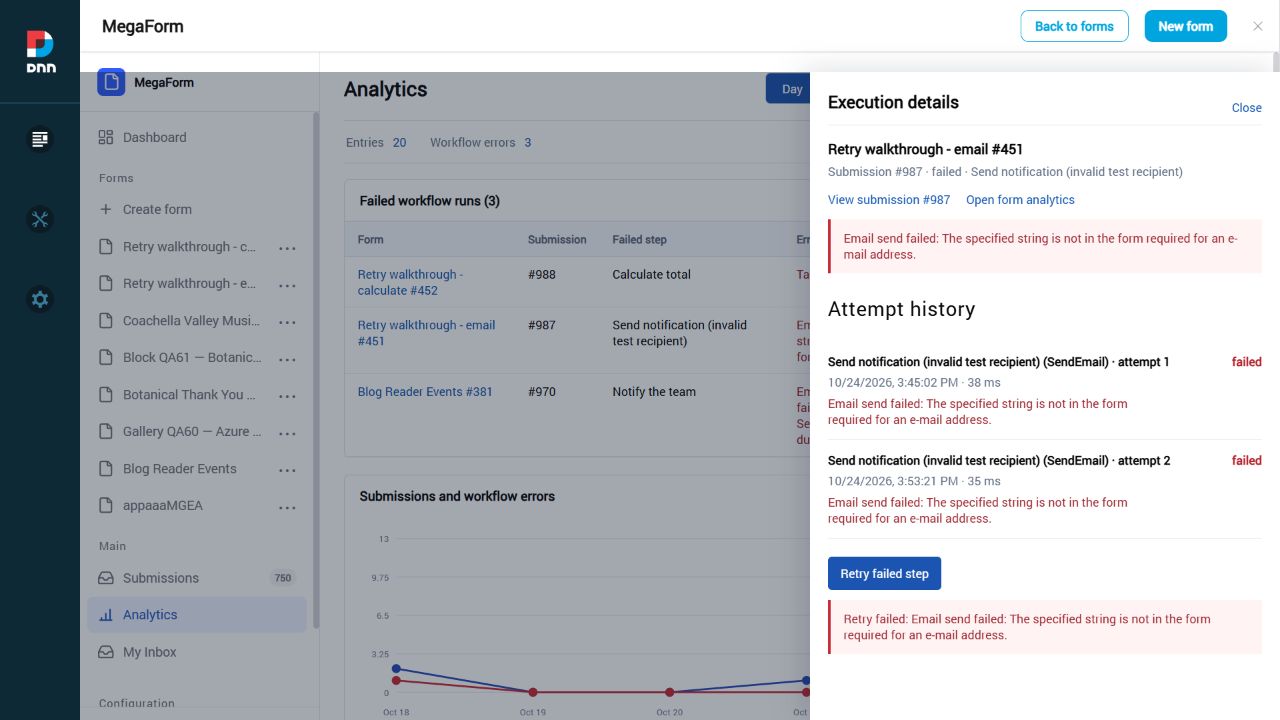 Compare the persisted attempt history with the step's current outcome. Click to enlarge.
Steps
- Open Analytics → Workflow errors and select a failed run. Read the failed step name and full error before retrying.
- With the cause still present, select Retry failed step. Refresh the execution details and confirm the new attempt is also failed. A retry request being accepted does not itself mean the action succeeded.
- Correct the cause, such as a rejected sender or unavailable endpoint, in the relevant server/action settings. Keep the original submission so the retry uses the same business context.
- Retry again. Check the persisted step/run status and the new timestamp, error and attempt count. Confirm the external effect separately, such as a message accepted by the test mail server.
- Keep the earlier failed attempts in the history. Before repeating a database or remote operation, check whether the first attempt already changed the other system.
Check the result
An unchanged error remains failed; a corrected action can succeed with a new attempt. History should retain both outcomes rather than replacing the old failure.
If it does not work
If the UI says success immediately, inspect the saved execution details. Do not use only the HTTP status of the Retry button as the business result.
More detail: Illustrated retry reference · Email configuration
↑ All how-to tutorials
11 / Design · 10 min
How to calculate nights, a subtotal and a rental quote
You will build: Arrival and departure dates calculate the number of nights, rental subtotal and grand total.
Before you start: Import 03-rental-quote.json. This sample is an estimate form; it contains no payment widget, gateway credentials or live charge.
Try this example →
 The native MVC example calculates a three-night quote from the actual date fields. Click to enlarge.
Steps
- Keep Arrival and Departure required and use Date only mode for both. Open Departure properties → Validation. Set Date must be after → Arrival and Validation message to
Departure must be after arrival (at least one night). This is a validator, not a Show/Hide condition.
- In Calculator properties enable Wait for valid source fields before calculating. Create date variables arrival and departure sourced from those fields, and number variable rate sourced from nightly_rate. Keep the rate minimum 1 and maximum 10000.
- Add the formulas below in order.
date_diff(departure, arrival) counts nights; the Date validator rejects a reversed or same-day stay instead of relying on a zero result.
- Choose Summary box (Callout) and save. Try a departure before arrival and then the same day: the departure error appears immediately, totals show a dash and the form cannot submit. Change Arrival after filling Departure to check the dependency in both directions.
 Departure is earlier than Arrival: the field displays a validation error and no price is calculated. Click to enlarge.
- Use arrival 2026-11-03 and departure 2026-11-06 with rate 80: the error clears, nights = 3 and total = 255. Missing dates or an invalid rate keep the estimate unavailable. Submit valid fictional dates and inspect the saved entry.
 After correcting Departure, three nights at 80 produce a subtotal of 240 and a total of 255. Click to enlarge.
- This is an estimate, with no live payment. For paid bookings add trusted server-side pricing and gateway verification. The date rule is enforced on the server too. Importing JSON into an older installation does not install the updated validator runtime.
nights     = date_diff(departure, arrival)
subtotal   = nights * rate
grandTotal = subtotal + 15

2026-11-03 → 2026-11-06, rate 80
Expected: 3 nights, subtotal 240, grand total 255.
Check the result
Earlier and same-day departures are rejected. Editing either date rechecks the rule. With three valid nights at 80, subtotal is 240 and total is 255; rate 100 changes the total to 315. Invalid or missing sources show no price and cannot be submitted.
If it does not work
Use Date only mode and the actual Arrival field in Date must be after. Turn on the Calculator option to wait for valid source fields. Both the renderer and server runtime must include this validator; the downloadable JSON configures it but does not upgrade an older installation.
Download examples — use 03-rental-quote.json from the ZIP.
More detail: Widget properties · Read the saved result
↑ All how-to tutorials
12 / Data · 5 min
How to print an existing entry as PDF
You will build: A readable copy of one submitted application, including its structured answers.
Before you start: Use an entry you are authorized to read. This recipe prints an entry; the separate PDF Form recipe below adds editable fields to an uploaded PDF.
 The submissions overview has loaded: totals, activity chart and form list are visible. Click to enlarge.
Steps
- Open the form's View entries action and select a fictional test submission. Check the details before printing.
- Open the entry's print view or Print action. Review the actual submitted answers and the form's layout, rather than printing the administration grid.
- Choose the browser's Print → Save as PDF, review paper size and page breaks, then save a copy locally.
- For a custom read layout use the downloadable native Razor reader and print that page. Select only the fields needed for the document.
- When your requirement is to fill an existing PDF document, use the PdfForm widget and its own PDF/field mapping. That is a different task from printing a normal submission.
Check the result
The PDF contains the chosen entry rather than an empty form or a list of all records. Check long answers and images for clipping.
If it does not work
Print-to-PDF is not the same as an automatically designed invoice/certificate. The planned ctx.Documents scripting API is not used by this recipe.
More detail: PDF Form tutorial in this guide · Submission grid and print actions · Custom printable Razor cards
↑ All how-to tutorials
13 / Data · 7 min
How to add a language and translate missing UI strings
You will build: A new language pack with a saved translation and a clear understanding of the English fallback.
Before you start: The current installation has 37 available packs. A pack is an installed locale, not a guarantee that every string has been translated.
 The saved en-AU tutorial pack shows the changed Send response wording. English remains the fallback. Click to enlarge.
Steps
- Open MegaForm → Languages. Display language changes your browser's product UI; the editor's Language dropdown chooses the pack you are editing.
- Choose an existing pack, or enter an unused valid locale such as
en-AU under Create language and select Create. Do not overwrite another locale merely to test a translation.
- Search for a visible string/key. Edit its translated value, preserve placeholders and tokens, and select Save.
- Select the locale in Display language and reopen the relevant screen to verify the saved wording. A missing translation should use the English source rather than a blank label.
- Use Download JSON for offline editing and Upload JSON to round-trip that pack. Translate (AI) can fill missing entries when an AI provider is configured; review its wording before saving.
Check the result
The edited value remains after reopening Languages. Reset Display language to English when you finish checking.
If it does not work
Product UI translation does not automatically rewrite a form's authored labels, options or email text. Translate those separately through the form/template content facilities.
More detail: Language list and full instructions · AI provider setup
↑ All how-to tutorials
14 / Start · 6 min
How to reuse a form and copy its workflow
You will build: A separate form draft and a reviewed workflow copy, without modifying the source form.
Before you start: Know whether you want to duplicate a whole form or copy only selected workflow steps. These actions have different scopes.
 The destination form now has the copied Administrators approval step. Click to enlarge.
Steps
- For the same site open a form's action menu and select Duplicate. Rename the new form and verify that it has a different form ID.
- For a portable starting point use the builder's form export and the destination Wizard/Gallery's Import JSON. The import dialog accepts a file, drag-and-drop or pasted JSON.
- Review the imported fields, blocks, styling and keys before creating the destination. Use the pack's JSON files to try this path without depending on an online gallery download.
- For only a workflow, open the source form's action menu → Copy workflow…. Select the destination and desired steps. Copied steps are added to the destination, so inspect existing steps for duplicates.
- Open the destination's Workflow Summary and review field mappings, role/user assignments, database connections and endpoint settings. Test the destination; a copied form is not a copy of its submission history or server credentials.
Check the result
Changing the duplicated form does not rename the source. Workflow actions use valid fields and local assignments on the destination.
If it does not work
A form JSON is not a full site backup. Database rows, users, uploads, payment/provider secrets and historic workflow runs are not reproduced by importing a design.
More detail: Copy workflow and reusable library · Portable form JSON reference
↑ All how-to tutorials
15 / Data · 10 min
How to display composites, photos, signatures and files in Razor
You will build: A readable entry card built from Typed Values or SQL columns, with authorized file links.
Before you start: Use DNN's native Razor Host and the editable Razor sample ZIP. These scripts are for Razor Host, not the restricted Razor widget inside a form.
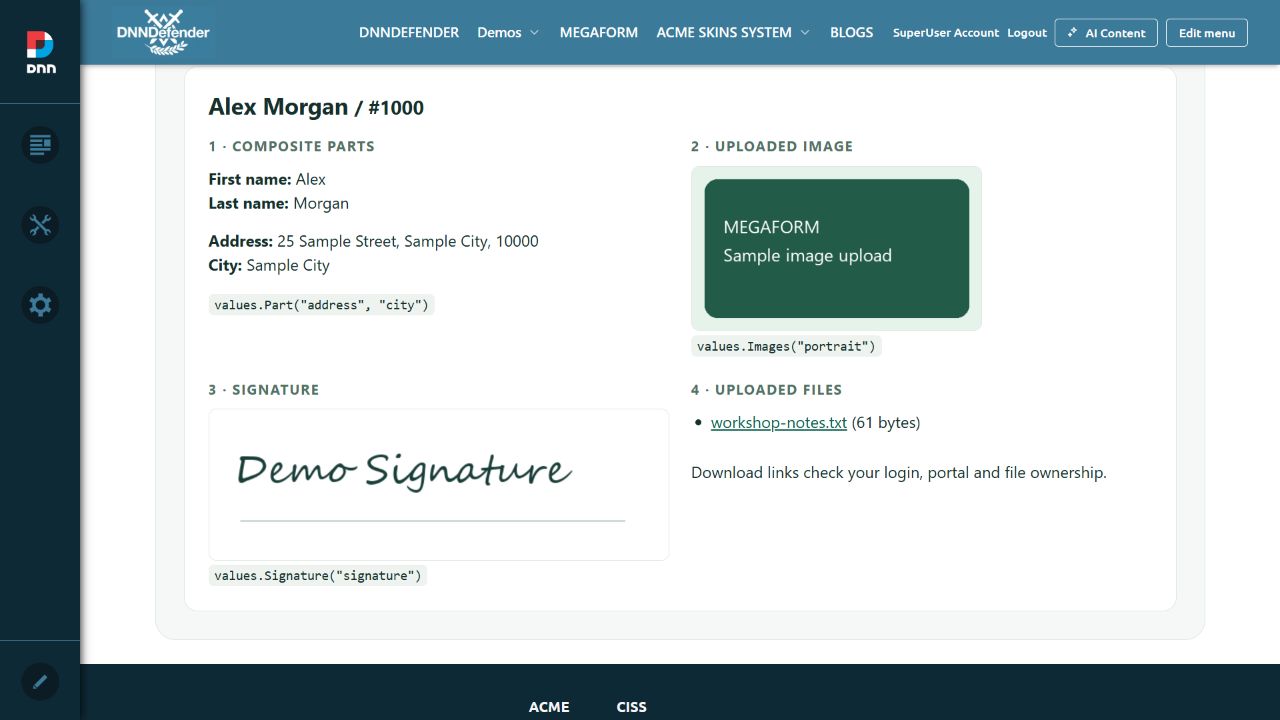 A real Razor Host result using fictional composite, image, signature and file data. Click to enlarge.
Steps
- Download the Razor examples and read README first. Place the chosen .cshtml file in the Razor Host Scripts folder and select it in the module's settings.
- In MegaFormSubmissionCards.cshtml set the real
FormId and the exact field keys. Keep the initial administrator/portal checks while testing.
- Use
ReadValues(), Text(key) and Part(key, part) for normal and composite answers. Use Images(key) and Signature(key) for their intended display values.
- For direct SQL use the SQL card example and explicit MapField/MapPart mappings. For linked uploads use MegaFormSqlLinkedUploads.cshtml and a verified SubmissionId relationship; a business row ID is not automatically a MegaForm submission ID.
- Test a fictional record containing an address, image, signature and file. Verify a permitted download and a denied anonymous request before adapting the reader for a customer-facing audience.
Check the result
The image/signature render, address parts show separately, and file links use the authenticated SDK route. No DataJson parsing is needed.
If it does not work
A blank composite part usually means a wrong part key or mapping. File URLs need the associated submission, portal/form and authorization checks; a scope label is not an access grant.
More detail: Full illustrated reader and Razor download · File authorization reference
↑ All how-to tutorials
16 / Automation · 12 min
How to create a registration form with native DNN accounts
You will build: A workshop registration creates a native DNN account that awaits portal approval. A saved entry and a completed account action are verified separately.
Before you start: Use a local/test DNN site and a new fictional username. Import 04-registration.json. Its account action is disabled until you review and enable it.
Try this example →
 The actual registration example with username, email, first name and last name filled in. Click to enlarge.
Steps
- Import
04-registration.json, or create Username, Email, First name and Last name with keys username, email, first_name and last_name. Require all four. The tutorial accepts usernames starting with howto_.
- In the builder open Configure workflow → Open Advanced BPMN. Connect Form submitted → Create User → End. Select Create pending DNN user. In Account system choose Native DNN User / DNN Role. Uncheck Disabled only after reviewing this example.
 The native registration graph: form data → Create User → End. Click to enlarge.
 Account system explicitly selects native DNN users and roles. Click to enlarge.
- Map User name to
{{field.username}}, Email to {{field.email}}, First name and Last name to their corresponding fields. Use {{field.first_name}} {{field.last_name}} for Display name. The values are field tokens, not the literal sample name. Profile inputs use field tokens; they are resolved from the submitted form. Click to enlarge.
- Leave Approve user, Update if exists and Auto-login off. Leave Password blank and enable Generate password if empty. Leave Password variable blank too. This example does not expose the generated password or automatically grant a role. Validate BPMN, Apply BPMN and save the form.
- Open the published form and submit a fresh fictional identity such as
howto_workshop_01 and howto_workshop_01@example.com. The confirmation proves the entry was saved; inspect the workflow execution as well. Submission #1009 was saved. Separate local checks confirmed a completed workflow and an unauthorized DNN portal account. Click to enlarge.
- Open DNN Users, find that exact username and check its portal authorization state. A new account in this example is not authorized for the portal. Finish approval and password setup through normal DNN account administration. If needed, add a reviewed Add User to Role step for a specific non-privileged role.
- Submit the same username/email again with Update if exists off. The native adapter reuses an existing identity without overwriting it; it does not create another account. Do not describe that idempotent result as a duplicate-validation error. Test a distinct identity for each creation check.
Check the result
In the local example, entry #1009 has a completed native workflow and howto_workshop_01 exists in DNN with portal Authorised=false. A repeated submission must not increase the number of matching accounts or overwrite its profile.
If it does not work
A success confirmation does not prove account provisioning. Inspect the execution error and DNN Users. A previously existing account retains its own authorization state. Never put a generated password in a public screenshot, message, export or workflow variable.
Download examples — use 04-registration.json from the ZIP.
More detail: Native user provisioning · Workflow setup
↑ All how-to tutorials
17 / Payments · 12 min
How to build a fixed-price payment form
You will build: A USD 35 workshop checkout whose final submission requires a verified payment.
Before you start: Use matching Stripe TEST publishable and secret keys in a test site. Import 05-payment.json. The portable file contains no keys and does not change your gateway into test mode.
Try this example →
 Payment properties select Stripe, fixed USD 35 and payment required before final submission. Click to enlarge.
Steps
- Add Full name and Email, then a Payment widget named
workshop_fee. Choose Stripe. Set Amount mode to Fixed, Amount to 35, Currency to USD and Require paid to on.
- In Settings → Payment Settings configure the matching Stripe test secret key. In the widget set the matching test publishable key. A publishable key starts with
pk_test_; the server secret starts with sk_test_. Keep the secret out of form HTML, JSON exports and screenshots.
- Publish the form and first try to finish registration without paying. A missing/unverified payment must stop the final submission. If the gateway cannot initialize, resolve its actual connection/configuration error before continuing.
 Actual local test: the fee remains USD 35 and Not paid when the server cannot reach Stripe. This is a failure-state example, not proof of a completed payment. Click to enlarge.
- Once the secure card control loads in test mode, use Stripe test data:
4242 4242 4242 4242, a future expiry, any three-digit CVC and fictional billing details. Complete the test payment and wait for its confirmed result before the final form submit.
- Open the saved entry and inspect the Payment value: provider, transaction/intent ID, amount, currency and verified status. Check the same test transaction in Stripe. Repeat with a declined test scenario and confirm it cannot create a paid registration.
Check the result
The acceptance target is a verified USD 35 test transaction plus one saved entry. On this local run Stripe initialization failed at the transport layer, because the local clone blocks outbound traffic through its proxy, so no successful-charge or paid-entry screenshot is claimed. Unavailable must remain unpaid.
If it does not work
This clone deliberately blocks outbound traffic at a local proxy. Use an authorized test environment with gateway access, then check HTTPS, the gateway response and matching test keys. Do not bypass payment verification to make the tutorial appear successful. A browser total, green button or accepted retry request is not proof of payment.
Download examples — use 05-payment.json from the ZIP.
More detail: Calculated payment recipe in this guide · Payment widget reference
↑ All how-to tutorials
18 / PDF · 12 min
How to make a fillable PDF Form and save the completed PDF
You will build: A workshop PDF with five editable overlays, saved answers and a completed PDF attached to its MegaForm entry.
Before you start: Download workshop-registration-blank.pdf and 06-pdf-form.json. The blank PDF is a static background; MegaForm adds the editable fields. This differs from printing an existing entry.
Try this example →
 Workshop PDF in the real PDF Form Builder. Text, Dropdown and Number overlays are visible; scroll down to Notes. Click to enlarge.
Steps
- Import
06-pdf-form.json to load the embedded PDF and field layout. For your own design, add the PDF Form widget and select Open PDF Form Builder → Upload PDF. Use a PDF you are allowed to distribute.
- Place Text for Full name and Email address, Dropdown for Workshop, Number for Number of attendees and Textarea for Notes. Select each overlay to set its name, label, size and required setting. The example requires name, email and workshop.
 A selected PDF overlay exposes its name, label and required setting. Click to enlarge.
- Use Preview/Fill to inspect field positions. Save & Close, then save/publish the MegaForm. Keep automatic upload enabled so the completed PDF can attach to the entry. The original background PDF stays unchanged.
- Open the published form. Submit once with the required fields empty and check the highlighted validation. Then fill Alex Morgan, alex@example.com, Workflow automation, 2 attendees and a fictional note. Zoom out and in; the five inputs must remain single and retain their answers.
 An empty submission is stopped with three required PDF fields highlighted. Click to enlarge.
 The real PDF Form filled with fictional workshop data. Click to enlarge.
- Use PDF to download a completed copy and open it. Compare all five answers with the form. Then use Submit, wait for upload and the final entry confirmation, and open the saved entry.
 Rendered output from the actual downloaded PDF: all five answers are in their intended boxes. Click to enlarge.
 Entry #1011 finished after the completed PDF uploaded. Click to enlarge.
- Inspect the saved PDF Form value and its attached file. Download the authorized attachment and compare it with the filled copy. Use the Typed Values/Razor reader when you need the nested answers or a protected file link; do not parse a legacy DataJson field.
Check the result
The native example saved entry #1011 with all five typed answers, including the last-edited Notes, and a private PDF attachment. The exported PDF was opened, rendered and its five answers checked. Anonymous access to the private file returned HTTP 401. The local widget patch also fixes duplicate overlays on zoom and the final edited answer being one event behind.
If it does not work
A blank preview needs a valid PDF source and working PDF.js loading. A PDF downloaded in the browser is not automatically a saved submission: check the final entry and its attachment. Keep required-field errors visible and check upload errors instead of assuming an attachment exists.
Download examples — use 06-pdf-form.json + workshop-registration-blank.pdf from the ZIP.
More detail: PDF Form widget · Read nested answers and authorized files
↑ All how-to tutorials
19 / Payments · 12 min
How to connect calculated fields to a payment form
You will build: Ticket quantity recalculates a subtotal and booking fee; the Calculator grandTotal becomes the Payment amount.
Before you start: Import 07-calculated-payment.json. Use Stripe test configuration for checkout. The arithmetic works without a completed gateway payment.
Try this example →
 Two tickets at USD 35 plus a USD 5 booking fee give a calculated total of USD 75. Click to enlarge.
Steps
- Add Number
quantity, labelled Tickets, with minimum 1, maximum 10 and default 2. Add a Calculator named order_total. Map its numeric variable quantity to the Tickets field. The Calculator variable quantity reads the Tickets Number field. Click to enlarge.
- In Calculator formulas add
subtotal = quantity * 35, then grandTotal = subtotal + 5. Show both with two decimal places and a dollar prefix. The price and booking fee are constants in the formula, not visitor-editable price inputs. Native formulas calculate quantity × 35 and add the USD 5 booking fee. Click to enlarge.
- Add Payment and select Amount from field. Choose
order_total as the source field and grandTotal as the result key. Set USD, require payment, and bounds of USD 40–355 for this 1–10 ticket example. Payment reads the Calculator field and its exact grandTotal result key. Click to enlarge.
- Publish and change Tickets from 2 to 3: subtotal changes from 70 to 105, and grandTotal from 75 to 110. Check that the Payment amount follows the same result. Try zero and more than ten tickets; validation must reject them.
 Changing to three tickets recalculates the total to USD 110. Click to enlarge.
- With a working Stripe test gateway, pay the current total, then submit. Inspect both the saved Calculator output and verified Payment amount. If quantity changes after payment, require verification against the new price; an old smaller payment must not satisfy the new total.
quantity  → Tickets field
subtotal  = quantity * 35
grandTotal = subtotal + 5

Payment.amountMode = field
Payment.amountFieldKey = order_total
Payment.amountFieldResultKey = grandTotal
Check the result
Local arithmetic checks cover 2 tickets = USD 75 and 3 tickets = USD 110. Payment initialization is currently blocked by the local Stripe connection error, so a successful calculated checkout is still an acceptance step to complete after that connection works.
If it does not work
Use the exact source field/result keys. The Calculator runs in the browser; mapping its result to Payment does not independently validate the ticket price. For production pricing, enforce the quantity/rate calculation on the server and verify the gateway amount against it. A formatted $75.00 label is not a transaction. This tutorial uses test checkout, and its completed-payment check remains pending.
Download examples — use 07-calculated-payment.json from the ZIP.
More detail: Fixed-price payment recipe in this guide · Calculator and Payment widgets
↑ All how-to tutorials
20 / Design · 10 min
How to show or hide a field and a whole group by condition
You will build: Business reveals the billing group; Other reveals a separate required explanation. Personal/General keeps the form short.
Before you start: Import 08-conditional-groups.json or start blank. This example uses answer-based Show when and Required when rules in field properties.
Try this example →
 Personal + General: business billing fields and the extra topic explanation are hidden. Click to enlarge.
Steps
- Add Radio
customer_type with labels Personal/Business and stored values personal/business. Add a Row group billing_group containing Company name and optional Tax reference.
- Select the billing Row and use Edit group properties. Open Conditional Logic, enable Conditional visibility and choose Show this field when. Set Request type → Equals → Business. Although the control says “field”, this rule belongs to the parent Row, so all children appear or disappear together. Keep Company name required while the group is visible.
 Row / Columns properties: show the whole billing group when Request type equals Business. Click to enlarge.
- Add Topic dropdown
topic with General question (general) and Other (other). Add textarea other_details. In its Conditional Logic, enable Conditional visibility and set Show this field when: Topic → Equals → Other. Separately enable Conditionally required, choose Require when and use the same condition. Leave the normal Required setting off so the field is optional for other answers. Long Text properties: show the explanation only when Topic equals Other. Click to enlarge.
 A separate Require when rule makes the explanation mandatory only for Topic = Other. Leave the normal Required setting off. Click to enlarge.
- Save and open the rendered form. Start with Personal/General. Switch to Business and check both billing inputs appear. Switch Topic to Other and check the explanation appears; submit with it empty to check the conditional required error.
 Business + Other reveals both billing inputs and the explanation field. Click to enlarge.
 The visible Other explanation is required before submission. Click to enlarge.
- Return to Personal/General and submit the short form. Hidden company/explanation fields must not block it. Test switching back and forth and inspect saved answers; visibility alone does not promise old answers are cleared or treated as private.
 Personal + General submitted as entry #1010 with hidden required fields empty. Click to enlarge.
- For several conditions choose ALL (And) or ANY (Or) deliberately. For example a group can require Business AND a minimum quantity. Keep role-based data access in the permissions settings; hiding a field is a presentation rule, not authorization.
Check the result
Personal/General hides the two conditional areas and submits without their required values. Business/Other shows them and requires Company name plus the explanation. Test both directions before publishing.
If it does not work
Compare stored option values, not just display labels. A rule on one child does not hide its siblings. Put a group rule on a real Row/container rather than an unrelated decorative heading. Use access permissions for sensitive fields.
Download examples — use 08-conditional-groups.json from the ZIP.
More detail: Field properties and conditions · Permissions and field access
↑ All how-to tutorials