Not rated yet
Data, submissions & languages
SQL, storage, files, entries, CAPTCHA and translation.
Choose storage and connect SQL data
The Wizard offers three data sources. Choose the source before reviewing fields and workflow.
Review all three storage choices and inspect an existing SQL table.8 steps · 41.1s · Updated 25 Oct 2026Open video ↗
| Choice | What to do |
|---|
| MegaForm storage | The default. MegaForm manages Typed Values, composite parts and file references. |
| Create a SQL table | Select an allowed connection and a new table name, then design the fields. Creation happens when the Wizard finishes. Composite parts receive separate columns. |
| Use an existing SQL table | Select a connection, browse tables and inspect the schema. Review the generated field types and mappings before creating the form. Existing rows stay in place. |
Existing tables: read and add first
Reading and adding records are the defaults. Update and delete are separate choices. A table without a primary key can still support adding records; do not enable row editing without a suitable key and permissions.
SQL column types do not describe every UI control. Review generated fields explicitly: a long text column may represent plain text, an Address, image metadata or a Signature. Configure the intended control and its mapping rather than assuming that the column name identifies its type.
Composite fields, images and signatures
For new tables, review the generated columns for each composite part. For existing tables, align the form field and storage mapping with the table's columns. Use the typed SDK/Razor accessors to read the form values; keep image and Signature references suitable for rendering. See Typed Values, composites and files in Razor.
Connections and workflow SQL
Configure named connections in Settings → Database Settings. Forms and workflow nodes use the allowed connection name. Keep connection strings and credentials on the server.
A workflow SQL action is a separate integration. Review its field mapping, required target columns and parameterized INSERT preview before applying or executing it. The walkthroughs inspect a local sample table and do not execute SQL actions.
File Uploads: Azure Storage, Multiple Files, and Server Paths
MegaForm supports multiple files in one File Upload field and can store them through DNN's Folder Provider. If that DNN folder is backed by Azure Storage, MegaForm uses the existing DNN Azure connection; MegaForm does not need a second Azure SDK or a second set of Azure credentials.
This page answers four common questions:
- Can MegaForm upload files to Azure Storage? Yes, through DNN Folder Provider.
- Is private storage the only option? No. On DNN, choose DNN Folder Provider to use the site's configured folder mapping.
- Can one field accept several files? Yes. Set Max files to a value greater than 1.
- Is a separate server path saved for each file? Yes. Each uploaded file keeps its own stored reference and server path.
Choose the primary storage route
Open MegaForm → Settings → Upload Settings.
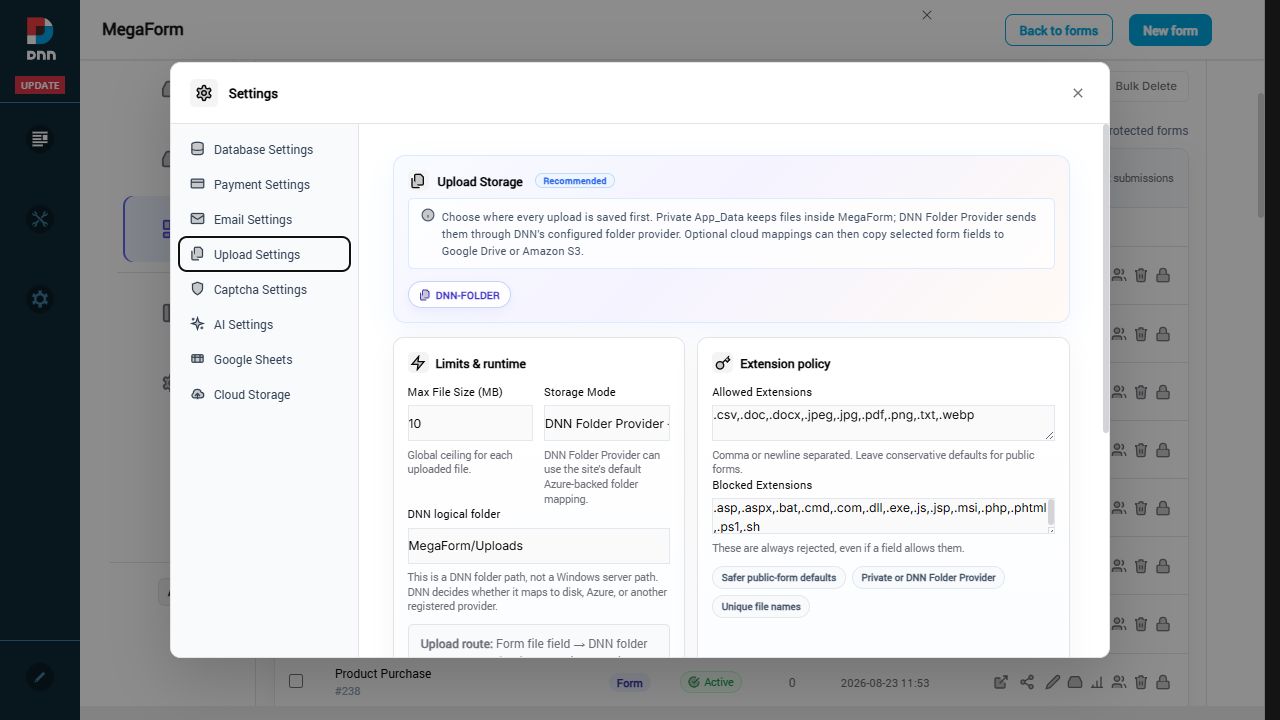
The two primary storage modes are:
| Mode | What it means |
|---|
| Private App_Data | Files remain in MegaForm's private application storage and are served through the protected download endpoint. |
| DNN Folder Provider | MegaForm sends files through DNN's folder API. DNN decides whether the logical folder is stored on disk, Azure Storage, or another registered provider. |
For an existing DNN Azure connection, select DNN Folder Provider and enter a logical DNN folder such as MegaForm/Uploads. This is not a Windows path and it should not contain a drive letter.
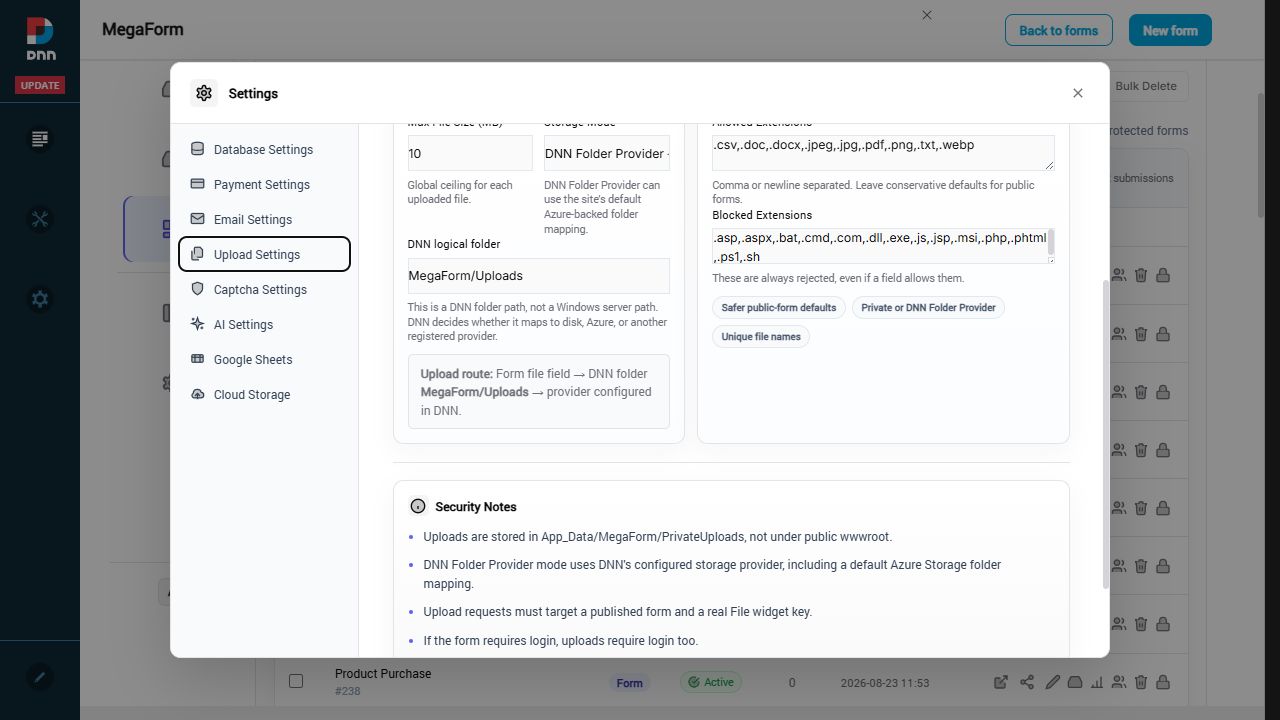
The resulting route is:
File Upload field → DNN logical folder → DNN's configured provider
If DNN maps that folder to Azure, the file goes to Azure. If DNN maps it to the normal portal file system, the same MegaForm configuration writes there instead.
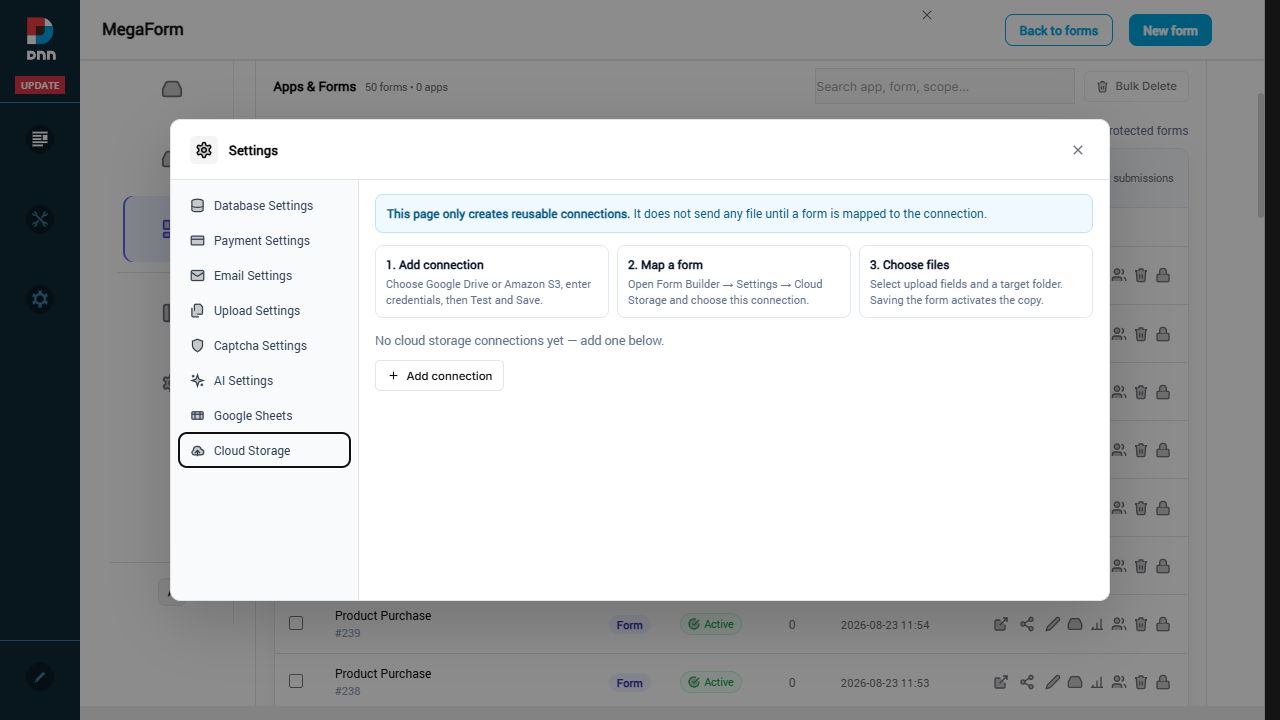
MegaForm's Cloud Storage page is different. It creates optional Google Drive or Amazon S3 connections that can receive a copy after submission. It is not required for the primary DNN/Azure route.
In Form Builder:
- Add or select a File Upload field.
- Open Edit settings for that field.
- Expand File Settings.
- Set Max files to a number greater than
1. - Set Max size (MB) and Allowed extensions.
- Save and publish the form.
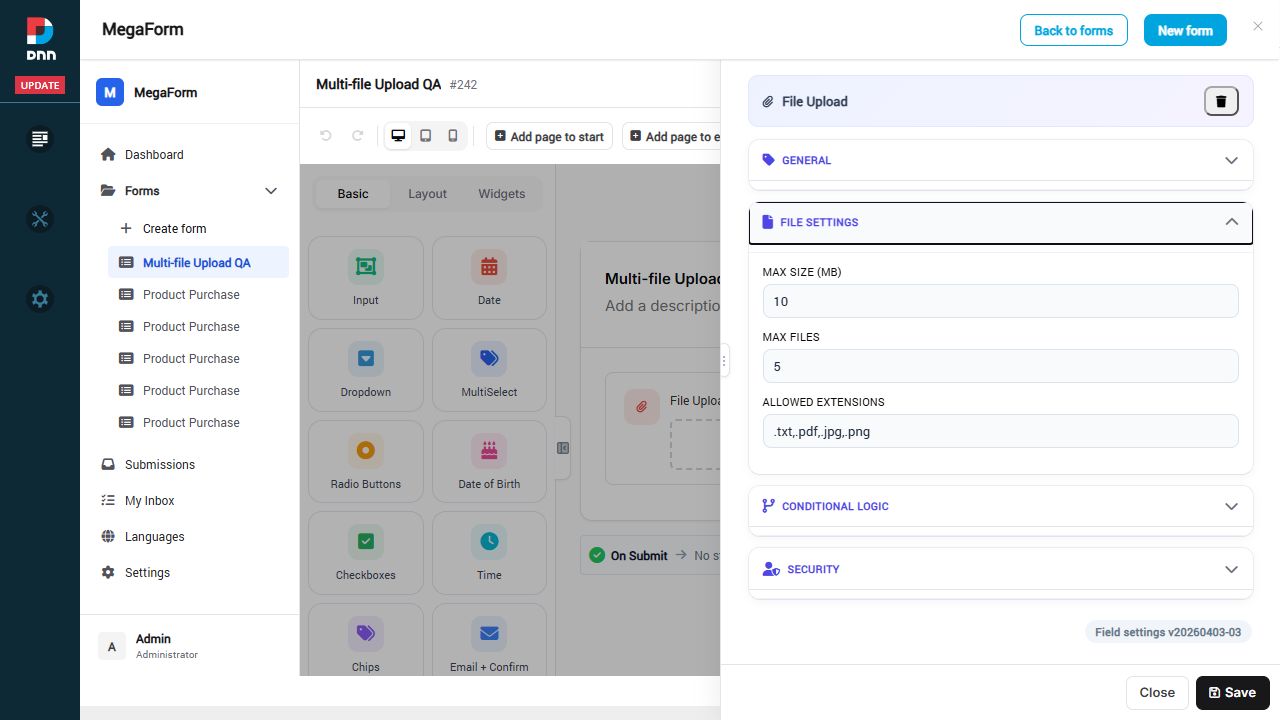
The global upload policy is still the ceiling. A field cannot bypass the global file-size or extension restrictions, and blocked executable or script extensions remain rejected.
What the visitor sees
When Max files is greater than 1, the browser file picker accepts multiple files in one selection. The field lists each file separately and shows the upload result for each item.
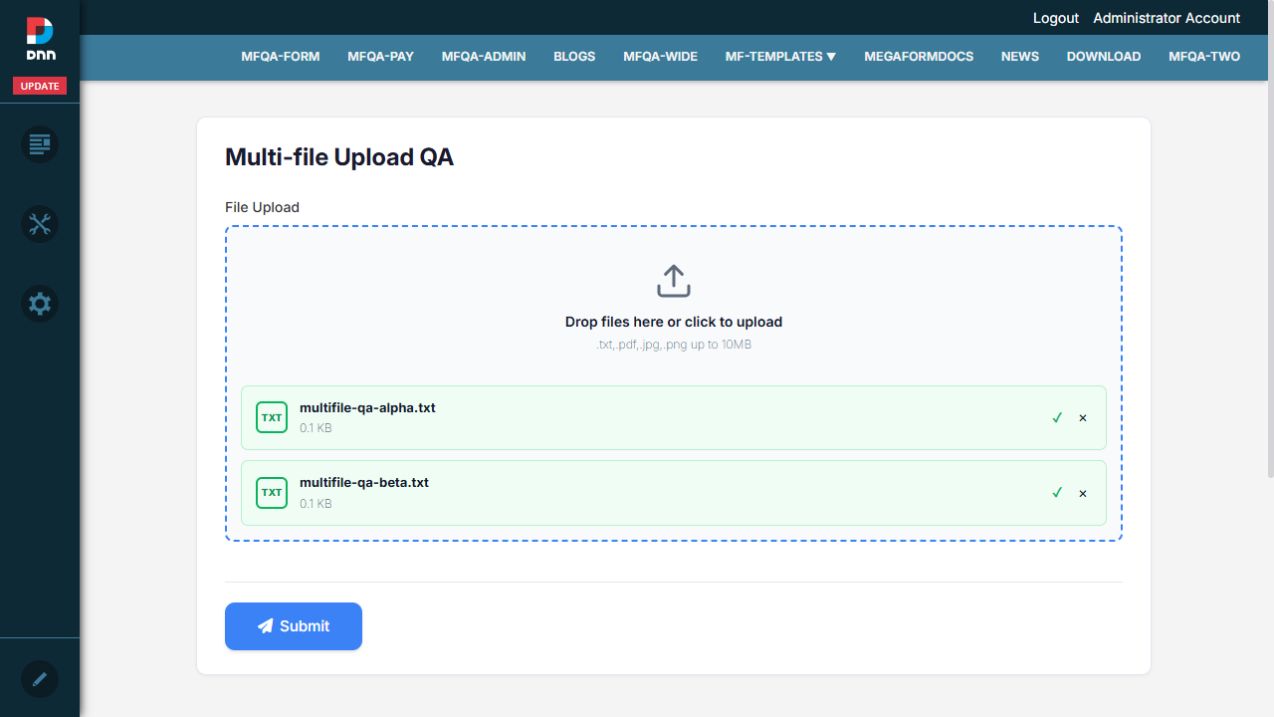
The form should not be considered submitted until every selected file has finished uploading. If one file fails validation, correct that file and try again; the error belongs to that item, not to an invisible combined upload.
Verify every saved path
After submission, open Submissions, select the record, and inspect the File Upload field. Every file is shown as a separate item with its own file name, size, stored reference, and server path.
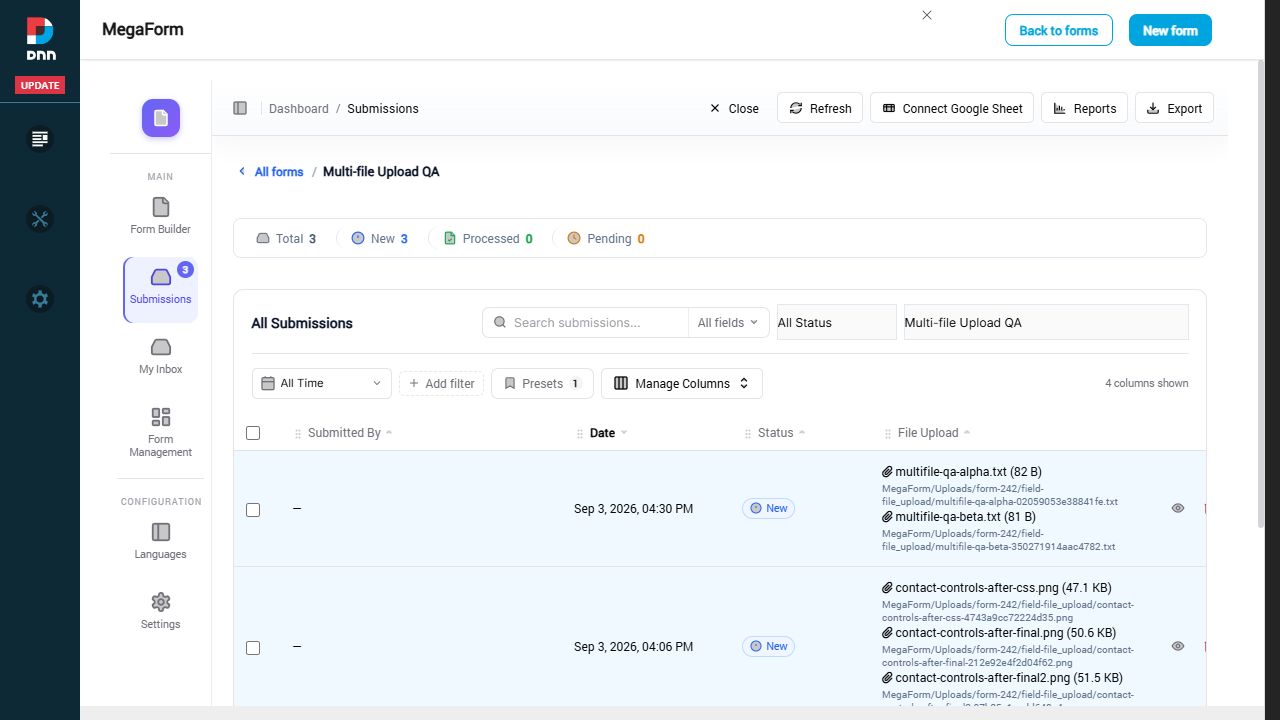
With DNN Folder Provider, a path can look like:
MegaForm/Uploads/form-242/field-file_upload/example-uniqueid.txt
The internal stored reference can look like dnnfile:173. That reference lets MegaForm ask DNN for the file without assuming whether DNN keeps it on a local disk or in Azure.
For Azure-backed folders, the displayed server path is therefore a DNN-relative path, not an absolute Windows path. This is expected and keeps the submission portable across DNN storage providers.
Visual QA result
The current DNN build was tested end to end with a File Upload field configured for five files:
- The public input exposed native multiple-file selection.
- Two text files were selected in one chooser and both reached the uploaded state.
- The form submitted successfully.
- Submission details showed two file rows.
- Each file had a different DNN file reference and a different server path.
- Both paths existed under the configured DNN folder on the test site.
- No JavaScript console errors were recorded during the tested flow.
The test site used DNN Folder Provider backed by its normal portal folder. The same MegaForm route is designed to use Azure when the selected/default DNN folder provider is Azure-backed. A real Azure transfer still depends on a valid Azure Folder Provider configuration in DNN.
Troubleshooting checklist
If only one file can be selected:
- Confirm Max files is greater than
1 in the field's File Settings. - Save and publish after changing the field.
- Reload the public form without an old cached script.
If a file is rejected:
- Compare its extension with both the field-level list and the global Upload Settings.
- Check the field and global maximum size.
- Do not add executable or script extensions to a public form.
If you expected Azure but files use local storage:
- Confirm MegaForm's primary Storage Mode is DNN Folder Provider.
- Confirm the logical DNN folder is assigned to the intended Azure-backed provider in DNN.
- Test the DNN folder independently; MegaForm deliberately follows DNN's mapping rather than storing Azure credentials itself.
If the server path is missing:
- Open the newest submission and expand the File Upload value.
- Confirm the form was republished after File Settings changed.
- Verify that all uploads completed before Submit.
- Record the submission ID and file name when asking for support.
For a broader overview of storage and external services, continue with Storage & Integrations.
Submissions & My Inbox (DNN)
Two surfaces handle everything that comes IN: Submissions (every record, admin view) and
My Inbox (each user's own workflow tasks). Both live in the Form Dashboard — and both can
be a dedicated DNN page.
Submissions
The Submissions section opens on a per-form overview (KPIs + a table of forms with counts,
completion and trends), and clicking a form drills into its grid — every submission as a
row, with the form's own fields as columns:
Find a form, filter its entries and open submission details.6 steps · 28.4s · Updated 25 Oct 2026Open video ↗
From the grid you can open any record's detail sheet (values, files, workflow history), change
status, print an A4 document of one submission, export CSV, connect a Google Sheet, or open
Reports. Filtering at scale gets its own page —
Submissions Grid — Filters at Scale.
My Inbox
My Inbox is the approver's view — only THEIR tasks, grouped by form, filterable by state
(Inbox, Assigned to Me, Forwarded, Completed, Starred):
Submit a sample with Address and Signature, approve it and check History.9 steps · 37.4s · Updated 25 Oct 2026Open video ↗
Opening a task shows the submission's responses plus the action bar — Approve / Reject /
Return / Forward / Comment / Print / Export — covered in
Approval Workflows & Inbox.
Who sees what
Submissions honor the form's Access matrix (Field permissions):
admins see everything; other roles need an explicit view/manage grant, and row-level rules
(own-records-only, approver-of-record) are enforced server-side. My Inbox is inherently
per-user — tasks are resolved from the workflow tables, never from the client.
Submissions grid — filters at scale (DNN)
Every form's submissions open in a data grid with a search box, composable filter chips, and saved presets. The recording below runs against a deliberately unfriendly dataset: a form bound read-only to an external ERP table with 500,000 rows — the grid pages through all of them server-side while you filter.
Find a form, filter its entries and open submission details.6 steps · 28.4s · Updated 25 Oct 2026Open video ↗
Steps shown
- The grid opens on Support tickets (legacy ERP) — the header counts Total 500000 and the footer pages Showing 1–50 of 500000 submissions.
- Add filter opens a command palette listing the form's fields (here they are the external table's columns — Subject, Status, Priority id, Customer email, …). Typing narrows the list.
- Pick Status — the editor offers the conditions (is / is not / is empty / is not empty) and, for a choice-like field, value pills taken from the live data (Closed, Resolved, Pending, Open, New). Pick Open, Apply filter.
- The chip Status is Open appears and the page badge shows 10 of 50 on this page — the chip refines the rows in view, instantly, without a round trip.
- Click Next: the grid fetches the next 50 of the 500,000 server-side (Showing 51–100 of 500000) and the chip stays applied to the new page.
- Presets → Save current filters as preset → name it — the preset appears in the list and the badge increments. A preset restores the whole filter configuration in one click.
What is what
| Piece | Behaviour |
|---|
| Search box + scope | Free-text search with a per-field scope selector (All fields, or a single field such as Subject). |
| Filter chips | Field + condition + value, built from the Add filter palette. Multiple chips combine; each chip removes with its ×. Chips filter the rows currently in view, instantly. |
| Paging | Server-side — 50 rows a page, whatever the total. The 500k demo table pages exactly like a 50-row form. |
| Presets | Named, saved filter configurations, listed with their filter count. Save the current chips, or load one back later. |
| Manage Columns | Choose and order the visible columns. |
| Export / Reports / Connect Google Sheet | The toolbar above the grid — exports honour the current form. |
Find a form, filter its entries and open submission details.6 steps · 28.4s · Updated 25 Oct 2026Open video ↗
About that 500,000-row table
The demo form is not storing half a million submissions in MegaForm — it is bound to an existing SQL table (dbo.SupportTickets in a legacy ERP database) in read-only mode, and the submissions grid treats it like any other form: same paging, same chips, same presets, with the table's own columns appearing as filterable fields. Pointing a form at a customer's existing table is its own feature — the grid simply doesn't care where the rows come from.
Next steps
Multi-language UI and authored form content
The current installation has 37 language packs. Their coverage differs; missing product UI strings fall back to English. See Languages: available packs, creating a locale and filling missing translations for the full verified list.
Open MegaForm → Languages to select a display language, edit a pack, create another locale, download/upload its JSON or use the configured AI provider to help translate missing entries. Save and inspect the relevant screen after editing.
A product UI language is separate from a form's authored labels, choices, headings and email content. Review those through the form's translation/template content facilities; changing the browser's display language does not rewrite existing content or translate DNN itself.
For a complete task with a screenshot and a result check, use How to add a language and translate missing UI strings.
The local installation has 37 available language packs, verified on 24 October 2026. A pack is an installed locale, not a promise that every component has been fully translated. The English source currently contains 1,925 keys; packs have different coverage and some contain additional historical keys. Missing keys fall back to English.
Available languages
| Language |
Locale |
Language |
Locale |
| Arabic |
ar-SA |
Bulgarian |
bg-BG |
| Czech |
cs-CZ |
Danish |
da-DK |
| German |
de-DE |
Greek |
el-GR |
| English (UK) |
en-GB |
English (US, source) |
en-US |
| Spanish (Spain) |
es-ES |
Spanish (Mexico) |
es-MX |
| Estonian |
et-EE |
Finnish |
fi-FI |
| French |
fr-FR |
Hindi |
hi-IN |
| Croatian |
hr-HR |
Hungarian |
hu-HU |
| Indonesian |
id-ID |
Italian |
it-IT |
| Japanese |
ja-JP |
Korean |
ko-KR |
| Lithuanian |
lt-LT |
Latvian |
lv-LV |
| Norwegian Bokmål |
nb-NO |
Dutch |
nl-NL |
| Polish |
pl-PL |
Portuguese (Brazil) |
pt-BR |
| Portuguese (Portugal) |
pt-PT |
Romanian |
ro-RO |
| Slovak |
sk-SK |
Slovenian |
sl-SI |
| Serbian (Latin) |
sr-Latn-RS |
Swedish |
sv-SE |
| Thai |
th-TH |
Turkish |
tr-TR |
| Ukrainian |
uk-UA |
Urdu |
ur-PK |
| Chinese (Simplified) |
zh-CN |
|
|
Choose the display language
Open MegaForm → Languages. Use Display language to search by native name, English name or locale code. The choice is remembered in this browser. Choose English to reset. This does not translate DNN itself or rewrite the content of existing forms.
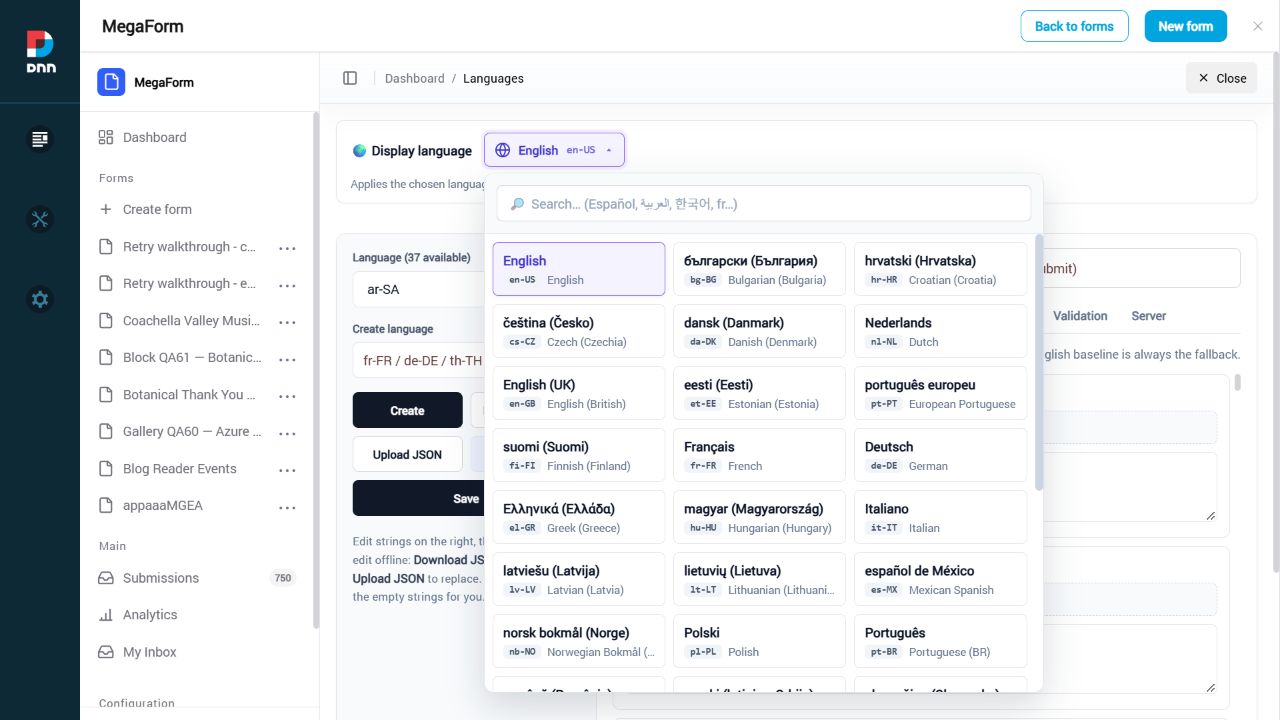
The Language (37 available) dropdown below selects the pack you are editing; it is separate from your display-language preference.
Create a language
- Sign in as a DNN administrator and open MegaForm → Languages.
- In Create language, enter a locale that is not installed, for example
en-AU.
- Click Create. MegaForm copies the English source into the new pack. It does not automatically translate those copied strings.
- Select the new pack, translate the required components and click Save.
- Choose the language under Display language and verify the relevant screens and published form.
Creating an existing locale retains its existing pack. The built-in en-US source is protected against overwrite. Only create a locale you intend to maintain.
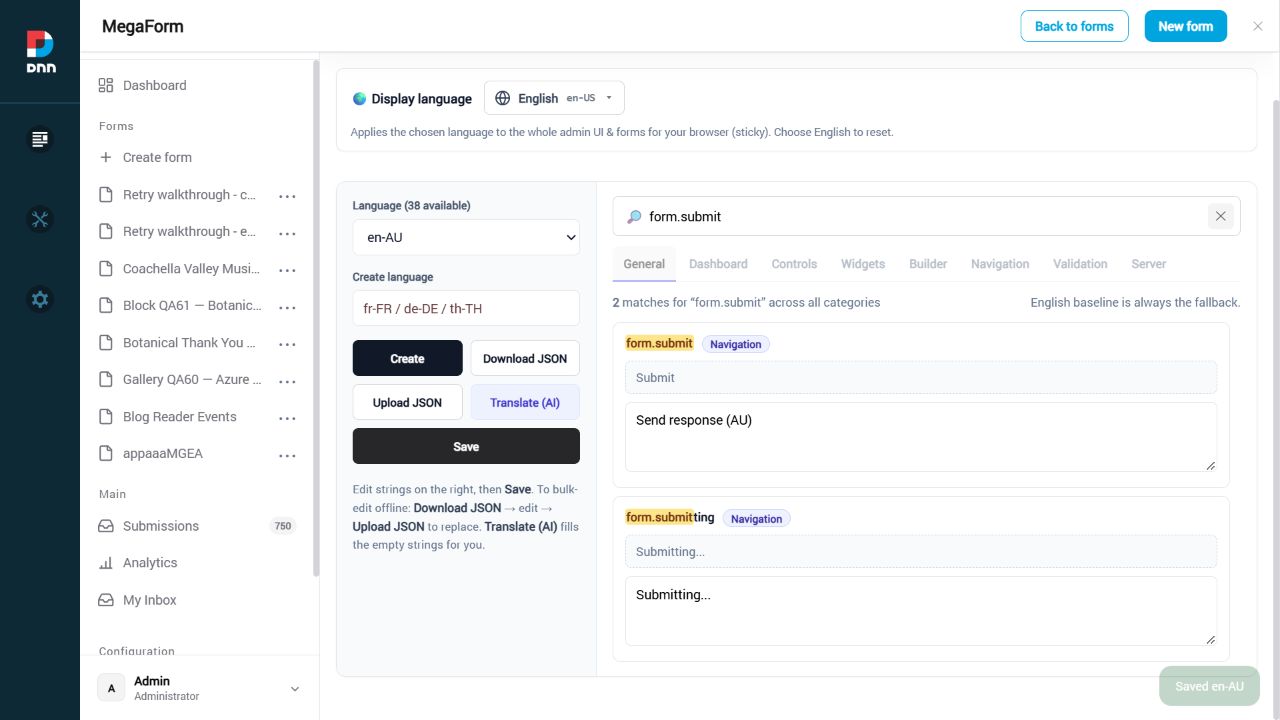
The example below temporarily creates en-AU, so its count becomes 38. The demonstration pack was removed after verification; the installed catalog remains the 37 packs listed above.
Translate a missing component or update a phrase
Select the target pack. Search for visible English text or a key such as widget.signature, field.email or form.submit. Search spans the catalog; the General, Dashboard, Controls, Widgets, Builder, Navigation, Validation and Server tabs help narrow the area.
Each row shows its stable key, the English source and the editable target value. Change the value and click Save. Keep the key, placeholders such as {min} and {field}, HTML tags and tokens unchanged. Reload the relevant admin/form screen after saving to check the result.
If a new release adds a key absent from a translation pack, the English source makes it available in this editor. Add the translation and save. If a phrase is not exposed as a catalog key, it must first be made translatable in the module; inventing a key will not replace hard-coded text.
Field labels, template copy, choices, validation overrides and custom HTML content are form content. Edit their translations in the form's language/content settings. This Languages screen maintains the shared MegaForm interface and renderer strings.
Use AI to fill missing translations
Configure the site AI provider under Settings → AI Settings first. Select the destination pack and click Translate (AI). Enter the same target language/code as that pack. MegaForm sends English strings that are empty or still identical to English in chunks, retaining existing non-English translations.
Review the suggested wording, placeholders and right-to-left rendering, then click Save. AI suggestions are not automatically published. Identical brand/technical terms may be selected again because identical English values are treated as untranslated. Language names, dates and legal text still require human review.
Download and upload JSON
Download JSON exports the selected editor values as a UTF-8 JSON file, including current unsaved edits. Keep a copy before bulk changes or module upgrades. Translate values offline without renaming keys. Upload JSON replaces the selected pack immediately with that file; it does not merge two complete packs. Review the selected locale before uploading, then reload a screen to verify it.
Pack saves/imports clear that language's MegaForm cache in the current browser. Other browsers with a cached pack may need a refresh/cache reset. Export site-specific translations before upgrading, because installed module assets can be replaced by an update.
Return to MegaForm documentation
reCAPTCHA and the other CAPTCHA providers
MegaForm can put a Google reCAPTCHA, hCaptcha or Cloudflare Turnstile challenge on a public form. The part worth understanding before you configure anything: the challenge in the browser is not what protects the form. The browser produces a token; the server takes that token, asks the provider whether it is genuine, and refuses the submission if the answer is no. A client that simply never renders the widget does not get past this — it gets an HTTP 400.
Two things have to be true
Protection needs both of these, and neither one alone does anything:
- Keys are stored on the site. A site key and a secret key, saved once at host level.
- The form has a Captcha field. Verification is keyed off the Captcha field in that form's schema. The server looks for a field of type
Captcha with a key; if the form has none, the submission is accepted without any CAPTCHA check, no matter what keys are configured.
The reverse also holds: a form with a Captcha field but no site key renders a visible warning instead of a challenge, and a form with a Captcha field but no secret key refuses every submission. Both cases are covered under What can go wrong.
Step 1 — Get a key pair from the provider
For Google reCAPTCHA, register the site at Google's reCAPTCHA admin console and choose v2 ("I'm not a robot" checkbox) or v3. You get two strings:
| Key | Where it goes | Who sees it |
|---|
| Site key (public) | Rendered into the public form page | Everyone. It is meant to be public. |
| Secret key (private) | Stored server-side only | Nobody. It never appears in any response to a browser. |
Register the hostname the form is actually served from. A key registered for www.contoso.com will fail verification on staging.contoso.com, and the failure looks identical to a bot being blocked.
Step 2 — Store the keys once, at host level
Open the MegaForm dashboard and go to Captcha Settings. There are separate Site Key and Secret Key boxes for reCAPTCHA and for hCaptcha. Paste and Save Captcha Settings.
That is the whole configuration, and it is done once per site. On a live DNN 10.3 site the site key saved here reaches the public form page on its own — the form itself does not have to be edited per page, and the page does not have to be re-published. Google's script then loads on the public page and window.grecaptcha becomes available to the widget.
Reopen the pane after saving and the secret key box does not show the secret back to you: it shows a truncated mask and a Secret saved marker. Saving again without retyping it keeps the stored value; a masked value is recognised and ignored rather than written back. The secret is used only in the server-to-provider verification call.
Note
The Captcha Settings pane holds the reCAPTCHA and hCaptcha key pairs. Cloudflare Turnstile is
supported by the same verification path and is configured the same way — public site key on the
page, secret key held server-side — with its keys supplied through the host's MegaForm
configuration.
In the builder, drag the CAPTCHA control onto the form and set its properties:
| Property | Notes |
|---|
| Mode | reCAPTCHA v2, reCAPTCHA v3 or hCaptcha. Determines which script loads and which provider is asked to verify. |
| Theme | Light or dark, passed to the provider's widget. |
| Site Key | Leave blank to use the site-wide key. A value here overrides only the public site key for this field — there is deliberately no per-field secret key. |
| Action Name (v3) | reCAPTCHA v3 action label, default submit. Only letters, digits, _, / and - survive; anything else is stripped. |
| Min Score (v3) | 0.3 lenient, 0.5 balanced (default), 0.7 strict. |
Save the form. Nothing else on the page needs changing.
v2 checkbox versus v3 invisible
This is a layout decision as much as a security one.
reCAPTCHA v2 shows the familiar I'm not a robot checkbox. The visitor has to tick it, and may be handed an image challenge. MegaForm renders it inside a bordered box capped at 340 px wide that reserves at least 78 px of height for the provider's widget, so the field occupies real space in the form flow — plan the layout around it the way you would around any other field.
reCAPTCHA v3 shows the visitor nothing. It scores the session in the background and hands the form a token. Measured on a live public page, the widget host element for v3 renders 0 px high — the form reserves no space at all. The only visible artefact is Google's own badge in the page corner, measured at 256 × 60.
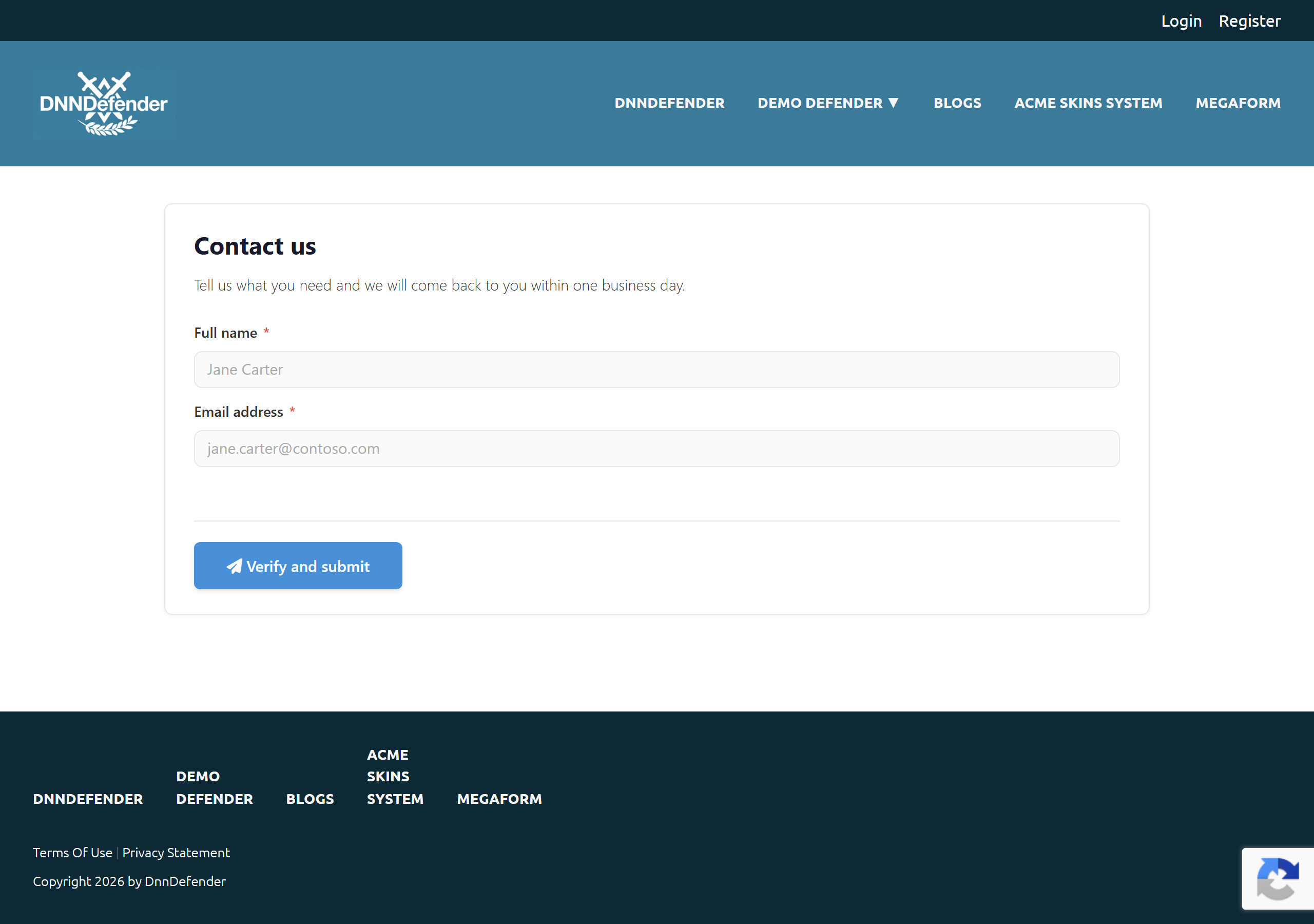
Nothing on that form announces the check. The whole of it is the badge, bottom right of the page:

Note
That badge is not decoration. Google's terms require either the badge or a visible notice telling
visitors that reCAPTCHA is in use, with links to Google's privacy policy and terms. If you hide
the badge with site CSS, add the notice.
The practical trade: v2 costs layout space and one click but tells the visitor plainly what happened when it fails. v3 costs nothing visually, and a visitor blocked by a low score has no way to prove otherwise — there is nothing to re-solve.
The server runs this before the submission is stored, before workflow, before notifications:
- Load the form's schema and find the Captcha field. No Captcha field → no check.
- Read the token the browser posted under that field's key.
- No token → refuse.
- No secret key configured → refuse, with a message naming the missing configuration.
- POST the secret, the token and the caller's IP to the provider's verify endpoint (
https://www.google.com/recaptcha/api/siteverify for reCAPTCHA, https://hcaptcha.com/siteverify for hCaptcha). - Provider says
success: false → refuse. - reCAPTCHA v3 only — the returned action must match the configured action exactly, and the returned score must be at or above the minimum. Either check failing → refuse.
- On success the token in the submitted data is replaced with a fixed verified marker before the data is stored, so no reusable provider token is written into the submission record.
Refusals are HTTP 400 with the message on both error and validationErrors[<captcha field key>], so a form can show it inline against the field.
Submitting with no token at all:
{"success":false,"error":"Please complete the CAPTCHA verification.","validationErrors":{"captcha":"Please complete the CAPTCHA verification."}}
Submitting with a token that is not genuine:
{"success":false,"error":"CAPTCHA verification failed. Please try again.","validationErrors":{"captcha":"CAPTCHA verification failed. Please try again."}}
The two messages are different on purpose, and the difference is the whole point of the feature. The first is the form noticing that nothing was solved. The second is the server having asked Google and been told no. Both were produced against a live site by an anonymous caller posting directly to the submit endpoint — a browser cannot skip verification by declining to send the field.
The remaining refusal messages, in the same shape:
| Situation | Message |
|---|
| Secret key not saved | Captcha secret key is not configured in Dashboard settings. |
| Provider unreachable or the call threw | Could not verify CAPTCHA right now. Please try again. |
| v3 action did not match | CAPTCHA action mismatch. Please try again. |
| v3 score below the minimum | CAPTCHA score was too low. Please try again. |
What a visitor sees, and what an administrator sees
Visitor, normal failure. With v2 or hCaptcha, leaving the box unticked is caught in the browser first: the field shows Please complete the security check and no request is sent. If the token has expired between solving and submitting, the widget clears itself and says so (reCAPTCHA expired — please verify again.), and the visitor solves it again.
Visitor, server refusal. The 400 message above lands on the Captcha field. With v3 the visitor sees a failure they cannot act on — this is the honest cost of an invisible challenge.
Administrator, keys missing. A form whose mode has no site key does not fail silently. It renders an orange notice in the form, visible to the public:
reCAPTCHA v2 requires a site key — configure it in Dashboard → Captcha Settings or override it in the field settings.
Load the public page as an anonymous visitor after configuring; that notice is the fastest way to find out the key never arrived.
Administrator, submissions. Verified submissions store the fixed marker in the Captcha field, not the provider token. The grid column for that field is therefore uninformative by design — see Submissions Grid. Refused submissions are not stored at all, so a spike in blocked traffic is visible in the web server log rather than in MegaForm.
The four providers
| Provider | Visitor experience | Verified endpoint |
|---|
| reCAPTCHA v2 | Checkbox, sometimes an image challenge | www.google.com/recaptcha/api/siteverify |
| reCAPTCHA v3 | Nothing visible except the badge | www.google.com/recaptcha/api/siteverify |
| hCaptcha | Checkbox, sometimes an image challenge | hcaptcha.com/siteverify |
| Cloudflare Turnstile | Usually a non-interactive widget | challenges.cloudflare.com/turnstile/v0/siteverify |
Important
The behaviour described in this page — the layout measurements, the two distinct refusal messages,
the site key reaching the public page — was measured with reCAPTCHA. hCaptcha and Turnstile are
wired the same way through the same server-side verification step, but their measured behaviour is
not documented here. Test the one you choose on a public page before you rely on it.
What reCAPTCHA does not do
Be clear about what you are buying:
- It scores traffic; it does not decide anything on its own. v3 returns a number. You choose the threshold, and every threshold is a trade between blocking bots and blocking real people. There is no setting at which both are zero.
- It puts a third party in your submit path. If the provider is unreachable, MegaForm refuses the submission (
Could not verify CAPTCHA right now.) rather than letting it through unchecked. That is the safe default, but it means the provider's availability is now your form's availability. - It does nothing about the rest of the spam problem — duplicate submissions, a script hammering one form, a real person submitting nonsense.
MegaForm's other anti-spam layers run on your server with no third-party dependency, and are worth keeping switched on alongside a CAPTCHA — or instead of one, on forms where a visible challenge is not acceptable:
- Honeypot field — a decoy input (
__mf_hp by default) that a human never fills in and many bots do. It is stripped from the data before storage. - IP rate limiting — per form, per IP, defaulting to 3 submissions per 5-minute window. Both numbers are per-form settings.
- Heuristic scoring — suspiciously fast submissions and similar signals contribute to a spam score. Submissions from signed-in staff skip the browser heuristics but keep the honeypot and rate limit, so internal forms do not accumulate false positives.
A public contact form generally wants reCAPTCHA v3 plus honeypot plus rate limiting. An internal approval form usually wants the honeypot and rate limit only.
Checklist before you call it done
- Keys saved in Captcha Settings; reopening the pane shows Secret saved.
- The form has a Captcha field, and the mode matches the key type you registered (a v3 key does not work in v2 mode).
- The public page, loaded signed out, shows the checkbox (v2) or the badge (v3) — and no orange requires a site key notice.
- A normal submission succeeds.
- A submission with the CAPTCHA left unsolved is refused with Please complete the CAPTCHA verification.
Next steps