Use scoped AI proposals to update one page, module, field, image, video, or SEO value while preserving the ACME layout.
Not rated yet
ACME AI Content lets an authorized DNN administrator describe a focused content change in plain language, review the exact proposed fields, and apply only the approved changes. It works with structured 2sxc content and visible text in DNN Text/HTML modules on the current page.
Review comes first: the assistant does not publish a page and does not redesign it. CSS, Razor, JavaScript, arbitrary markup, routes, and skin structure remain locked.
Open AI Content on the current page
- Sign in with a DNN account that can edit the page.
- Open the page containing the content you want to change.
- Select AI Content in the ACME utility bar.
- Check the page name and the number of discovered blocks, editable fields, and media fields in the review header.
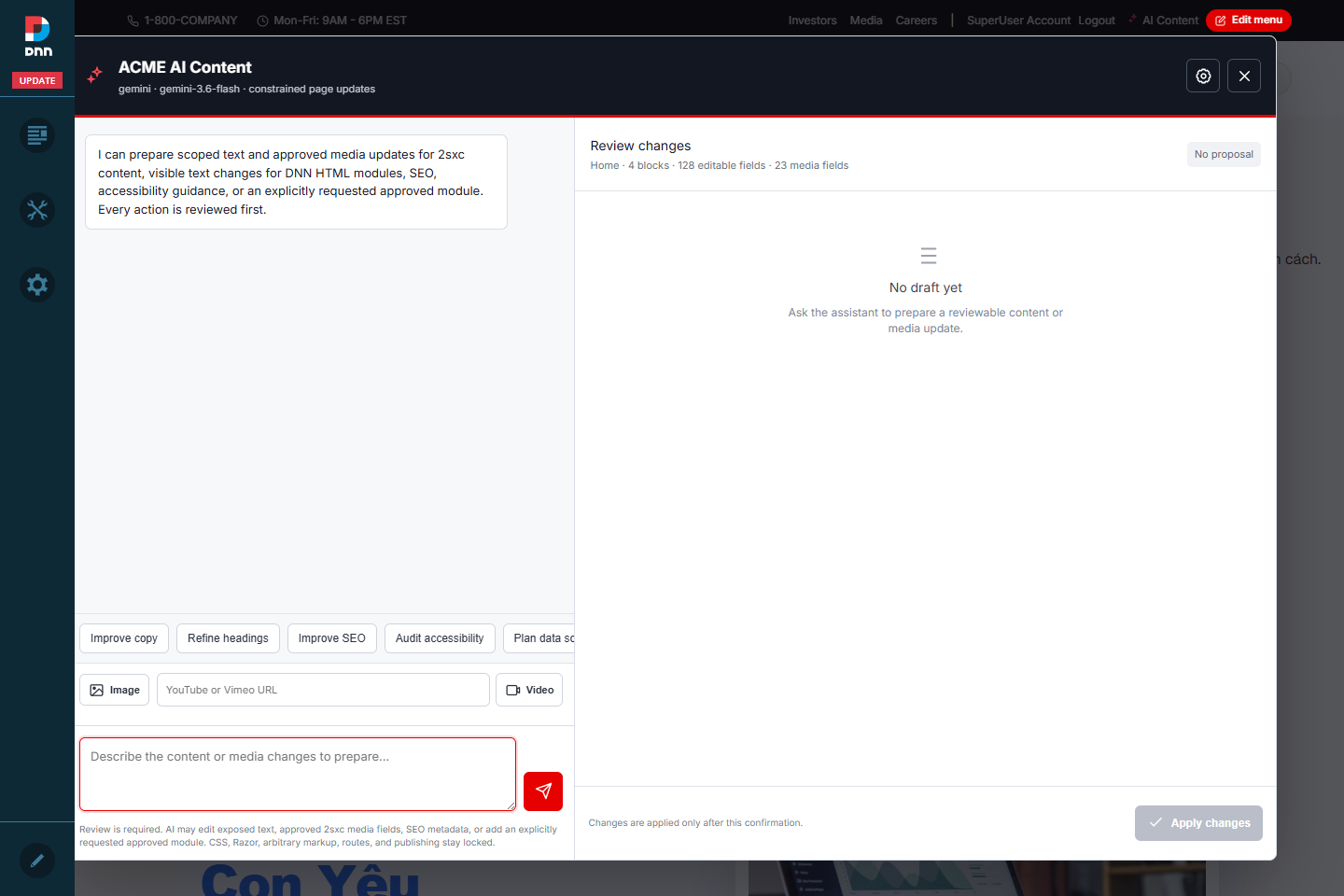 The assistant first inventories editable content on the current page. It does not search unrelated pages or modules.
Target one module or one field
Name the visible module, component, or field and say what must remain unchanged. A narrow instruction produces a smaller proposal and is easier to verify.
Change only the main heading in the Home Banner module to
ACME Healthcare Platform. Leave every other module and field unchanged.
The proposal shows the module, field, previous value, replacement value, and reason. If the assistant cannot identify one safe target, refine the request instead of applying a broad change.
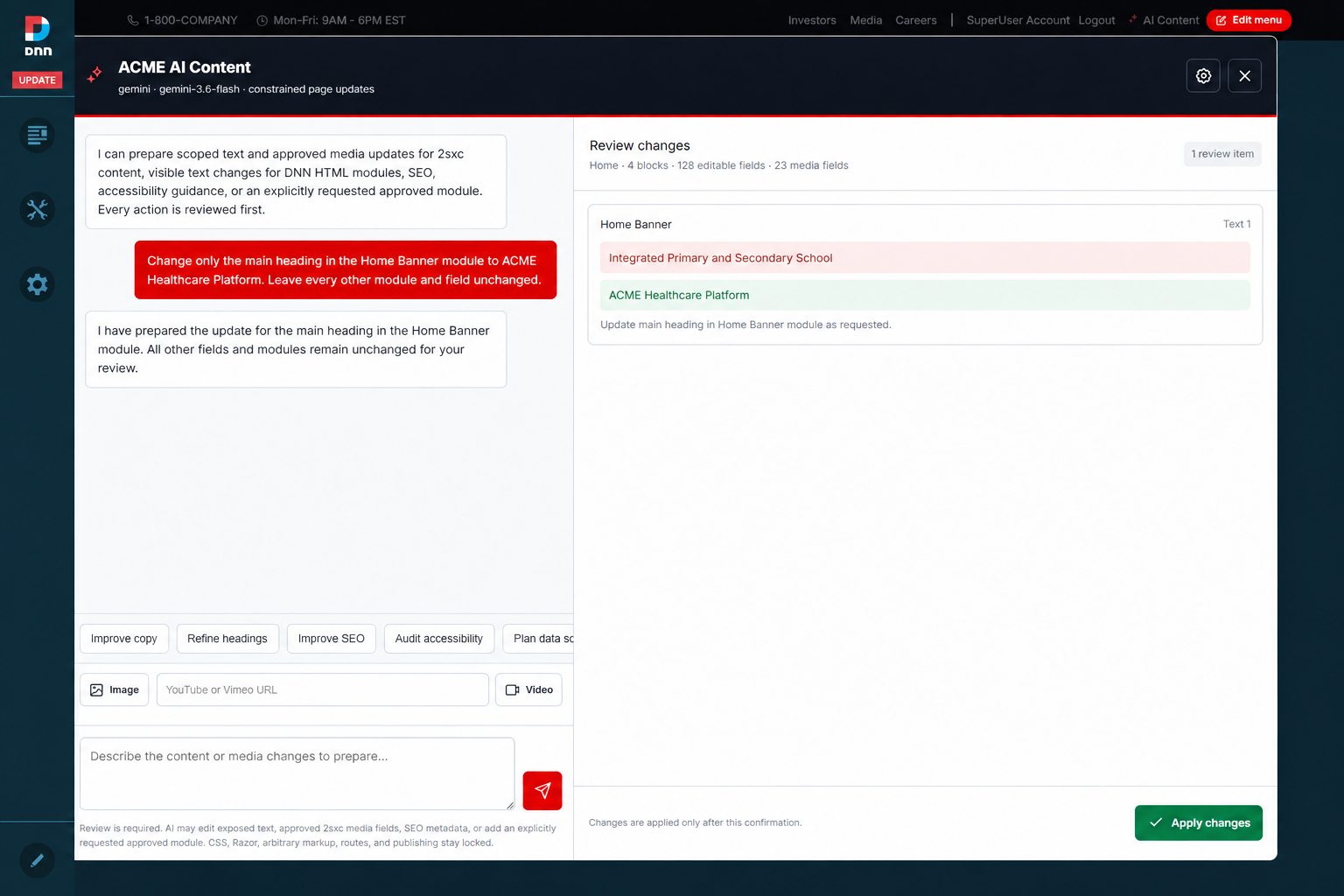 A module-scoped request produces one review item while unrelated fields remain unchanged.
Edit structured content and DNN Text/HTML modules
The page inventory can include editable 2sxc fields and visible text from DNN Text/HTML modules. Ask for the module by its visible title or describe the exact paragraph, heading, or call to action.
- Structured content changes stay within fields already exposed by the selected component.
- Text/HTML changes replace visible text nodes while preserving the module's existing tags, classes, links, and image sources.
- Ambiguous instructions should be split into one module at a time.
- Adding a module or an approved component requires an explicit request and a separate review.
Attach images and supported video links
Select Image to upload a JPG, PNG, GIF, or WebP image. The server validates the file, converts it to WebP, stores it in the current DNN portal, and returns an approved media URL. Then tell the assistant which compatible image field should use it.
For video, paste an HTTPS YouTube or Vimeo URL and select Video. The assistant can place the approved link only in a compatible field already exposed by the component.
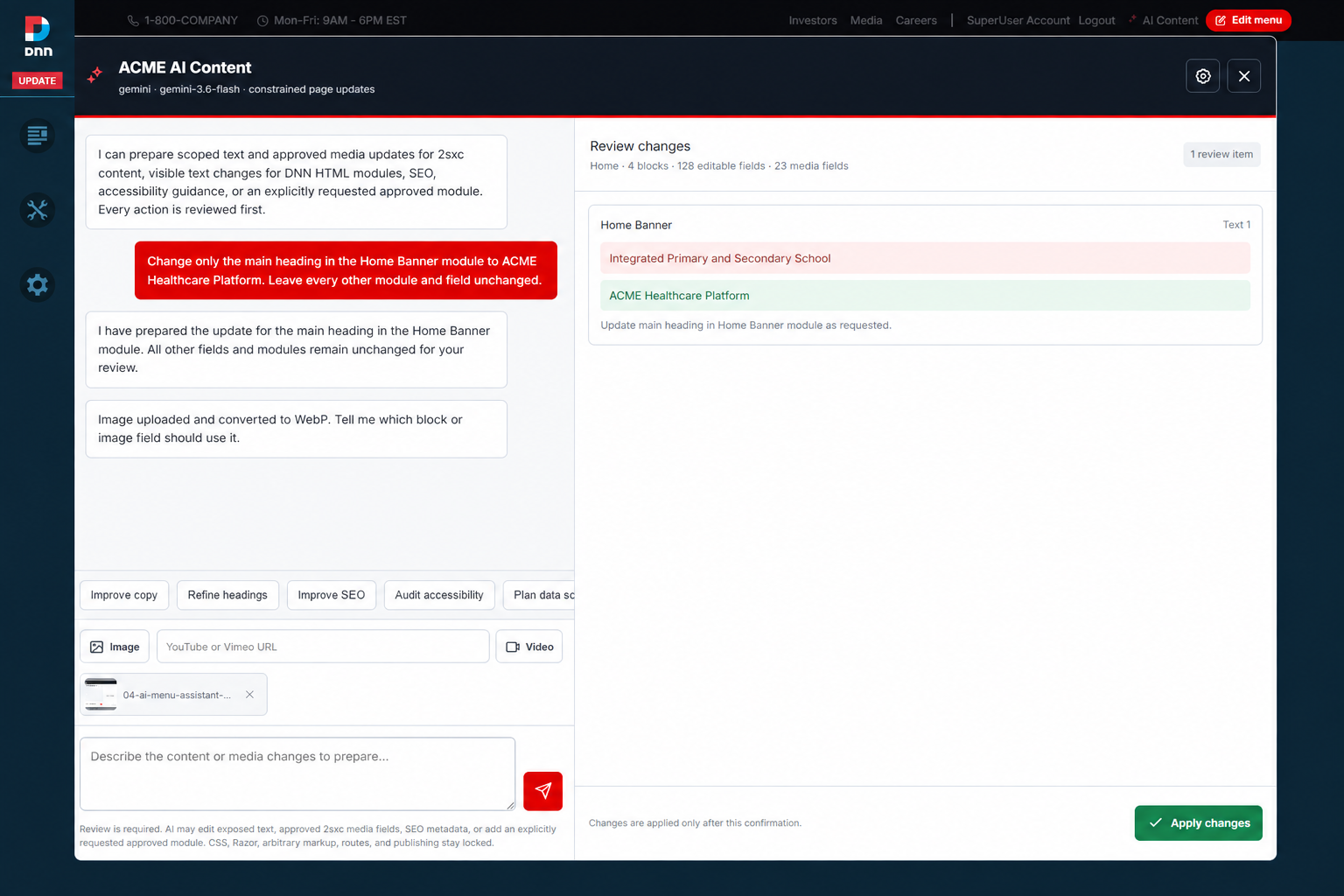 The media attachment is available to the proposal only after server-side validation and upload.
Media safety: an uploaded file is not inserted automatically. Confirm that the proposal targets the intended module and image or video field before applying it.
Select the settings icon in AI Content or AI Menu Assistant. ACME supports Gemini, OpenAI, Anthropic Claude, Kimi, OpenRouter, Azure OpenAI, local Ollama or LM Studio, and a custom OpenAI-compatible endpoint.
- Select a provider and model.
- Enter the provider API key when required. A stored key is never returned to the browser.
- Set the base URL or Azure API version only for providers that require it.
- Select Save settings, then Test connection.
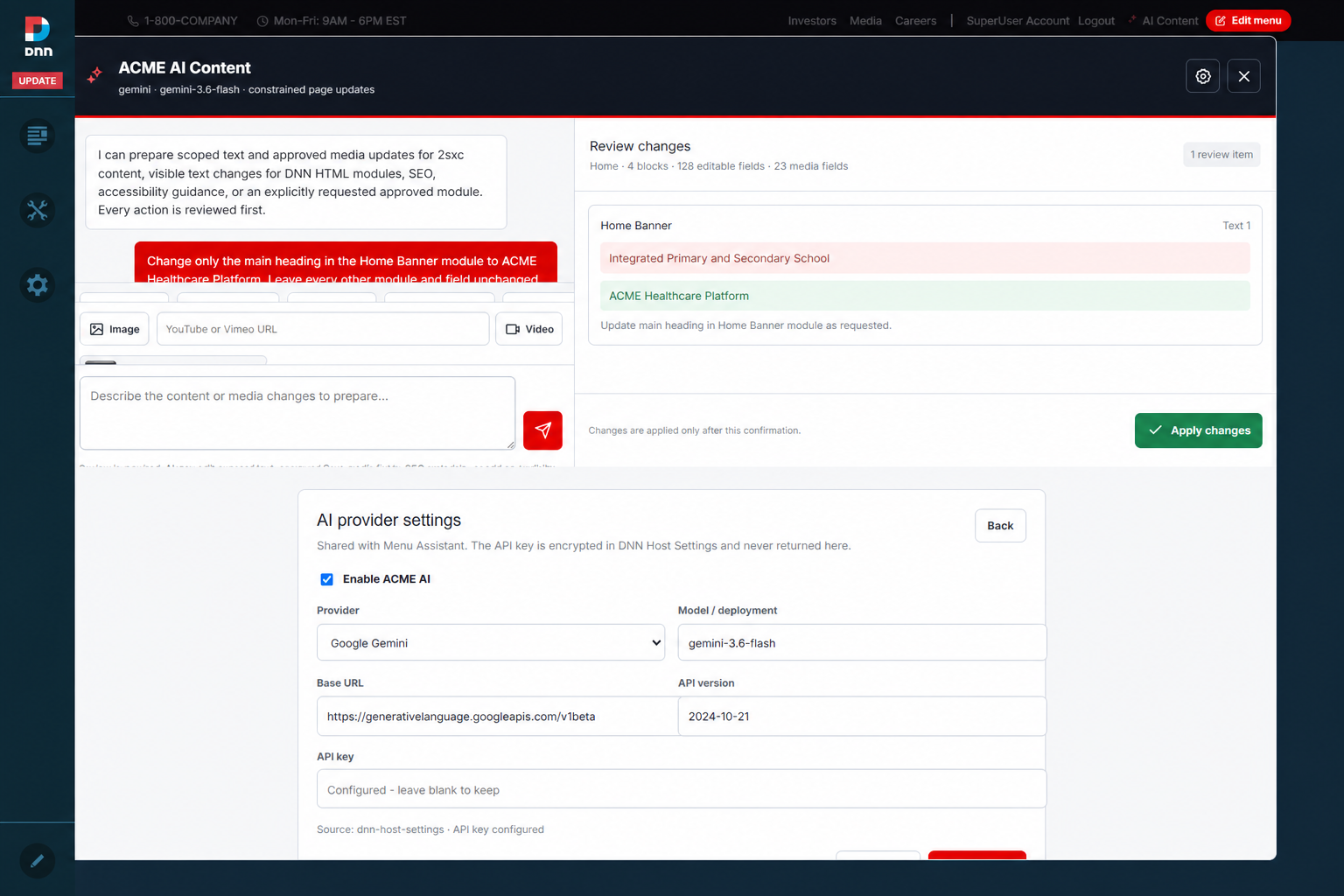 Provider settings are shared by the ACME assistants and stored in protected DNN host configuration.
Review and apply a proposal
- Read every before-and-after value in Review changes.
- Confirm that the page, module, field, media, and reason match the request.
- Select Apply changes only when every item is acceptable.
- Reload the page and inspect the affected module in desktop and mobile widths.
- Use the normal DNN publishing workflow if the portal has page workflow enabled.
The apply token is tied to the reviewed page snapshot. If content changes between planning and applying, prepare a fresh proposal rather than overwriting newer edits.
Useful prompt patterns
Rewrite only the introductory paragraph in the Services module.
Keep the current heading, buttons, links, and images.

Improve the SEO title and description for this page.
Do not change visible page content.

Use the attached image for the hero background field only.
Keep the current crop, text, and selected view.

Add one approved FAQ component to BottomFullPane.
Do not add any other module.
Final checks
- Verify the result while signed out as a normal visitor.
- Check headings, links, image alt text, and responsive text wrapping.
- Confirm that no unrelated module changed.
- Use native 2sxc editing for manual corrections and Change view for another approved presentation.