Edit ACME page content with native 2sxc tools, use the DNN Menu Assistant safely, and understand the planned AI Content workflow.
Not rated yet
ACME pages combine the normal DNN page and pane system with structured 2sxc content. Editors can update text and media, switch among approved layouts, and use the DNN Menu Assistant without rebuilding a page or changing its CSS.
Feature status: native 2sxc editing, Change view, and the DNN Menu Assistant are available now. The AI Content assistant described below is a planned workflow and is not enabled in the current customer package.
Edit page content inline
- Sign in with an account that can edit the page.
- Turn on DNN page edit mode.
- Move to the Hero, Footer, Testimonial, Pricing, FAQ, Gallery, Event, or body section you want to update.
- Select the pencil action on that section or item.
- Edit the structured fields and save. The page refreshes with the new content while keeping the selected design.
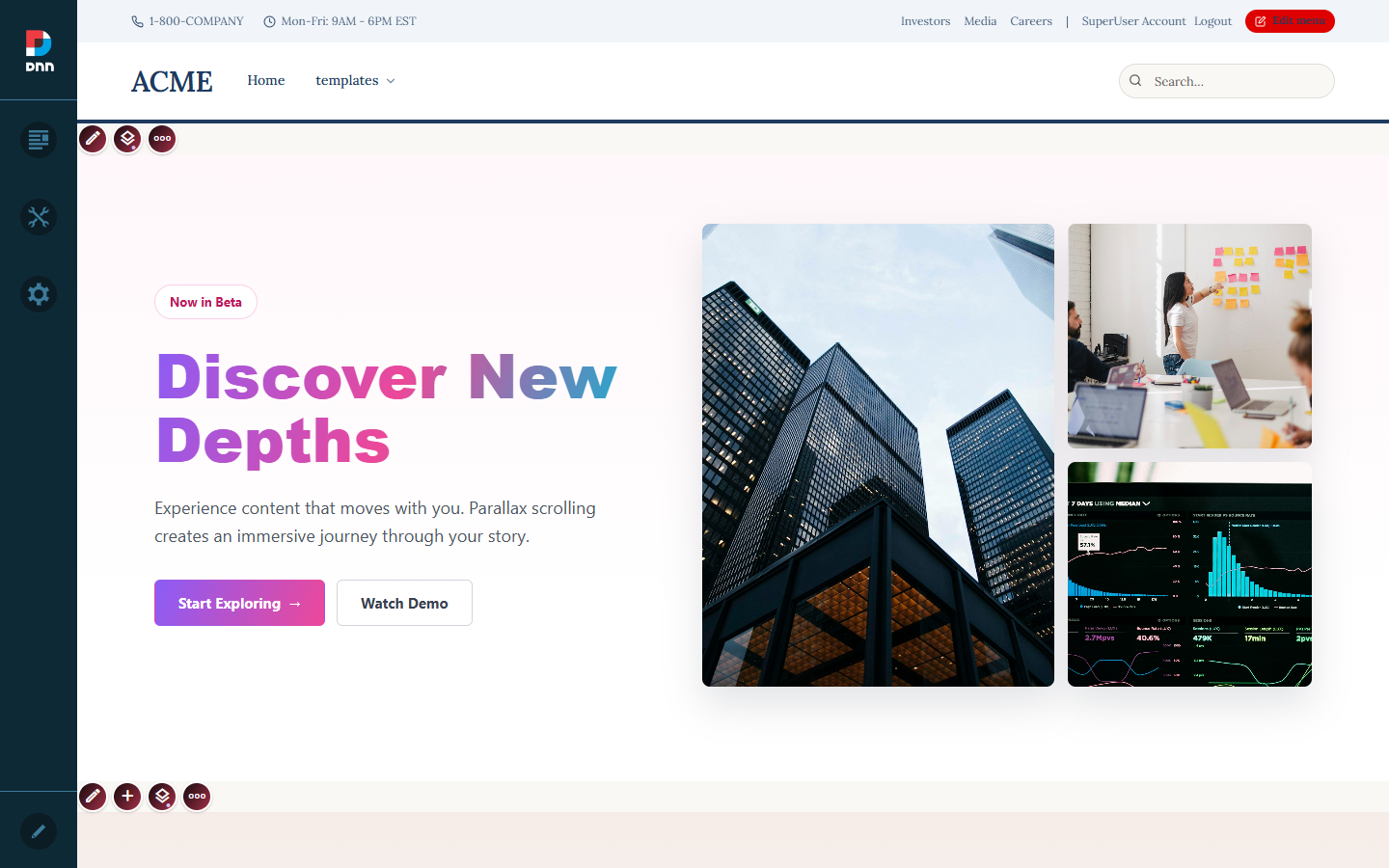 Each editable section has its own native 2sxc controls, so an editor can work on the intended component instead of one large HTML document.
The form exposes fields that belong to the component, such as title, description, button label, link, image, category, price, date, or repeated items. Image fields support upload and the media pickers made available by DNN and 2sxc.
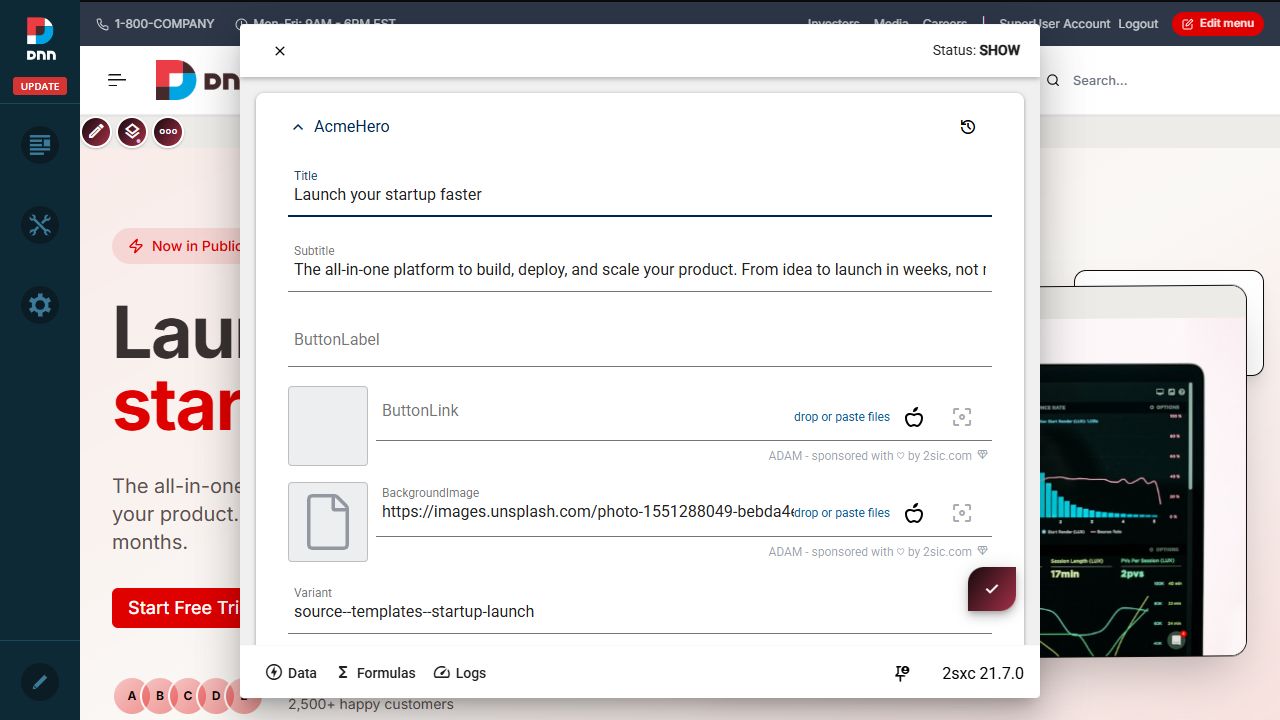 Edit semantic fields in the form. Media remains selectable content and is not embedded in a raw HTML field.
Change an approved layout
Use the stacked-layers Change view action when the content is correct but another presentation is preferred. Select a compatible view from the curated choices and confirm the change. The content entities remain editable; only their approved renderer changes.
- Use content fields for routine text, image, link, and item changes.
- Use Change view for a different Hero, Footer, Testimonial, Pricing, FAQ, Gallery, Event, or compatible body layout.
- Do not paste layout HTML or CSS into content fields.
- DNN modules can still be added to the skin panes through the normal DNN page editor.
AI Content assistant: planned preview
The planned AI Content assistant will help an administrator make controlled content changes using natural language. It is designed to operate on the same structured fields and approved view catalog used by the native editor. It will not be a free-form page designer.
Planned requests include:
- Rewrite an allowlisted title, paragraph, button label, or internal link while preserving the component structure.
- Select an approved media item returned by the server.
- Switch a component to another compatible, installed view.
- Add an existing component from the library.
- Create a child page from an approved sample-page route, then propose content suited to the administrator's brief.
The planned assistant will not create or modify CSS, HTML, Razor, JavaScript, SQL, manifests, skin files, module settings, or arbitrary external URLs. Every write operation is intended to require a preview, administrator confirmation, permission and schema validation, an audit record, and a rollback path.
Current package: use the native 2sxc form and Change view controls for content work. Do not expect an AI Content button until that server-side adapter is released.
- Open Edit menu and enter the Menu Builder.
- In Menu Structure, select AI Menu Assistant.
- Choose a quick action or enter a focused instruction.
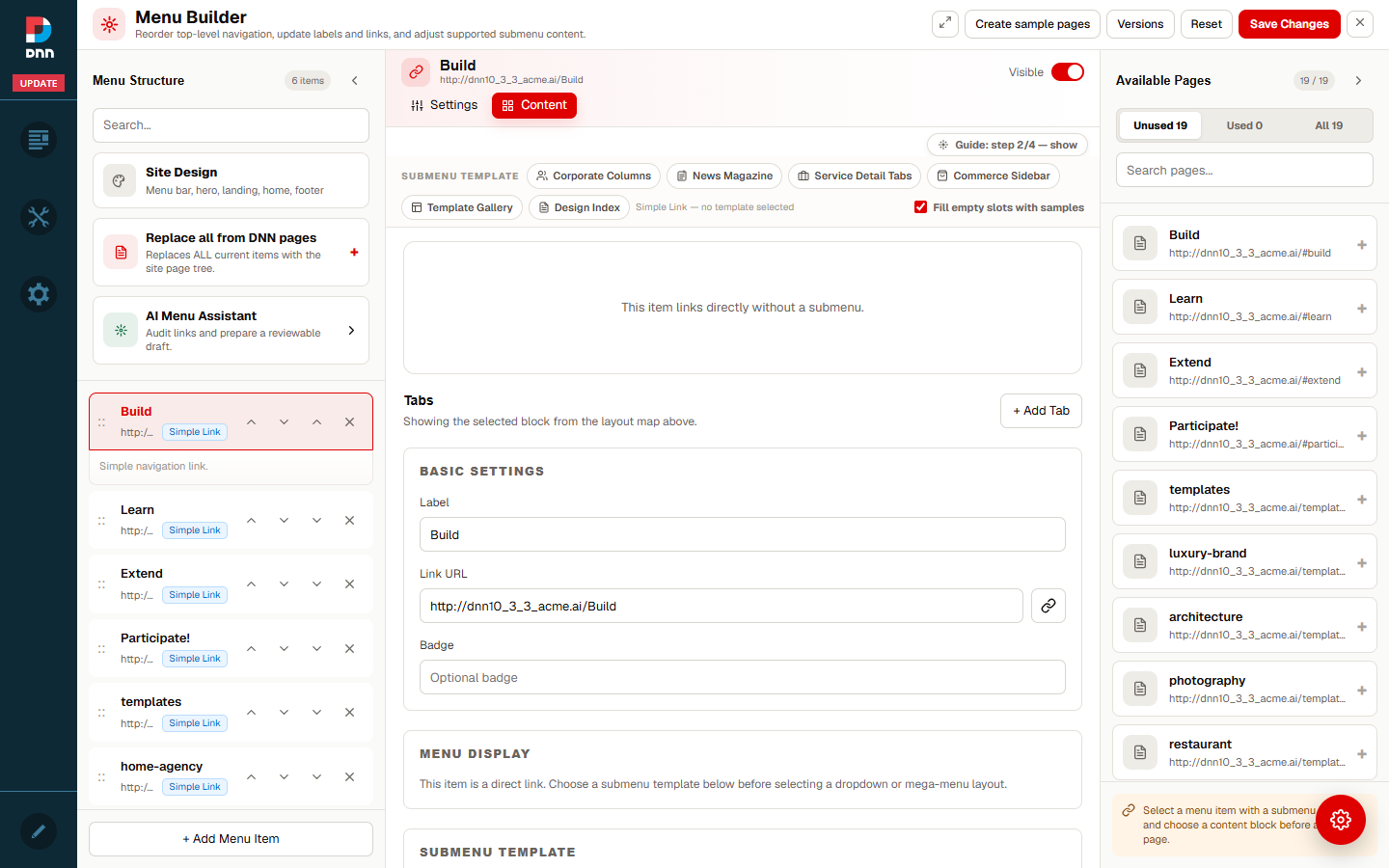 The assistant is opened from Menu Structure. The Available Pages panel remains visible for manual page selection.
The assistant can audit the current menu, match placeholder or broken internal links to real DNN pages, improve labels, and identify DNN pages that are not yet used in submenu content.
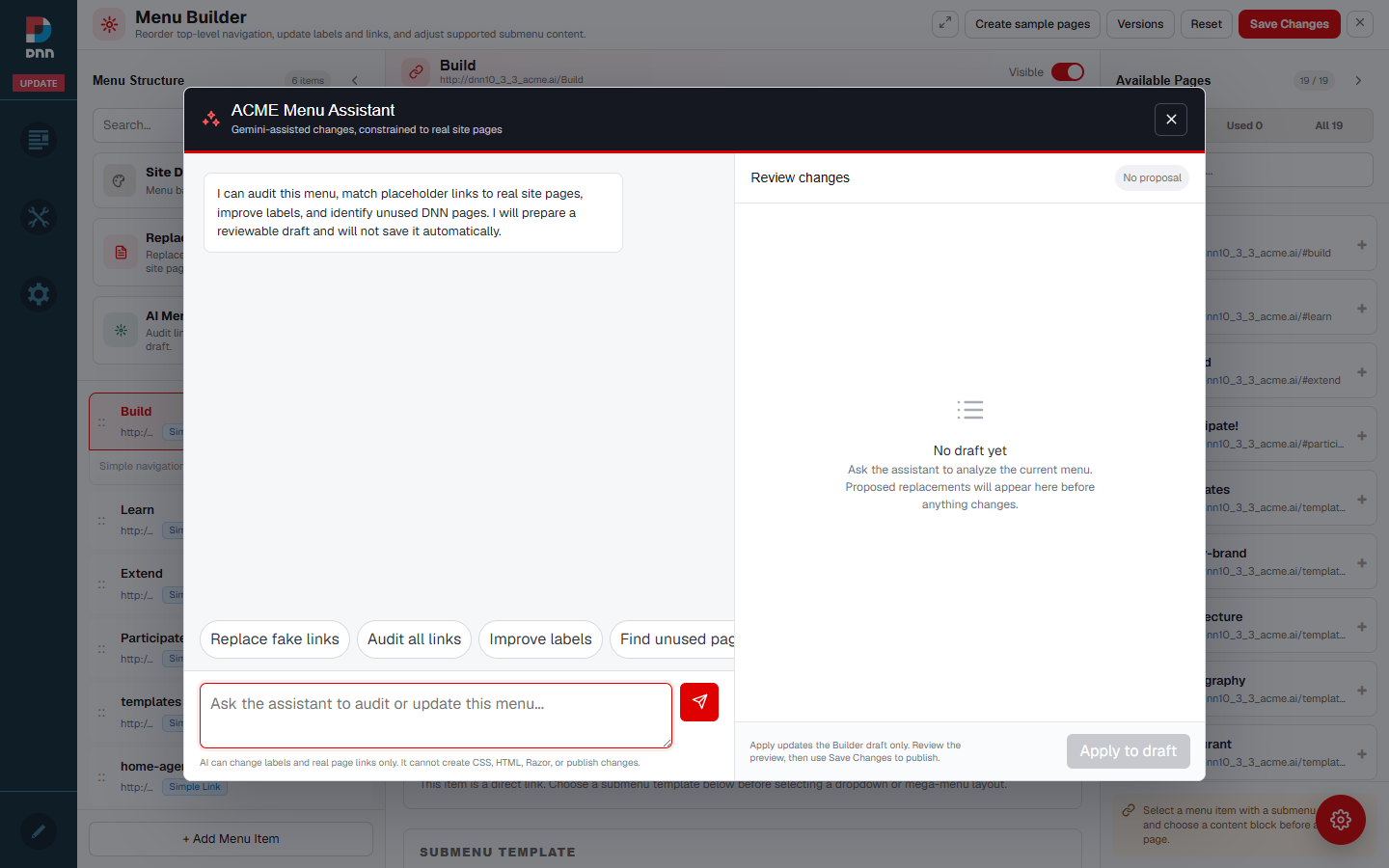 Quick actions cover common audits. A custom prompt can request a similarly narrow menu task.
Useful requests include:
- Replace fake links: match placeholder menu links to the best real DNN pages and leave valid links unchanged.
- Audit all links: report unresolved, duplicate, or suspicious menu targets.
- Improve labels: propose concise navigation labels without changing page content.
- Find unused pages: compare submenu content with the current DNN page inventory.
Review, apply, and save
The model returns a proposal, not a published menu. The server rejects unknown menu targets and page IDs, then resolves the final URL from the current DNN page inventory. Review each before-and-after value, the reason, confidence, warnings, and suggestions.
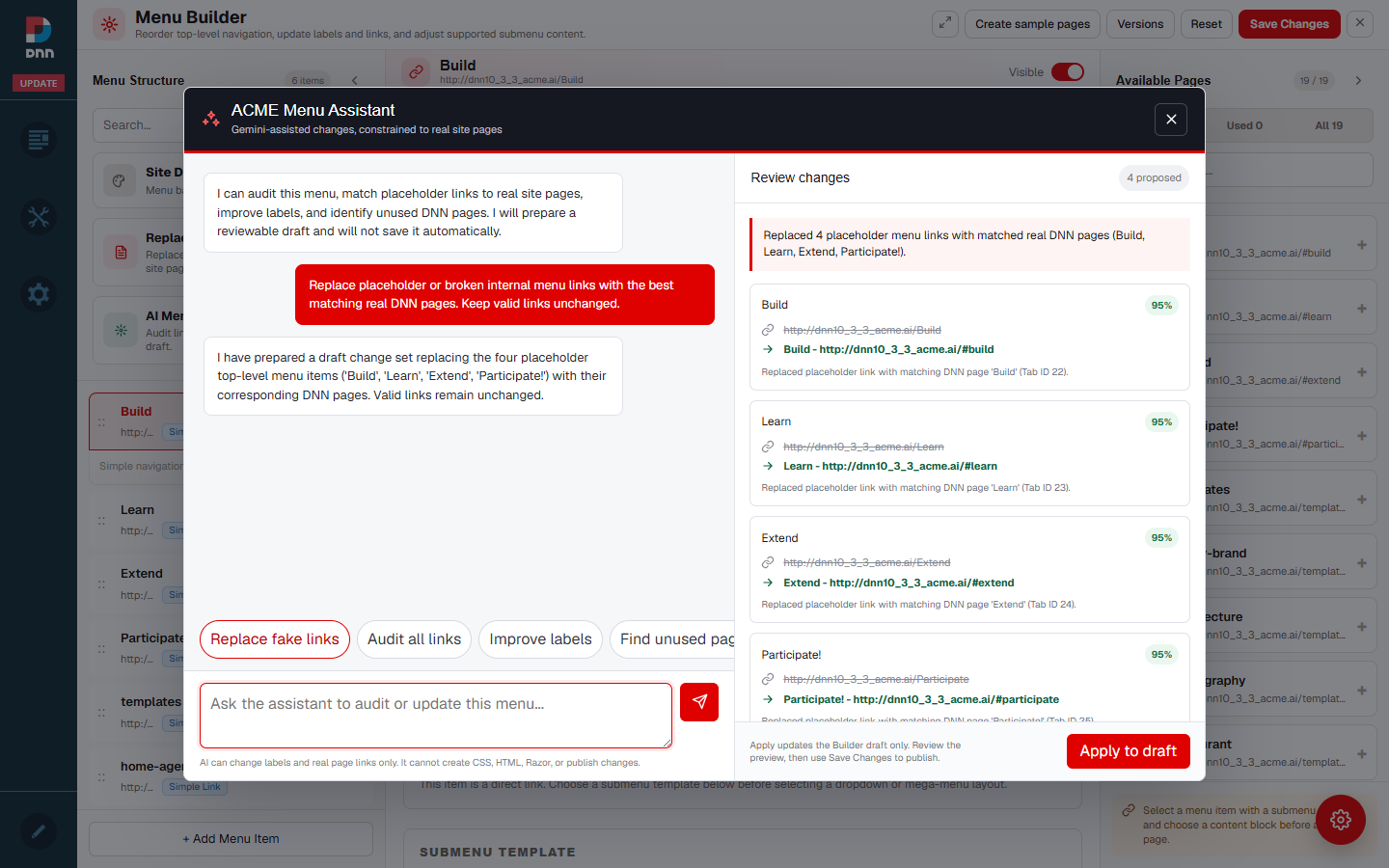 Apply to draft updates only the open Builder draft. It does not publish or save the menu.
- Read every proposed change and leave the dialog without applying when the result is not appropriate.
- Select Apply to draft only after the proposal is acceptable.
- Inspect the updated items in the normal Builder controls.
- Select Save Changes separately to publish the menu configuration.
- Open the affected links as a signed-out visitor.
The assistant cannot create CSS, HTML, Razor, or new DNN pages, and it cannot publish a menu by itself. Adding, removing, and reordering menu structures remain explicit administrator actions in the current release.
- The AI provider credential belongs in protected server configuration. Never paste an API key into a prompt, browser field, menu configuration, or content form.
- AI proposals are constrained by the current DNN page inventory and are validated again by the server.
- If the assistant reports that its provider is not configured, ask the server administrator to configure the integration and recycle the application.
- The Menu Assistant adapter in this release supports DNN. An Oqtane server adapter is planned.
Recommended editor workflow
- Edit structured content with the native 2sxc form.
- Select another approved view when the page needs a different presentation.
- Use the Menu Assistant for link and label proposals, then review its draft carefully.
- Save in the owning editor: save the content form for content, and use Save Changes in Menu Builder for navigation.
- Test the result as a visitor. Use source-code customization only when the curated fields and views cannot meet the requirement.