Create ACME sample pages
Create ACME sample pages with reusable 2sxc content, then verify that every generated page uses the ACME Skin.
Not rated yet
The ACME package ships a library of ready-made page designs. The Create sample pages tool turns selected designs into real DNN pages backed by reusable 2sxc content, so you can start from a finished layout and edit it with the native 2sxc tools.
Important: switch every generated page to the ACME Skin before reviewing the design. A page that still uses the portal default skin can have the wrong spacing, typography, colors, header, or footer even when its 2sxc content is correct. In DNN page settings, select [G]Skins/AcmeSkin/default.ascx, then publish/save the page.
Visual walkthrough
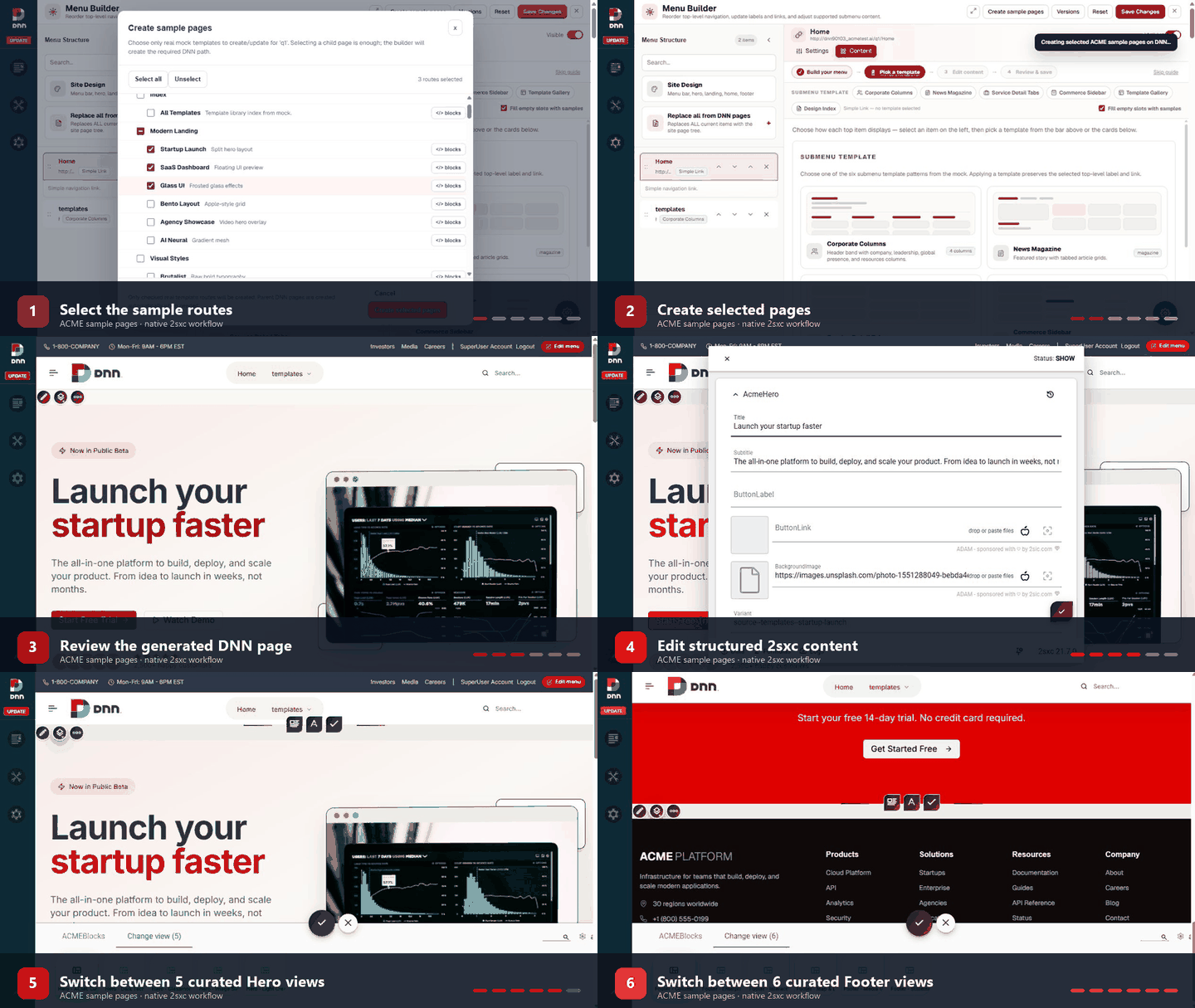 Select routes, create pages, edit structured content, and switch the curated Hero and Footer views.
Before you start
- Install the latest ACME Skin package. ACMEBlocks is bundled with the skin and is bootstrapped automatically; do not install ACMEBlocks as a separate customer package.
- Install 2sxc on the DNN site. The generated pages use 2sxc modules and its native content forms.
- Open the CISS Menu Builder as a host or administrator and save the menu once before creating sample pages.
What it creates
The builder creates real DNN pages and attaches 2sxc-app modules. Hero, body, and footer content is stored in reusable structured content types. AcmeMockSection remains only as a fallback for a route that cannot be converted safely; it is not the normal editor for converted pages.
Create the pages
- Open Menu Builder and choose Create sample pages.
- Select one or more real mock routes. Selecting a child route is enough; the builder creates the required parent DNN path automatically.
- Choose Create selected pages and wait for the progress panel to finish.
- Open each generated page, switch it to the ACME Skin, and review it in desktop and mobile widths.
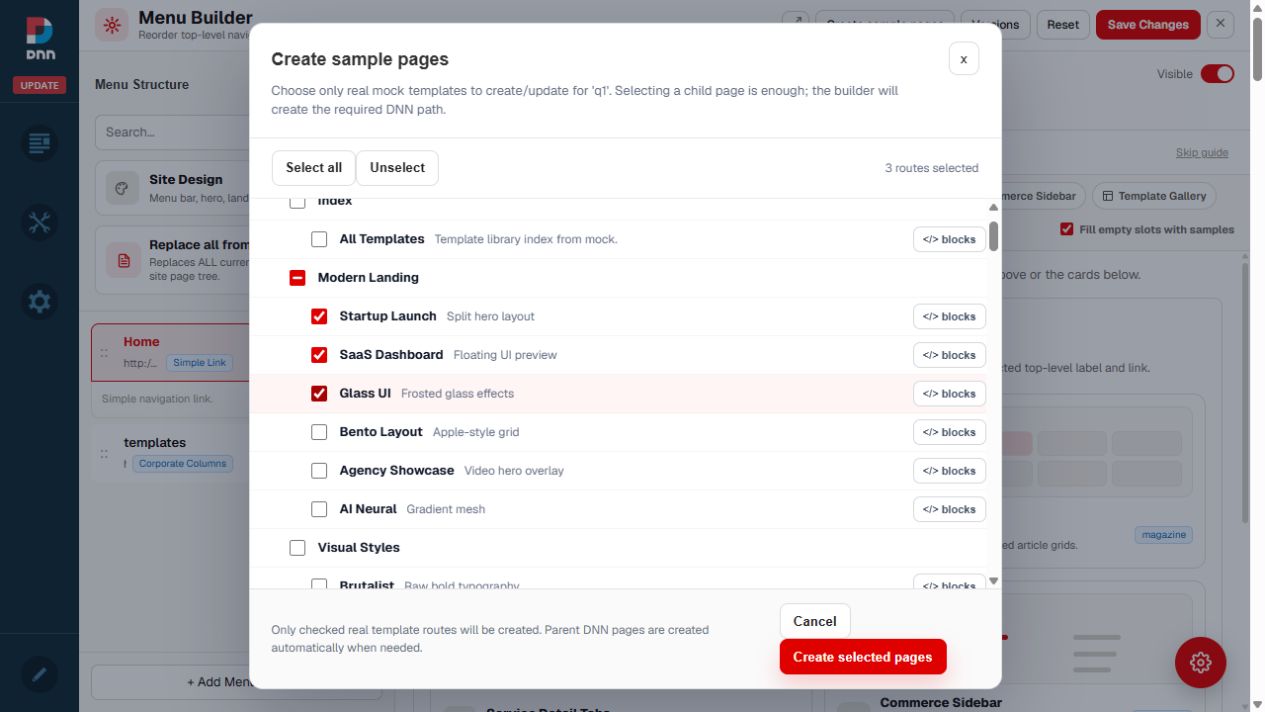 Select only the routes you want to create. Parent paths are created automatically.
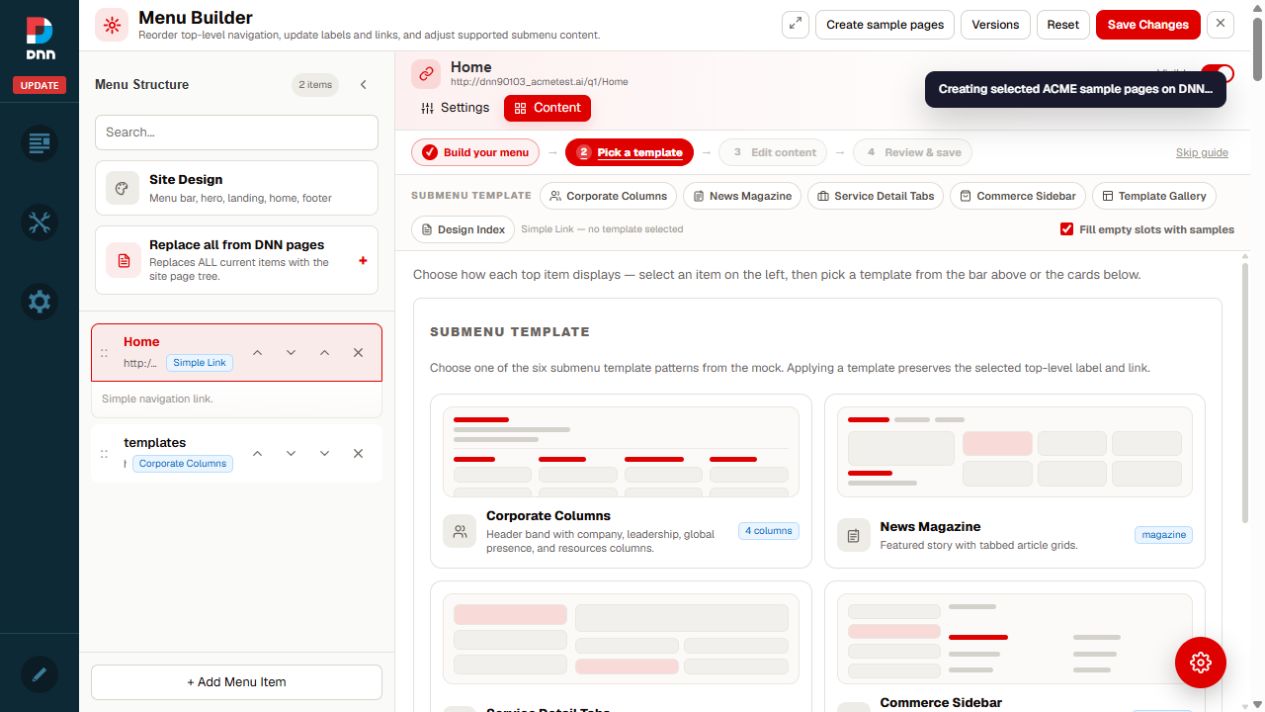 Keep the dialog open until every selected route reports completion.
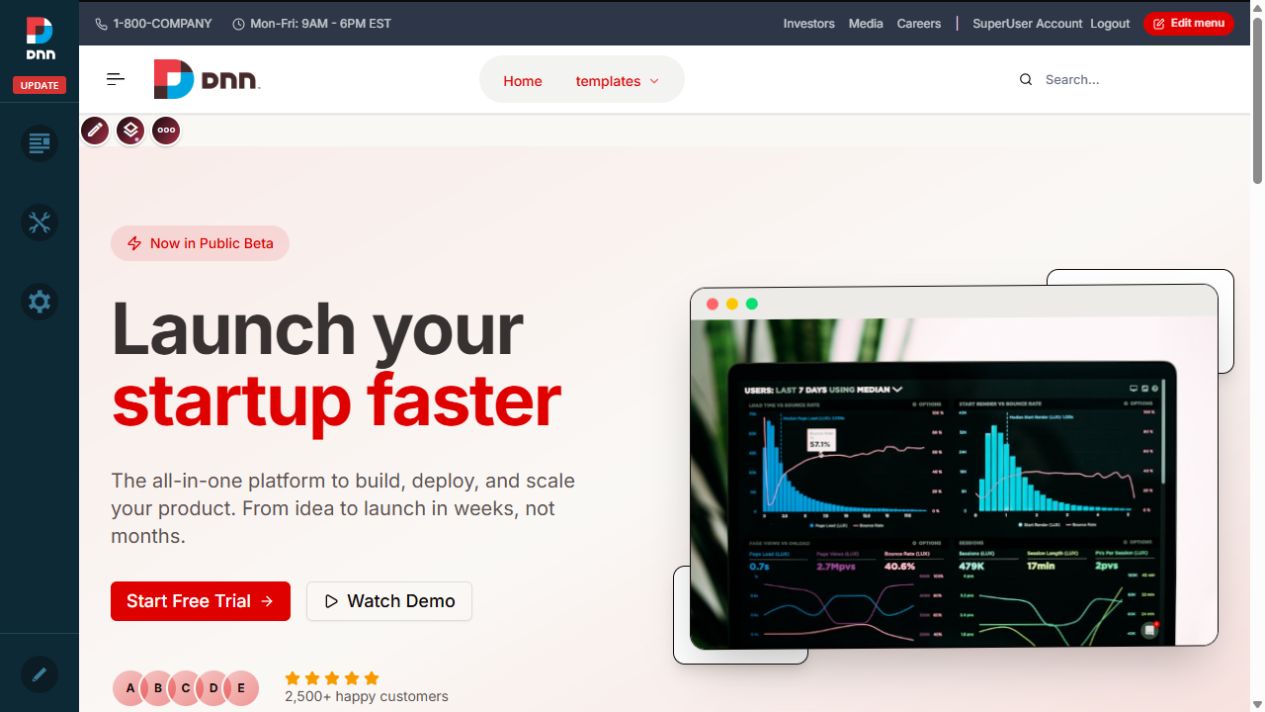 The result is a normal DNN page composed from editable 2sxc modules.
If a selected leaf page already exists, the builder may create a new page with a numeric suffix. Review the result list before adding the new route to production navigation.
Edit the 2sxc content
- Open the generated page in DNN edit mode.
- Select the native 2sxc edit action on the Hero, body section, repeated item, or Footer you want to change.
- Edit the structured fields such as title, subtitle, image, CTA label, CTA link, feature, or statistic.
- Save the 2sxc form, then publish/save the DNN page.
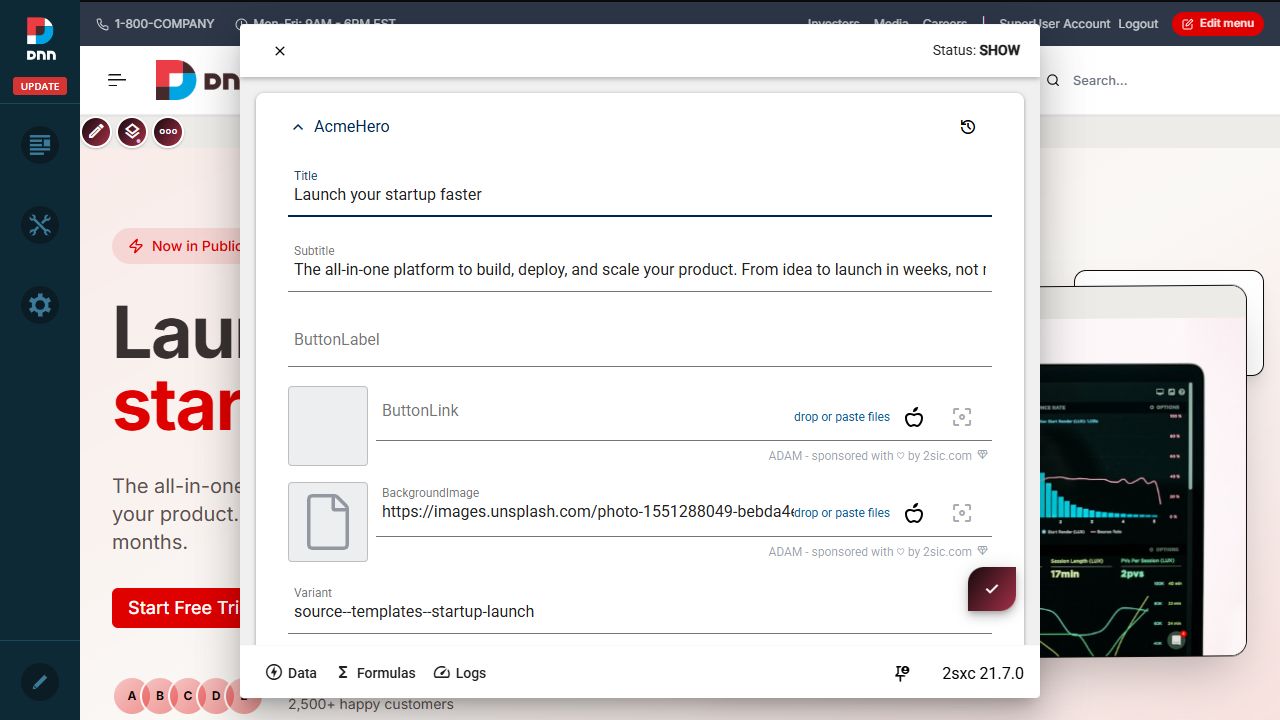 Converted content uses semantic fields in the native 2sxc form, not a raw HTML textarea.
Do not use Elementor, a custom drag-and-drop editor, or a DNN HTML module for these pages. The supported editing surface is the native 2sxc toolbar and content form.
Change the Hero view
- Open the page in edit mode and select the Hero module.
- Choose the native 2sxc Change view action.
- Select one of the five curated views: ACME Classic, Dark Tech, Glassmorphism, Image Slider, or Light Creative.
- Edit the Hero fields as needed and verify text contrast, image crop, and CTA layout on desktop and mobile.
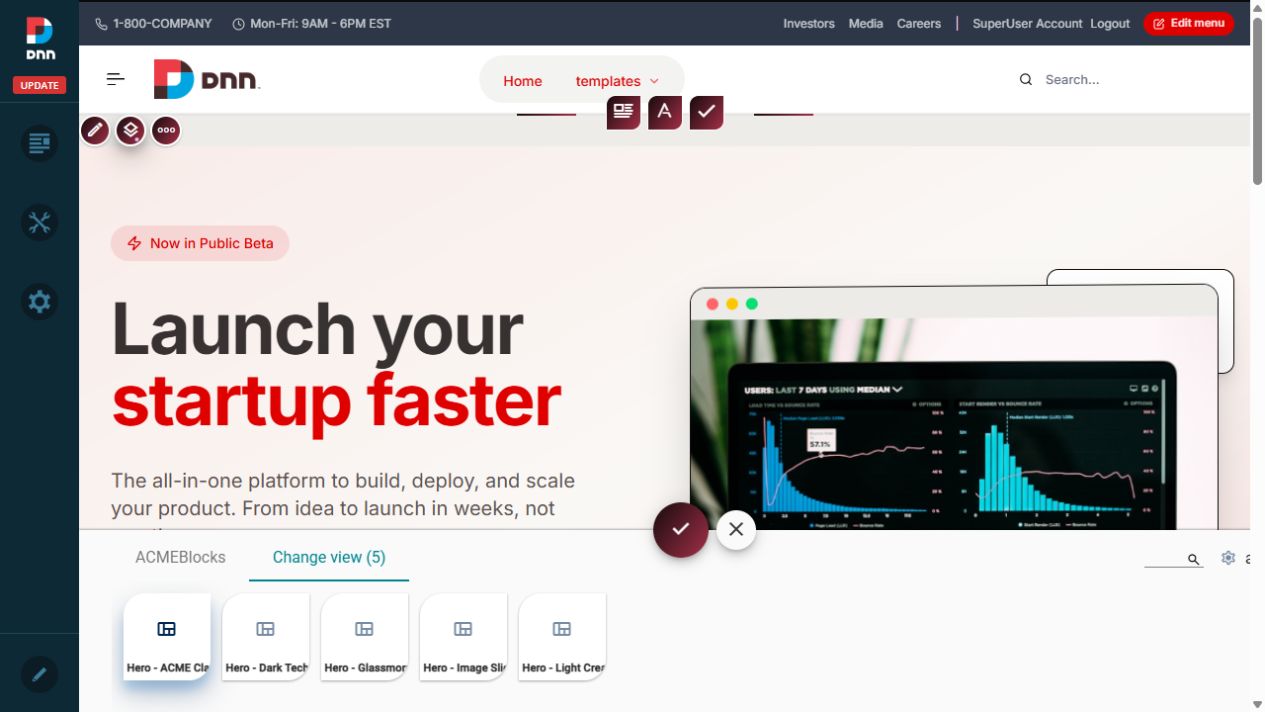 Only the five supported Hero families are shown; compatibility renderers remain hidden.
- Select the Footer module in DNN edit mode.
- Choose the native 2sxc Change view action.
- Select one of the six curated views: Columns, Enterprise, Map & Locations, Media Gallery, Interactive, or Statement.
- Edit the Footer content through its 2sxc fields and publish/save the page.
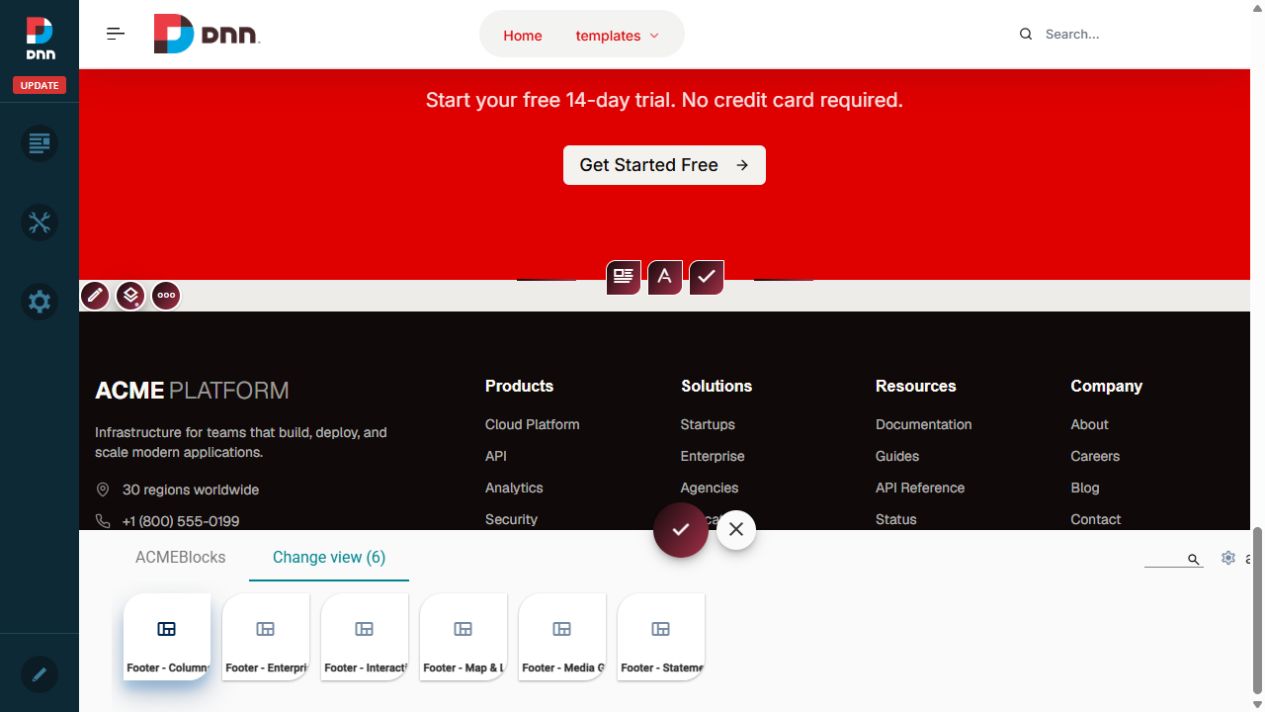 The six supported Footer layouts cover columns, enterprise, maps, media, interactive, and statement designs.
Verify the page skin
If the generated page looks unstyled, first check the page skin. Set it to [G]Skins/AcmeSkin/default.ascx, publish/save, and reload without cache. Also confirm that the current skin installer contains the matching internal ACMEBlocks bundle; a package built earlier than the active ACMEBlocks app can recreate pages with missing renderers or CSS.
Use it safely
- Create a small route set first, review it, and then create the remaining pages in batches.
- Use the native 2sxc fields for copy and media changes. Keep technical source-route fields unchanged unless you are maintaining the renderer.
- Visual QA must be scroll-aware: inspect the top, middle, and bottom of long pages, including the Footer, at desktop and mobile widths.
- MegaForm slider routes are intentionally deferred while a native 2sxc slider approach is evaluated.
Was this page helpful?