★★★★★ 5.0 (1 rating)
From a blank page to a working form (DNN)
MegaForm on DNN is one module. Drop it on any DNN page and the page goes from empty to a
working, submittable form in under a minute — no code, no page templates.
The shortcut: from the Persona Bar, without leaving the page
If the form already exists, you never have to open Edit page at all. MegaForm has its own Persona
Bar panel, and it can put a form on the page you are standing on.
- Open the page you want the form on.
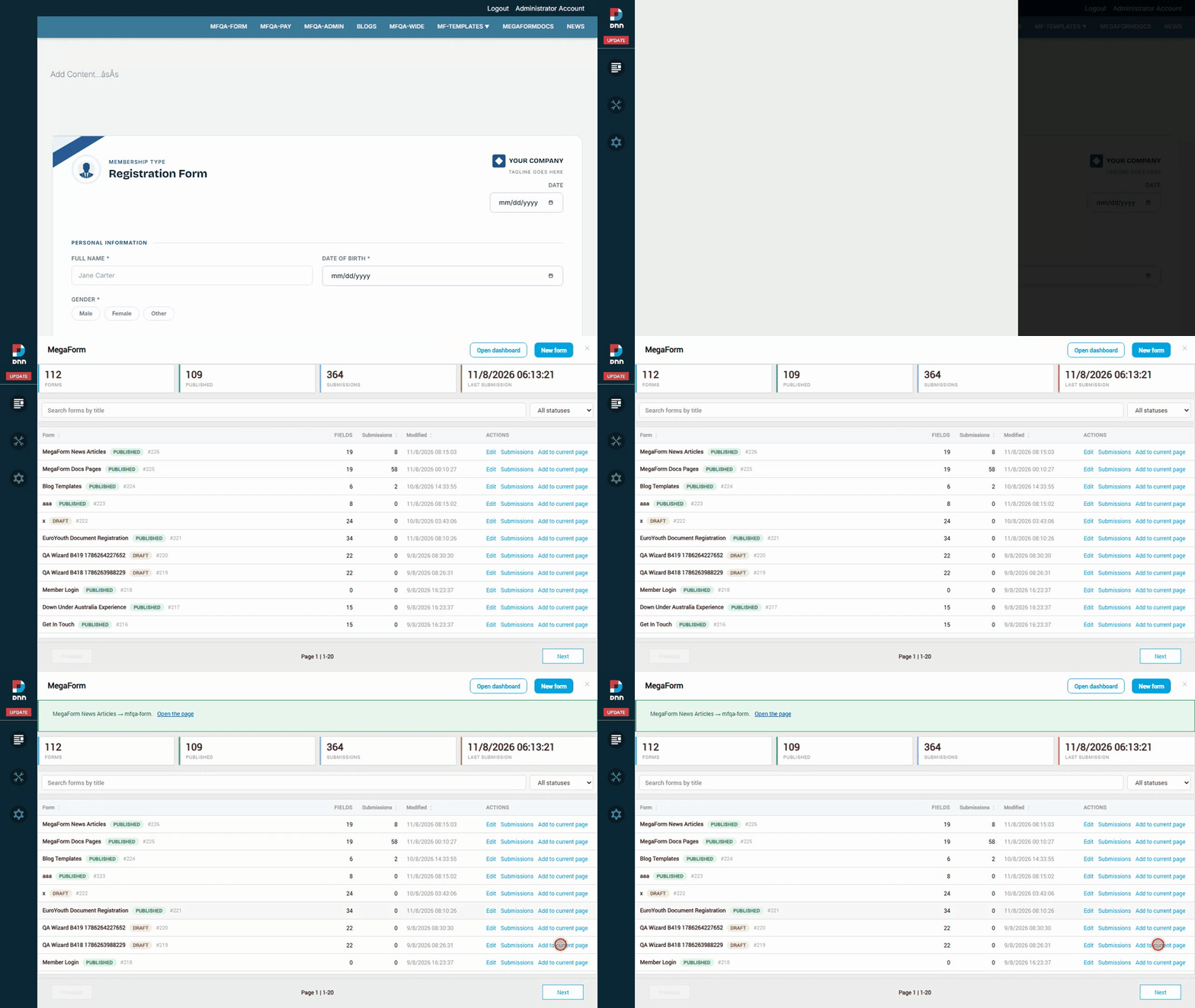
- Persona Bar → Content → MegaForm.
- In the form's row, click Add to current page. The picker opens with the page you are on
already selected.
- Pick a target pane if
ContentPane is not where you want it, then click Add.
MegaForm creates the module instance, titles it after the form and points it at that form — the
same three settings you would otherwise write by hand below. The confirmation links to the page so
you can check it immediately.
Warning
The page list includes system pages such as 404 Error Page. Read the name before confirming:
undoing this means deleting the module from that page.
The panel also starts new forms and opens a form's submissions — see
Managing MegaForm from the Persona Bar.
The rest of this page is the manual route, which is still what you want when the module needs to go
somewhere specific on a page, or when the form does not exist yet.
1. Add the module
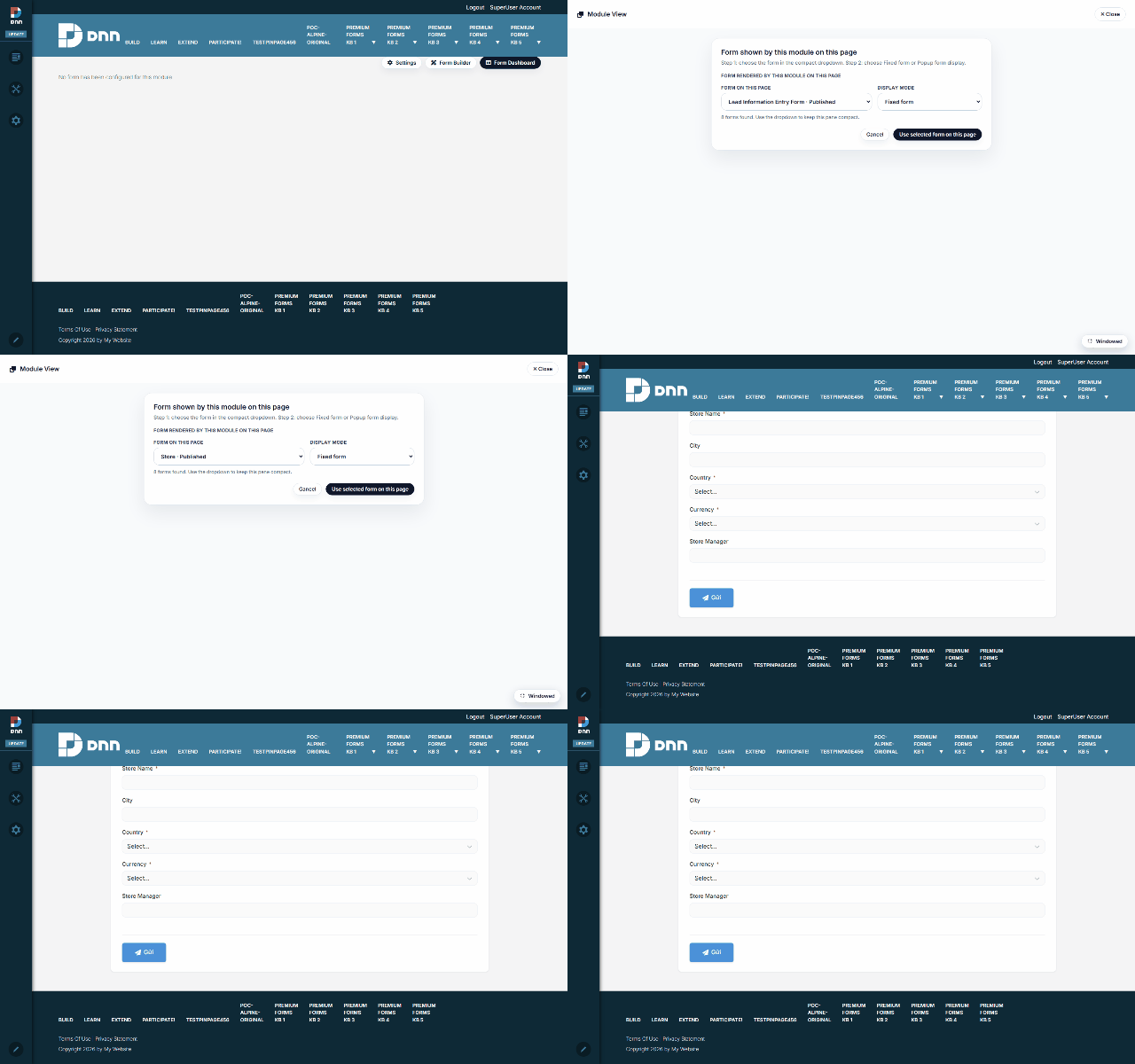
Add MegaForm to a page the usual DNN way (Edit page → Add module → MegaForm). Until a form
is chosen the module renders a single line — “No form has been configured for this module.” —
plus, for admins, the MegaForm toolbar in the top-right corner:
| Toolbar button |
What it opens |
| Module View |
What THIS module instance displays — the form picker below |
| Settings |
Module-level settings & theme (see Module Settings & Theme) |
| Form Builder |
The full form designer (see Form Builder) |
| Form Dashboard |
The admin dashboard — forms, submissions, reports |
Visitors see nothing of this — the toolbar and the unconfigured notice are admin-only.
Module View is where you bind a form to this page. The popup has:
- a display mode — Fixed form (render inline on the page) or Popup form (open on a
trigger: time delay, scroll depth, or click — see Module Settings & Theme);
- the form picker — every form on the portal with its status (Store · Published,
Contact Form · Published, …);
- Use selected form on this page — applies the choice to this module instance only.
Pick a form, apply, done. The same form can be bound on any number of pages, and each module
instance keeps its own display settings.
The page now renders the chosen form — fields, validation, uploads and all. Submissions land in
the Form Dashboard (and anywhere else the form is configured to
deliver: email, webhooks, or your own SQL tables).
Where to go next: