Not rated yet
reCAPTCHA and the other CAPTCHA providers
MegaForm can put a Google reCAPTCHA, hCaptcha or Cloudflare Turnstile challenge on a public form. The part worth understanding before you configure anything: the challenge in the browser is not what protects the form. The browser produces a token; the server takes that token, asks the provider whether it is genuine, and refuses the submission if the answer is no. A client that simply never renders the widget does not get past this — it gets an HTTP 400.
Two things have to be true
Protection needs both of these, and neither one alone does anything:
- Keys are stored on the site. A site key and a secret key, saved once at host level.
- The form has a Captcha field. Verification is keyed off the Captcha field in that form's schema. The server looks for a field of type
Captcha with a key; if the form has none, the submission is accepted without any CAPTCHA check, no matter what keys are configured.
The reverse also holds: a form with a Captcha field but no site key renders a visible warning instead of a challenge, and a form with a Captcha field but no secret key refuses every submission. Both cases are covered under What can go wrong.
Step 1 — Get a key pair from the provider
For Google reCAPTCHA, register the site at Google's reCAPTCHA admin console and choose v2 ("I'm not a robot" checkbox) or v3. You get two strings:
| Key | Where it goes | Who sees it |
|---|
| Site key (public) | Rendered into the public form page | Everyone. It is meant to be public. |
| Secret key (private) | Stored server-side only | Nobody. It never appears in any response to a browser. |
Register the hostname the form is actually served from. A key registered for www.contoso.com will fail verification on staging.contoso.com, and the failure looks identical to a bot being blocked.
Step 2 — Store the keys once, at host level
Open the MegaForm dashboard and go to Captcha Settings. There are separate Site Key and Secret Key boxes for reCAPTCHA and for hCaptcha. Paste and Save Captcha Settings.
That is the whole configuration, and it is done once per site. On a live DNN 10.3 site the site key saved here reaches the public form page on its own — the form itself does not have to be edited per page, and the page does not have to be re-published. Google's script then loads on the public page and window.grecaptcha becomes available to the widget.
Reopen the pane after saving and the secret key box does not show the secret back to you: it shows a truncated mask and a Secret saved marker. Saving again without retyping it keeps the stored value; a masked value is recognised and ignored rather than written back. The secret is used only in the server-to-provider verification call.
Note
The Captcha Settings pane holds the reCAPTCHA and hCaptcha key pairs. Cloudflare Turnstile is
supported by the same verification path and is configured the same way — public site key on the
page, secret key held server-side — with its keys supplied through the host's MegaForm
configuration.
In the builder, drag the CAPTCHA control onto the form and set its properties:
| Property | Notes |
|---|
| Mode | reCAPTCHA v2, reCAPTCHA v3 or hCaptcha. Determines which script loads and which provider is asked to verify. |
| Theme | Light or dark, passed to the provider's widget. |
| Site Key | Leave blank to use the site-wide key. A value here overrides only the public site key for this field — there is deliberately no per-field secret key. |
| Action Name (v3) | reCAPTCHA v3 action label, default submit. Only letters, digits, _, / and - survive; anything else is stripped. |
| Min Score (v3) | 0.3 lenient, 0.5 balanced (default), 0.7 strict. |
Save the form. Nothing else on the page needs changing.
v2 checkbox versus v3 invisible
This is a layout decision as much as a security one.
reCAPTCHA v2 shows the familiar I'm not a robot checkbox. The visitor has to tick it, and may be handed an image challenge. MegaForm renders it inside a bordered box capped at 340 px wide that reserves at least 78 px of height for the provider's widget, so the field occupies real space in the form flow — plan the layout around it the way you would around any other field.
reCAPTCHA v3 shows the visitor nothing. It scores the session in the background and hands the form a token. Measured on a live public page, the widget host element for v3 renders 0 px high — the form reserves no space at all. The only visible artefact is Google's own badge in the page corner, measured at 256 × 60.
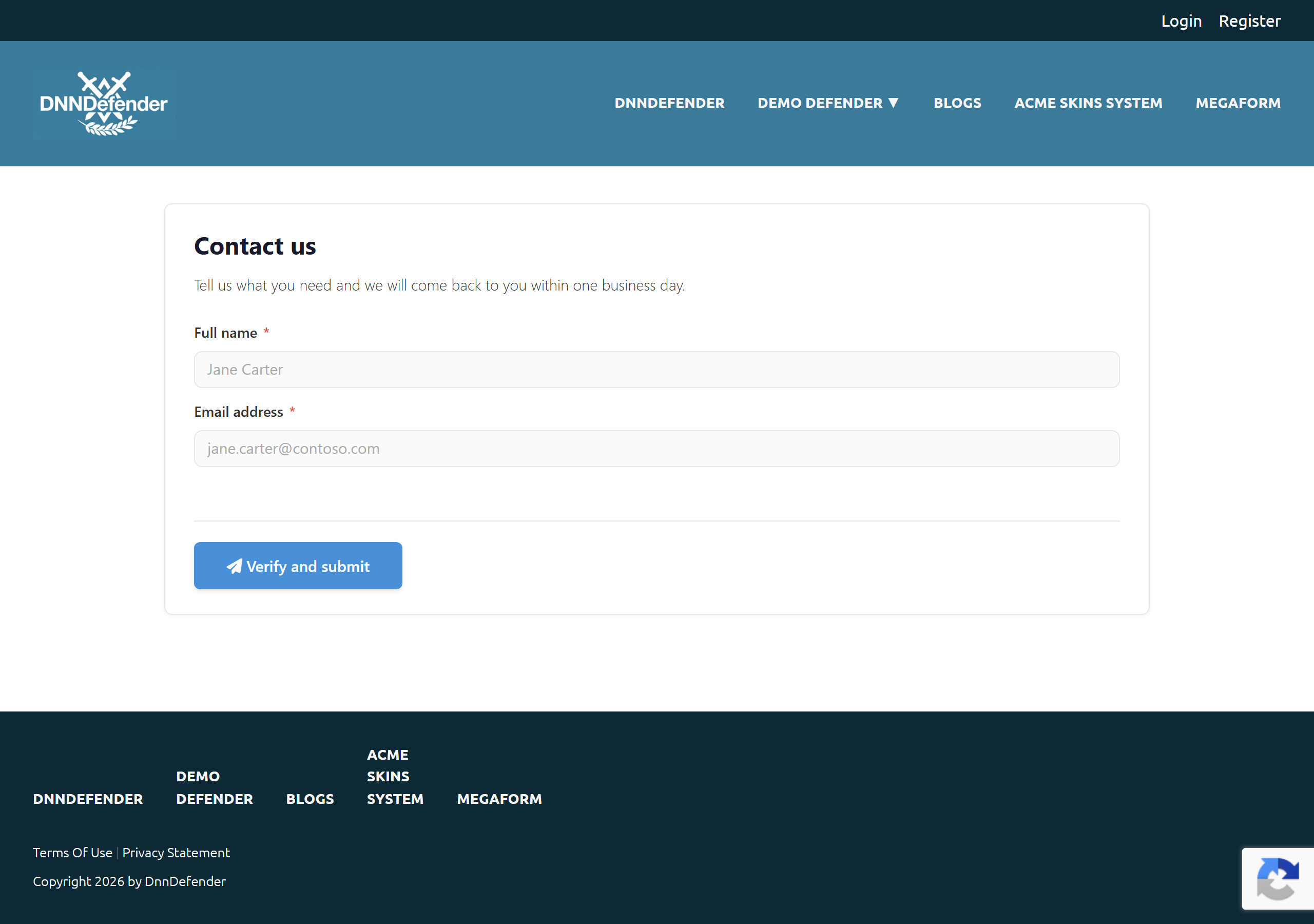
Nothing on that form announces the check. The whole of it is the badge, bottom right of the page:

Note
That badge is not decoration. Google's terms require either the badge or a visible notice telling
visitors that reCAPTCHA is in use, with links to Google's privacy policy and terms. If you hide
the badge with site CSS, add the notice.
The practical trade: v2 costs layout space and one click but tells the visitor plainly what happened when it fails. v3 costs nothing visually, and a visitor blocked by a low score has no way to prove otherwise — there is nothing to re-solve.
The server runs this before the submission is stored, before workflow, before notifications:
- Load the form's schema and find the Captcha field. No Captcha field → no check.
- Read the token the browser posted under that field's key.
- No token → refuse.
- No secret key configured → refuse, with a message naming the missing configuration.
- POST the secret, the token and the caller's IP to the provider's verify endpoint (
https://www.google.com/recaptcha/api/siteverify for reCAPTCHA, https://hcaptcha.com/siteverify for hCaptcha). - Provider says
success: false → refuse. - reCAPTCHA v3 only — the returned action must match the configured action exactly, and the returned score must be at or above the minimum. Either check failing → refuse.
- On success the token in the submitted data is replaced with a fixed verified marker before the data is stored, so no reusable provider token is written into the submission record.
Refusals are HTTP 400 with the message on both error and validationErrors[<captcha field key>], so a form can show it inline against the field.
Submitting with no token at all:
{"success":false,"error":"Please complete the CAPTCHA verification.","validationErrors":{"captcha":"Please complete the CAPTCHA verification."}}
Submitting with a token that is not genuine:
{"success":false,"error":"CAPTCHA verification failed. Please try again.","validationErrors":{"captcha":"CAPTCHA verification failed. Please try again."}}
The two messages are different on purpose, and the difference is the whole point of the feature. The first is the form noticing that nothing was solved. The second is the server having asked Google and been told no. Both were produced against a live site by an anonymous caller posting directly to the submit endpoint — a browser cannot skip verification by declining to send the field.
The remaining refusal messages, in the same shape:
| Situation | Message |
|---|
| Secret key not saved | Captcha secret key is not configured in Dashboard settings. |
| Provider unreachable or the call threw | Could not verify CAPTCHA right now. Please try again. |
| v3 action did not match | CAPTCHA action mismatch. Please try again. |
| v3 score below the minimum | CAPTCHA score was too low. Please try again. |
What a visitor sees, and what an administrator sees
Visitor, normal failure. With v2 or hCaptcha, leaving the box unticked is caught in the browser first: the field shows Please complete the security check and no request is sent. If the token has expired between solving and submitting, the widget clears itself and says so (reCAPTCHA expired — please verify again.), and the visitor solves it again.
Visitor, server refusal. The 400 message above lands on the Captcha field. With v3 the visitor sees a failure they cannot act on — this is the honest cost of an invisible challenge.
Administrator, keys missing. A form whose mode has no site key does not fail silently. It renders an orange notice in the form, visible to the public:
reCAPTCHA v2 requires a site key — configure it in Dashboard → Captcha Settings or override it in the field settings.
Load the public page as an anonymous visitor after configuring; that notice is the fastest way to find out the key never arrived.
Administrator, submissions. Verified submissions store the fixed marker in the Captcha field, not the provider token. The grid column for that field is therefore uninformative by design — see Submissions Grid. Refused submissions are not stored at all, so a spike in blocked traffic is visible in the web server log rather than in MegaForm.
The four providers
| Provider | Visitor experience | Verified endpoint |
|---|
| reCAPTCHA v2 | Checkbox, sometimes an image challenge | www.google.com/recaptcha/api/siteverify |
| reCAPTCHA v3 | Nothing visible except the badge | www.google.com/recaptcha/api/siteverify |
| hCaptcha | Checkbox, sometimes an image challenge | hcaptcha.com/siteverify |
| Cloudflare Turnstile | Usually a non-interactive widget | challenges.cloudflare.com/turnstile/v0/siteverify |
Important
The behaviour described in this page — the layout measurements, the two distinct refusal messages,
the site key reaching the public page — was measured with reCAPTCHA. hCaptcha and Turnstile are
wired the same way through the same server-side verification step, but their measured behaviour is
not documented here. Test the one you choose on a public page before you rely on it.
What reCAPTCHA does not do
Be clear about what you are buying:
- It scores traffic; it does not decide anything on its own. v3 returns a number. You choose the threshold, and every threshold is a trade between blocking bots and blocking real people. There is no setting at which both are zero.
- It puts a third party in your submit path. If the provider is unreachable, MegaForm refuses the submission (
Could not verify CAPTCHA right now.) rather than letting it through unchecked. That is the safe default, but it means the provider's availability is now your form's availability. - It does nothing about the rest of the spam problem — duplicate submissions, a script hammering one form, a real person submitting nonsense.
MegaForm's other anti-spam layers run on your server with no third-party dependency, and are worth keeping switched on alongside a CAPTCHA — or instead of one, on forms where a visible challenge is not acceptable:
- Honeypot field — a decoy input (
__mf_hp by default) that a human never fills in and many bots do. It is stripped from the data before storage. - IP rate limiting — per form, per IP, defaulting to 3 submissions per 5-minute window. Both numbers are per-form settings.
- Heuristic scoring — suspiciously fast submissions and similar signals contribute to a spam score. Submissions from signed-in staff skip the browser heuristics but keep the honeypot and rate limit, so internal forms do not accumulate false positives.
A public contact form generally wants reCAPTCHA v3 plus honeypot plus rate limiting. An internal approval form usually wants the honeypot and rate limit only.
Checklist before you call it done
- Keys saved in Captcha Settings; reopening the pane shows Secret saved.
- The form has a Captcha field, and the mode matches the key type you registered (a v3 key does not work in v2 mode).
- The public page, loaded signed out, shows the checkbox (v2) or the badge (v3) — and no orange requires a site key notice.
- A normal submission succeeds.
- A submission with the CAPTCHA left unsolved is refused with Please complete the CAPTCHA verification.
Next steps