Not rated yet
On DNN, MegaForm adds its own panel to the Persona Bar. It gives an administrator the portal's
form activity and the three things they usually came for — start a new form, look at a form's
submissions, put a form on the page they are already on — without first hunting for a page that
happens to host the module.
The panel is a console, not a second builder. Everything it offers hands off to the real
MegaForm screens.
Where it is
Persona Bar → Content → MegaForm.
It appears once the MegaForm module package is installed; the menu entry ships inside the package
itself, so there is nothing extra to install.
Who can open it
The panel is administrator-only and enforced on the server, not by hiding the menu. An anonymous
request to its API answers 401. The menu is registered with the standard DNN permissions, so
access follows the roles you grant it in Settings → Security → Persona Bar.
What the panel shows
| Area |
Contents |
| Header |
Open dashboard and New form |
| Stats |
Forms · Published · Submissions · Last submission |
| List |
Every form with its status, id, field count, submission count and last-modified date |
| Row actions |
Edit (builder), Submissions, Add to current page |
Sorting
Form, Submissions and Modified are buttons: click to sort, click again to reverse. The
arrow shows the direction, and changing the sort returns you to page 1.
The sort is done by the server, over every form in the portal — not over the twenty rows the
panel happens to be holding. Page 2 continues where page 1 left off.
Fields is deliberately not sortable. That number is counted from each form's schema after the
database has already paged the rows, so there is nothing for SQL to order by; a header button
there would only pretend.
Narrow screens
The panel keeps its columns while there is room for them and drops the least important first —
Modified, then Fields and Submissions — folding what it removed into a second line under the form
name. The table never scrolls sideways inside the panel, and the pager stays visible at the bottom.

- Open Persona Bar → Content → MegaForm.
- Click New form. The panel opens the dashboard on the form wizard — the same five steps
the dashboard's own New Form button opens: Setup · Fields · Workflow · Design · Publish,
with a live preview beside them.
- On Setup, name the form and choose how to start: from the template library, from a
JSON import, or from nothing at all.
- Walk the steps and finish on Publish — or jump into the full builder at any point. See
Form Builder and Creating Forms.
Note
Two things about this button changed in 02.00.015. It used to open the builder on whatever
form the host module already rendered (the URL carried no form id, and the builder reads "no
id" as "edit this module's form"). Pointing it at a blank builder fixed that but landed on the
older Create a New Form template chooser, which is not the screen the dashboard uses. It now
links to <dashboard>#mf-new-form, and the dashboard opens the wizard there.
The template library inside the wizard is the online gallery — 68 designs as of 9 August 2026,
and the list is fetched every time, so a design published after your install shows up without an
upgrade. See Form Templates.
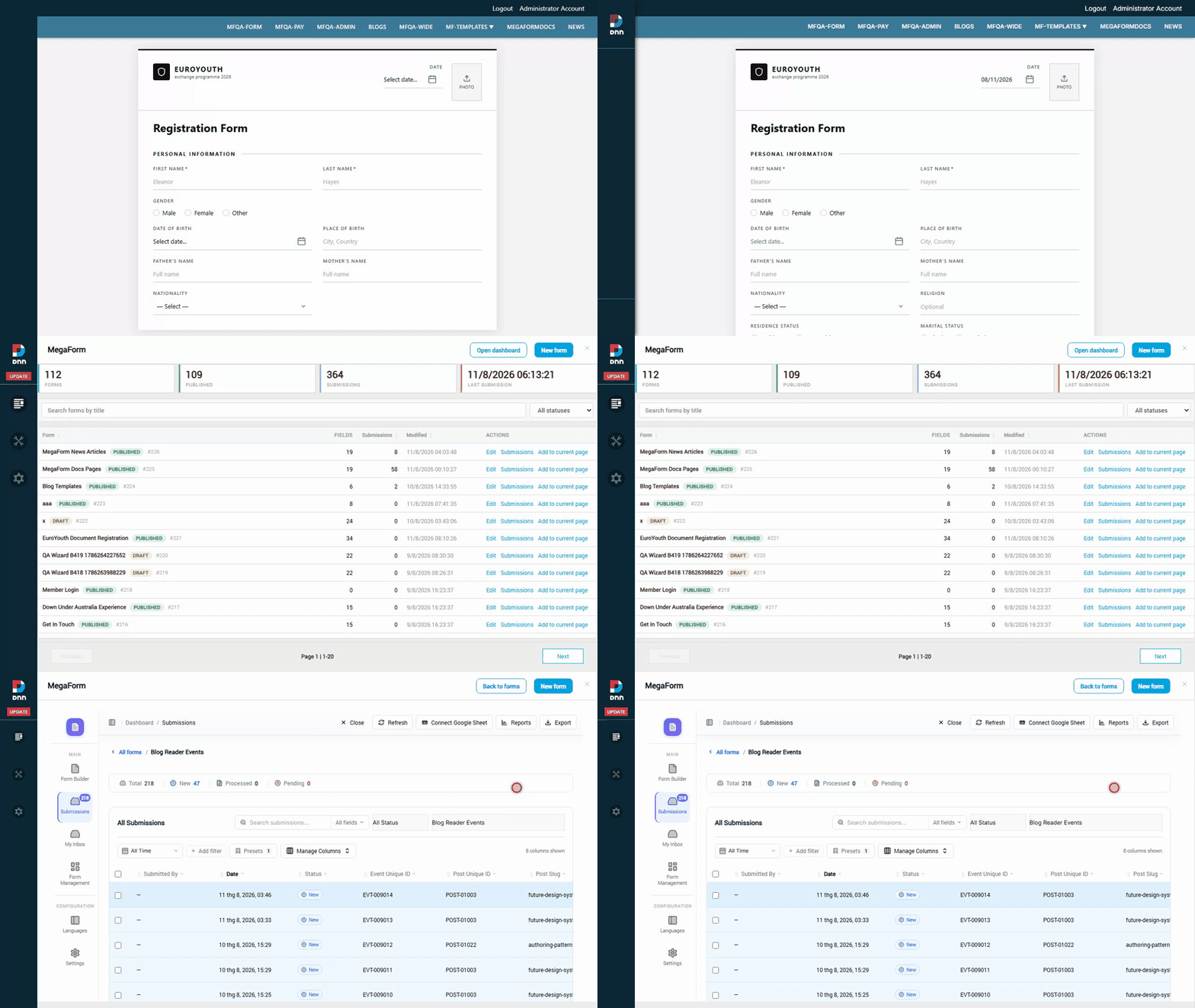
Click Submissions in a form's row. It opens the submission dashboard already filtered to that
form — the same screen as Submissions & My Inbox, with the filters, column
manager, export and Google Sheet connection.
A useful habit: sort by Submissions first, so the forms that actually have data are at the top.
Add a form to the page you are on
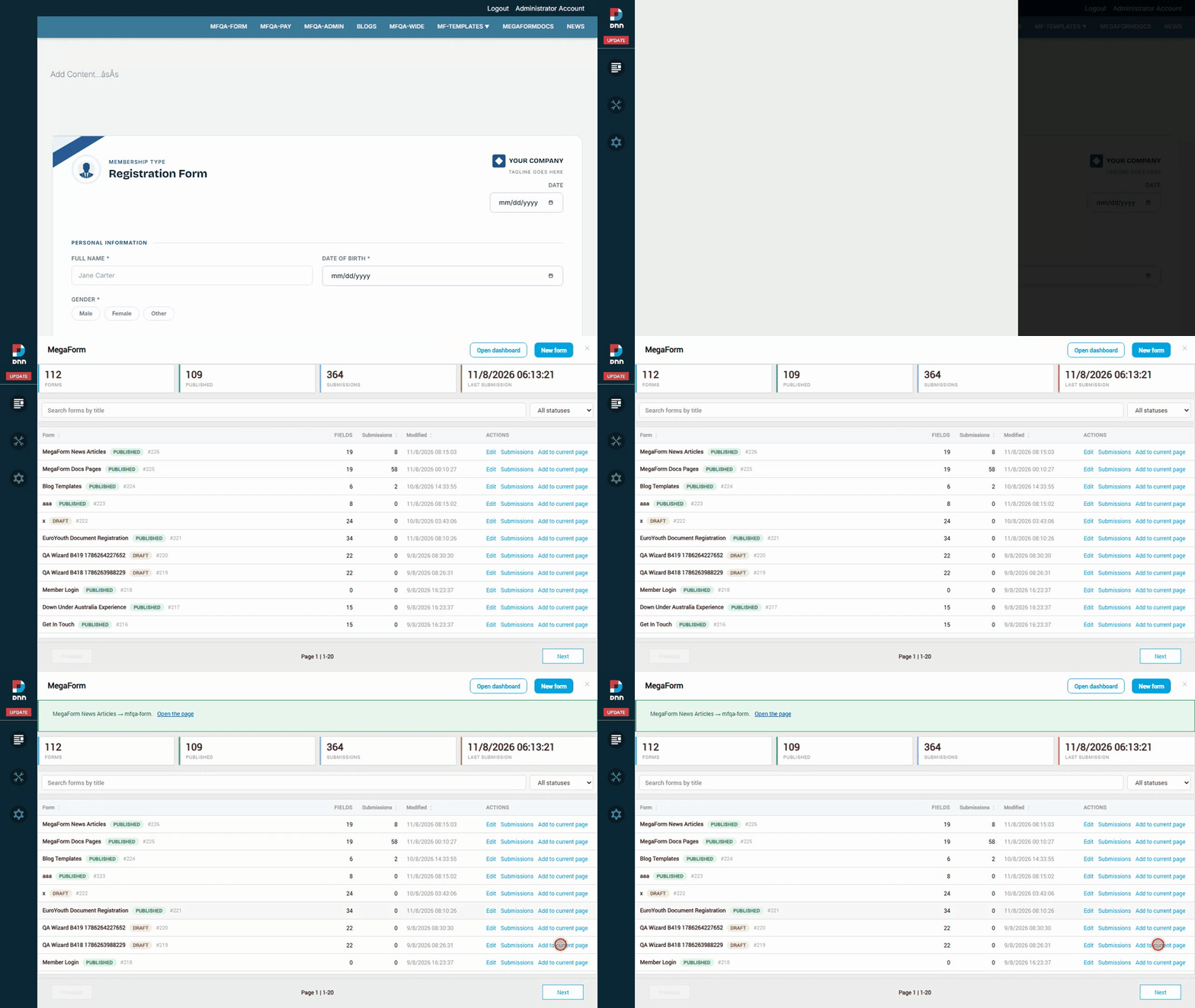
A form is not visible to visitors until a MegaForm module instance points at it on some page. The
panel puts one there without leaving the page.
- Open the page you want the form on, then open the panel.
- In the form's row, click Add to current page. The picker opens with the page you are on
already selected and marked you are here.
- Choose a target pane if the default
ContentPane is not where you want it.
- Click Add.
MegaForm adds a module instance to that page, titles it after the form, and configures it to render
that form — the same three settings the module's own Manage module screen writes. The
confirmation links straight to the page so you can check it.
You are not limited to the current page: every page you can edit is listed underneath, so the
picker is still a picker. If MegaForm cannot tell which page you are on — a host that does not
publish it, or the panel opened outside a page — the action falls back to its old name, Add to
page, and nothing is pre-selected.
Warning
The list includes system pages such as 404 Error Page. Read the page name before confirming;
undoing it means deleting the module from that page.
Open dashboard
Open dashboard goes to the full MegaForm admin screen — the portal-wide form list with its
stats, submissions, workflow inbox and settings.
Notes for administrators
- The list is paged and the page size is clamped on the server (ask for 9999 and you get 50), so
the panel cannot be used to pull the whole table in one call.
- Sorting, paging and the search box all go back to the server; nothing is filtered in the browser.
- Every string in the panel comes from
App_LocalResources/MegaForm.resx, so a translated resource
file localises it without touching code.