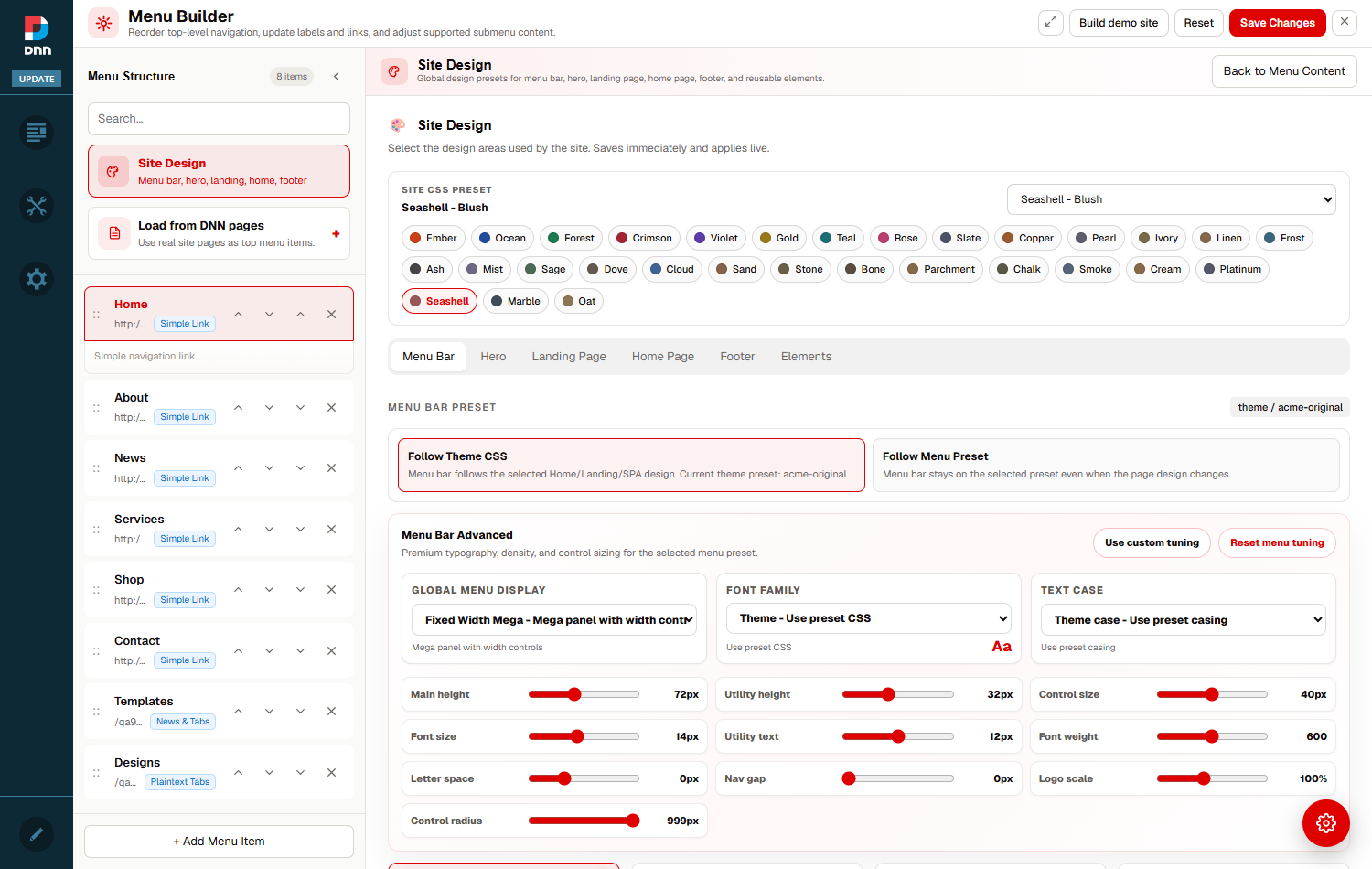
 The Site Design panel — Menu Bar, Hero, Landing Page, Home Page, Footer and Elements sub-tabs.
›How per-page design works
The AcmeSiteDesign tab setting explained.
The ACME skin includes a component called _site-design.ascx that reads a DNN tab setting named AcmeSiteDesign every time a page is rendered. This setting is a small JSON object:
{"menuBarMode":"preset","menuBar":"saas-dark","footer":"enterprise","hero":"default"}
When the skin finds this setting on the current DNN page, it uses the values inside it to select the menu bar style, hero section and footer variant for that page only. If the page has no AcmeSiteDesign tab setting, the skin falls back to the portal-wide setting.
The menuBarMode field controls how the menu bar is chosen:
"preset" — uses the exact preset named in the menuBar field (e.g. "saas-dark")."theme" — derives the menu bar from the currently active color/theme preset rather than a fixed preset name.
From the Site Design UI, you write this setting visually — there is no need to edit JSON directly. The Demo Site Builder also writes it automatically when it creates showcase and demo pages.
›Inside the Site Design panel
Six sub-tabs, each controlling a different visual dimension.
The Site Design panel is accessed from the Design tab in the Menu Builder toolbar (or via the Site Design card in the Menu Structure panel). It contains six sub-tabs:
- Menu Bar — 20 named navigation-bar presets. Each preset changes the visual appearance of the top navigation bar (background colour, typography, layout, accent style) while leaving the menu item structure and content untouched.
- Hero — 5 hero section variants (ACME Original, Dark Tech, Light Creative, Glassmorphism, Image Slider). The hero is the prominent section at the top of the Home page or landing page.
- Landing Page — around 30 landing-page template variants covering a wide range of design styles (Startup Launch, SaaS Hero, Brutalist, Aurora Gradient, and many SPA designs from ACMESPA1 and ACMESPAV3).
- Home Page — around 10 home-page design variants (ACME Home, Corporate Advisory, SaaS Platform, Modern Shop, Creative Agency, plus SPA home variants).
- Footer — footer style options. See the Theme & Footer Settings guide for the full list and descriptions.
- Elements — the Trusted Brands block style (Logo Carousel, Logo Grid, Showcase, Premium Proof, or Hidden), used in landing and home templates that include a partner/brand proof section.
Each sub-tab displays a card grid. Click Apply style on any card to activate that option for the current page (or portal-wide, depending on the scope). Some landing-page presets automatically switch the menu bar to a contextually appropriate style (for example, selecting the SaaS SPA landing auto-applies the SaaS Dark menu bar).
›Available menu bar presets
All 20 named menu-bar presets you can choose from.
- ACME OriginalLight nav with black utility bar and red accent
- ModernCompact white bar with pill navigation and icon actions
- MinimalRestrained compact header with clean spacing
- BoldDark dramatic bar with uppercase nav and strong contrast
- Elegant CenterLuxury centered-logo header with split navigation
- Corporate DarkExecutive dark theme with gold accents
- Corporate LightProfessional header with navy accents
- E-Commerce MinimalClean shopping header with minimal contrast
- Luxury BoutiquePremium black navigation with warm gold accent
- SaaS GradientModern gradient bar with vibrant CTA accents
- SaaS Dark ModeDeveloper-focused dark header with cyan signals
- Agency BoldCreative oversized typography with strong black rules
- Agency GlassTranslucent glass navigation with blur and indigo accent
- Healthcare TrustAccessible medical header with blue trust styling
- Finance PremiumDeep green financial header with emerald accent
- Media ModernNews-focused white header with red utility bar
- Education AcademicScholarly indigo navigation with gold rule
- Real EstateProperty-focused menu with photographic background
- Restaurant ElegantFine dining header with warm stone and amber tones
- German BauhausSystematic Bauhaus bar with sharp corners and accent line
›Step-by-step: give a page its own design
Apply a custom menu bar, hero and footer to a single DNN page.
-
Navigate to the page you want to restyle
In your browser, go to the DNN page you want to give a per-page design. The design you apply will affect this specific page only, not any other page on the site. If you want to set a portal-wide default instead, see the Theme & Footer Settings guide.
-
Open the Menu Builder
While viewing the page you want to restyle, open the Menu Builder using the Edit menu link in the eyebrow bar or the floating red gear button. The builder panel opens over the current page.
-
Switch to the Design tab
In the Menu Builder toolbar, click the Design tab (the third tab in the pill switcher). The Site Design panel opens, showing the six sub-tabs: Menu Bar, Hero, Landing Page, Home Page, Footer, and Elements.
-
Select the Menu Bar sub-tab
Click Menu Bar to see the grid of 20 navigation-bar presets. Each card shows the preset name, a short description, and an Apply style link. The currently active preset has a highlighted border. Browse the options — switching presets updates the live page behind the panel in real time so you can see the effect instantly.
-
Apply a menu bar preset to this page
Click Apply style on the preset you want. The page’s AcmeSiteDesign tab setting is updated immediately with "menuBarMode":"preset" and the chosen preset ID. The navigation bar above the page updates in real time to reflect the new style.
-
Choose a hero variant
Click the Hero sub-tab. The five hero variants are shown as preview cards. Click Apply style on your preferred hero. The hero section on the current page switches immediately. If the page has a hero section (typically the Home page or landing pages), you will see it change in the background.
-
Choose a footer variant
Click the Footer sub-tab. Select one of the available footer styles and click Apply style. The footer at the bottom of the current page updates to the chosen variant. Scroll down (behind the panel) to see it in place.
-
Optionally set landing page and home page designs
If the current page is a landing or home page, click the Landing Page or Home Page sub-tab and choose the appropriate template variant. These control the full-page layout and content structure of that type of page, not just the chrome.
-
Save the per-page design
The Site Design panel writes settings immediately when you click Apply style — changes are applied to the current page’s tab setting right away. To persist the change so it survives page reloads and is visible to all visitors, click Save Changes in the Menu Builder toolbar. The per-page design is now permanently stored in the DNN tab settings database for this page.
›The Design showcase — how it uses per-page design
The Designs menu section is built entirely on per-page design settings.
The Designs › Menu Styles, Designs › Footers and Designs › Heroes showcase sections are the clearest example of per-page design in action. Each showcase page in those sections is a normal DNN page with:
- A standard page body explaining the style being shown.
- A per-page
AcmeSiteDesign tab setting that hard-codes the specific menu-bar preset, footer variant, and (for Heroes) hero variant for that page.
When you visit the “SaaS Dark” page under Menu Styles, the skin reads its tab setting and renders the SaaS Dark navigation bar. When you move to “Healthcare Trust”, the page renders with the Healthcare Trust bar — without any CSS override, without any skin change, simply by reading a different value from the same tab-setting key.
The Demo Site Builder creates all of these tab settings automatically when it runs (via the ApplyShowcaseDesign() and ApplyPerPageDesign() methods). You can replicate the same approach manually for any page using the Site Design panel steps above.
›Common tasks
Practical recipes for typical per-page design scenarios.
-
Give a landing page a dark, product-focused navigation bar
Navigate to the landing page, open the Menu Builder, go to Design → Menu Bar, and click Apply style on SaaS Dark Mode. This applies the near-black bar with cyan signals — ideal for product and SaaS-focused pages. Save Changes to publish.
-
Make one page stand out with a luxury look
Open the Site Design panel for the page, set the Menu Bar to Luxury Boutique (premium black navigation with gold accent), and set the Footer to Financial (dark financial footer with product columns). This combination creates a high-end premium look for that page alone.
-
Reset a page back to the portal-wide defaults
Open the Site Design panel for the page, set the Menu Bar sub-tab, and choose ACME Original with mode set to Theme rather than Preset. Set Footer to ACME Original as well. This reverts the page to following the portal-wide theme and footer settings.
-
Apply different designs to all 10 pages in a section quickly
For bulk per-page design, use the Demo Site Builder. It applies a different preset to each page it creates automatically (cycling through all available presets). For manual pages, you need to visit each page and set the design individually via the Site Design panel.
-
Check what design a page is currently using
Open the Menu Builder on that page and go to the Design tab. The currently active preset has a highlighted card border. Alternatively, check the DNN page settings in the DNN admin interface — the AcmeSiteDesign value is stored as a Tab Setting named exactly that.
›Troubleshooting
| Problem |
Likely cause |
Fix |
| Changing a preset in the Site Design panel has no visible effect. |
The window.__acmeSiteDesignAPI is not initialised on this page. |
Ensure the AcmeSkin is active on this page and the site-design-loader JavaScript has loaded. Check the browser console for errors. If the portal skin is not AcmeSkin, per-page design settings will not be read. |
| Per-page design is visible in the builder but reverts after a full page reload. |
The tab setting was applied to the live session only (cookie), not saved to the DNN database. |
Click Save Changes in the Menu Builder toolbar. The tab setting must be written to dbo.TabSettings via the DNN API to persist across sessions and for all users. |
| A showcase page shows the wrong menu bar or footer. |
The page’s AcmeSiteDesign tab setting is missing or malformed. |
Open the Site Design panel for that page, confirm the intended preset is applied, and save. Alternatively, re-run the Demo Site Builder which will re-apply the correct settings via ApplyShowcaseDesign(). |
| All pages on the site changed after applying a preset, not just the current page. |
The save API wrote to the portal-wide setting instead of the tab-level setting. |
Check whether the Site Design API is operating in portal-scope or tab-scope mode. The per-page scope is set by passing the correct tab ID to the save endpoint. Consult the skin configuration to ensure tab-level scoping is active. |
| Some menu-bar presets are not listed in the Design panel. |
The compiled JavaScript may be from an older build that predates newer presets. |
Ensure the latest version of the ACME skin JavaScript bundle is deployed. The full set of 20 presets (including German Bauhaus and Parchment) was added in a later release. |
›Frequently asked questions
-
Does per-page design apply to every visitor or just admins?
Every visitor. The AcmeSiteDesign tab setting is read by the server-side skin at render time, so the chosen menu bar, hero and footer are served to all visitors, not just administrators.
-
What takes priority — per-page or portal-wide design?
Per-page always wins. When a page has an AcmeSiteDesign tab setting, the skin uses it in preference to the portal-wide setting. If the tab setting is absent or empty, the skin falls back to the portal-wide AcmeSiteDesign portal setting.
-
Can a child page (sub-page) have a different design from its parent?
Yes. Design settings are entirely independent per page. A child page under “Services” can use a completely different menu bar and footer from the “Services” parent page. There is no inheritance.
-
Can I programmatically set per-page designs on many pages at once?
Yes — by running the Demo Site Builder and selecting the target pages. The builder calls TabController.UpdateTabSetting(tabId, "AcmeSiteDesign", json) for each page it builds. You can use the same DNN API in custom code to bulk-apply settings.
-
Does the chosen landing page template affect the page body content?
The landing-page and home-page options in the Site Design panel control the visual layout template rendered by the skin. They do not replace the Text/HTML module content on the page — they change the skin-level chrome and section layout that wraps the module content.
-
Can I mix a dark navigation bar with a light footer on the same page?
Yes, absolutely. Menu bar, hero and footer presets are completely independent. You can freely combine any menu bar with any footer. The showcase pages in the Designs section are good examples of intentional combinations selected to demonstrate each style clearly.
-
This is exactly how the Designs showcase works — right?
Correct. Every page under Designs › Menu Styles uses a per-page AcmeSiteDesign setting to display its corresponding menu bar. Every page under Designs › Footers uses one to show its footer. They are ordinary DNN pages — the only thing special about them is this tab setting.